Measure
Keywords
Last updated
Keywords (Keywords on Google on some screens) shows where your site and your competitors rank on Google, search by search, in one trading zone at a time. In this chapter a search means a keyword: a phrase people type into Google.
In the sidebar, MEASURE › Keywords opens it. The page has three tabs: Overview, Keywords and Pages. Find keywords looks up new searches to add to the list.
The header shows the trading zone, when the list was last updated and how many searches are tracked every week. It also holds How it works, Competitors, Settings, the export button and Update.
Zones and updates#
Each trading zone has its own list of searches. The zones come from AI Reputation, called AI Visibility on this screen: a zone appears once a product has a trading zone with a country and the project has a website. Choose the zone at the top of the page. Google's data for a zone is the country's: searches a month and positions are not split by city.
The first time, click Set up. Poliris reads:
- the searches your site ranks on in this zone, up to 1,000, and up to 300 more within reach (positions 11 to 20);
- the keywords of your products and of their AI questions, from AI Reputation, for this zone.
Each search comes with its position, its date, searches a month, difficulty and visits. It takes a few minutes: you can leave the page, and the task tray tells you when it is done. One zone updates at a time.
Update reads Google's data again for every search of the list. New searches your site now ranks on join the list, and Moved up, Moved down and the Overview changes compare this update with the one before. If nothing new can come back since the last update, Poliris tells you before running it. The price is shown before you confirm: it is charged when the update starts and given back if it fails.
In Settings, Update the list is set to Every month or Off. Google's data for most searches changes about once a month, so a weekly update would show the same. Searches you track are checked every week (see Checking and tracking).
Overview#
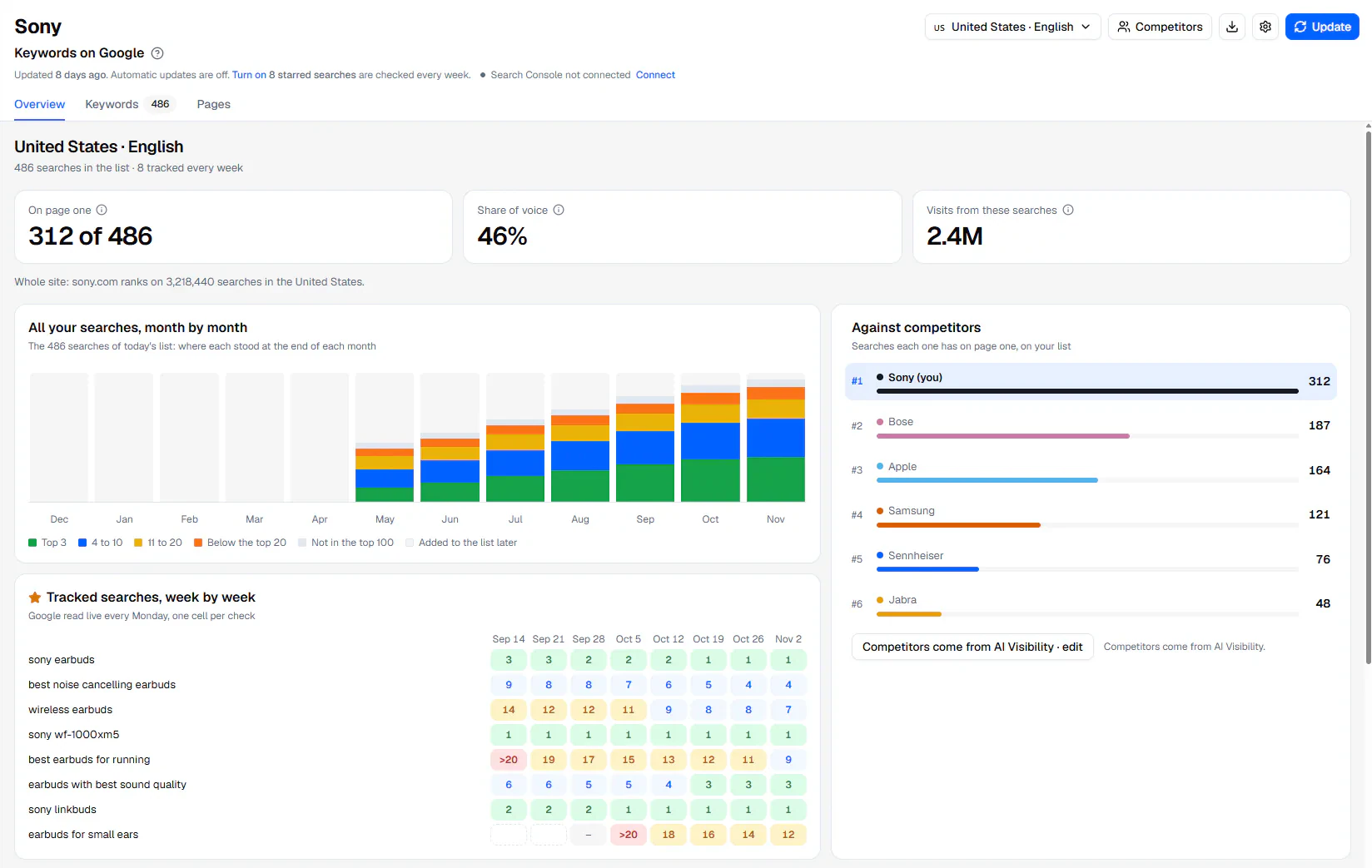
The Overview sums up the list of the zone:
- On page one: the searches of the list where your site is in the top 10;
- Share of voice: your share of the estimated clicks on these searches, among you and the competitors you compare;
- Visits from these searches: an estimate, from searches a month and the share of clicks at the latest position. Real clicks replace it once Search Console is connected.
All your searches, month by month shows where each search of today's list stood at the end of each month: top 3, 4 to 10, 11 to 20, below the top 20, or not in the top 100. Against competitors shows how many searches of your list each one has on page one. Tracked searches, week by week shows the weekly checks of the searches you track.
Next steps lists the five things that would move the most this month, each with its action: a Quick win (Optimize the page), a Gap (Write an article), a search that Dropped (Update the content) or one Worth tracking (Track every week).
When a figure is compared with the time before, only the searches present both times count: adding or removing a search never moves a figure by itself.
Keywords#
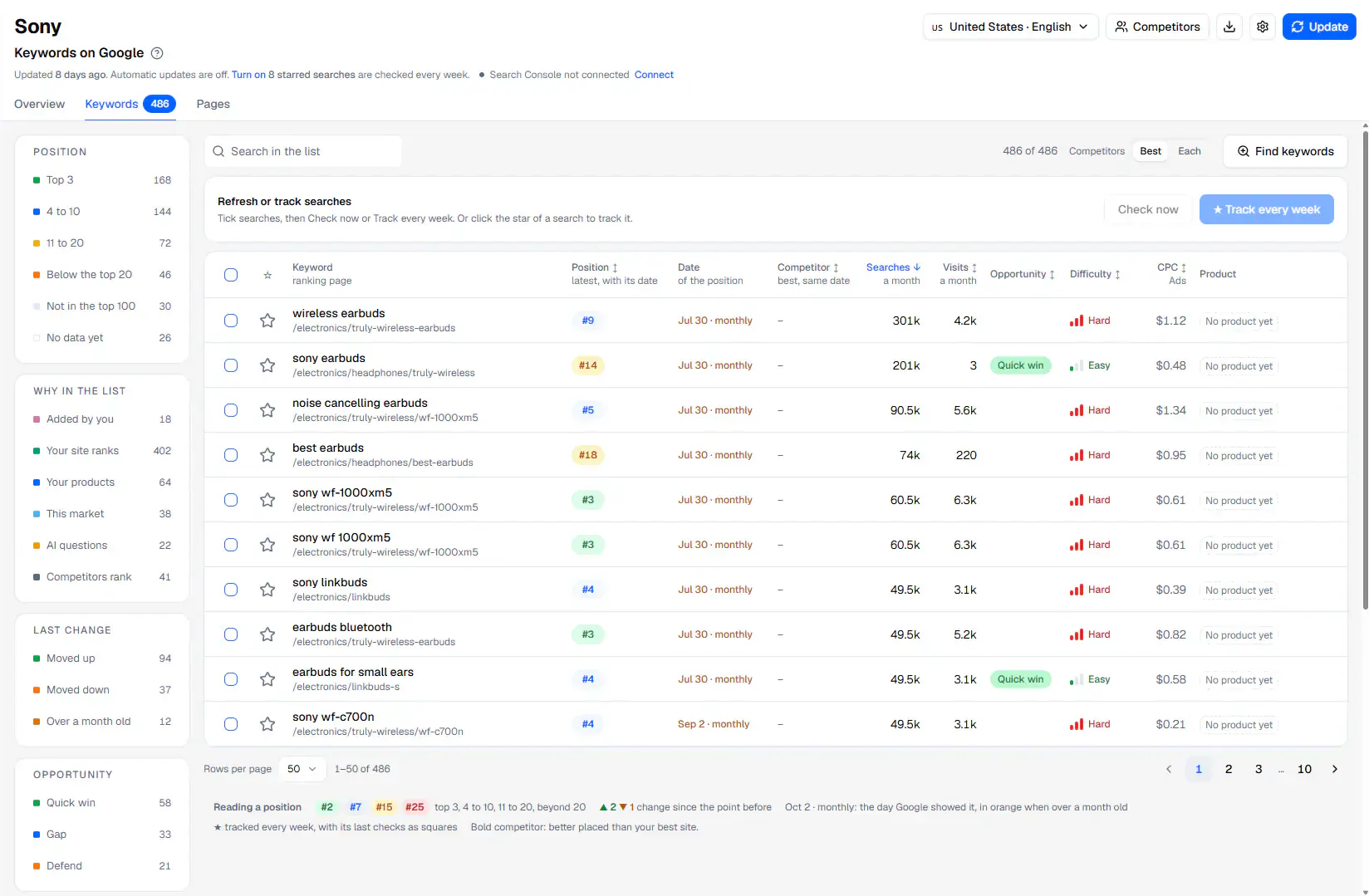
The Keywords tab lists the searches of the zone, one row per search:
- Keyword, with the page of yours that ranks on it;
- Position: the latest one known, with its date (in orange when Google showed it more than a month ago) and its change since the point before;
- Competitor: the best placed competitor (Best), or one column per competitor you compare (Each);
- Searches and Visits a month, Opportunity, Difficulty, CPC and the AI Reputation Product the search belongs to.
Difficulty, out of 100, is how strong, in links, the ten pages on page one are. The opportunities are Quick win (position 4 to 20 on a search that is not too hard), Gap (a competitor is in the top 10 and you do not appear) and Defend (you are in the top 3 and a competitor is right behind).
Filters narrow the list by position, why the search is in the list, last change, opportunity, competitors, tracking and product. A search is in the list because you added it, your site ranks on it, it belongs to one of your products, it is searched in this market, it is behind one of your AI questions, or a competitor ranks on it. Search the list with Search in the list, and export it as CSV with the export button.
Checking and tracking#
Tick searches, or click the star of a row, then:
- Check now reads Google live from the zone, once, with results in about a minute: your page and your competitors' places in the top 20. Each search uses one of your 50 live checks of the month, and the price is shown before you confirm. The row then reads Checked today.
- ★ Track every week checks the search live every Monday; clicking its star does the same. Tracking costs credits every month, shown before you confirm. Stop tracking keeps the history.
A position Google showed more than a month ago is flagged Over a month old: select those searches and check them now.
The panel of a search#
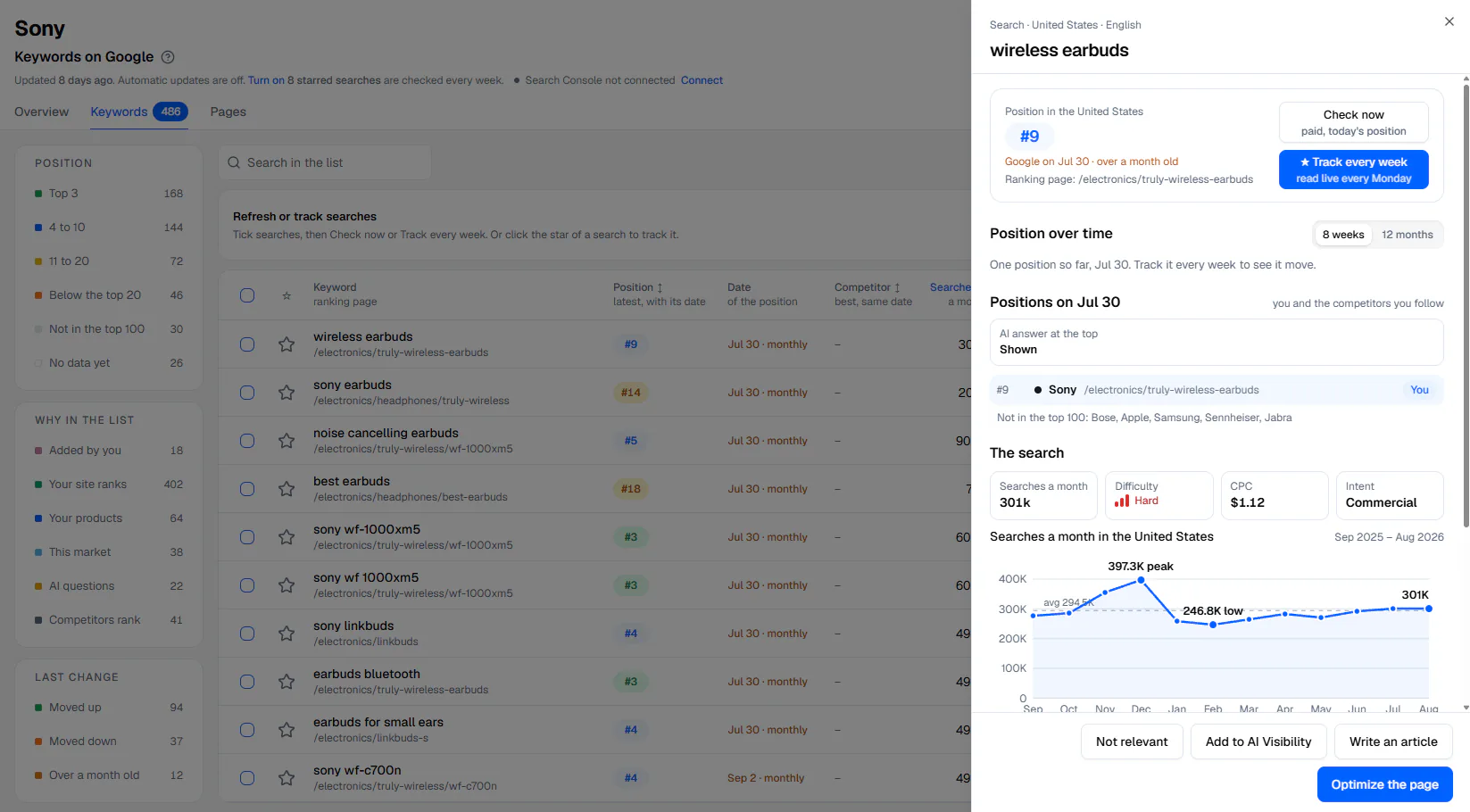
Click a search to open its panel: its position over time, from the monthly updates and the checks; the positions of you and your competitors; what Google shows on the page, such as an AI answer at the top, a map or a questions block; searches a month, difficulty, CPC and intent; and why it is in your list. The panel has the same Check now and Track buttons.
Write an article opens Content generation on this search, and Optimize the page opens the optimizer on the page that ranks. Add to AI Visibility turns the search into a question of a product’s AI Reputation audit, asked of the AI assistants with its other questions; reword it first the way people would ask it. Not relevant leaves the search out of the list and of the next updates, with every search containing its words. Bring it back from Settings, under Left out as not relevant, with Restore.
Pages#
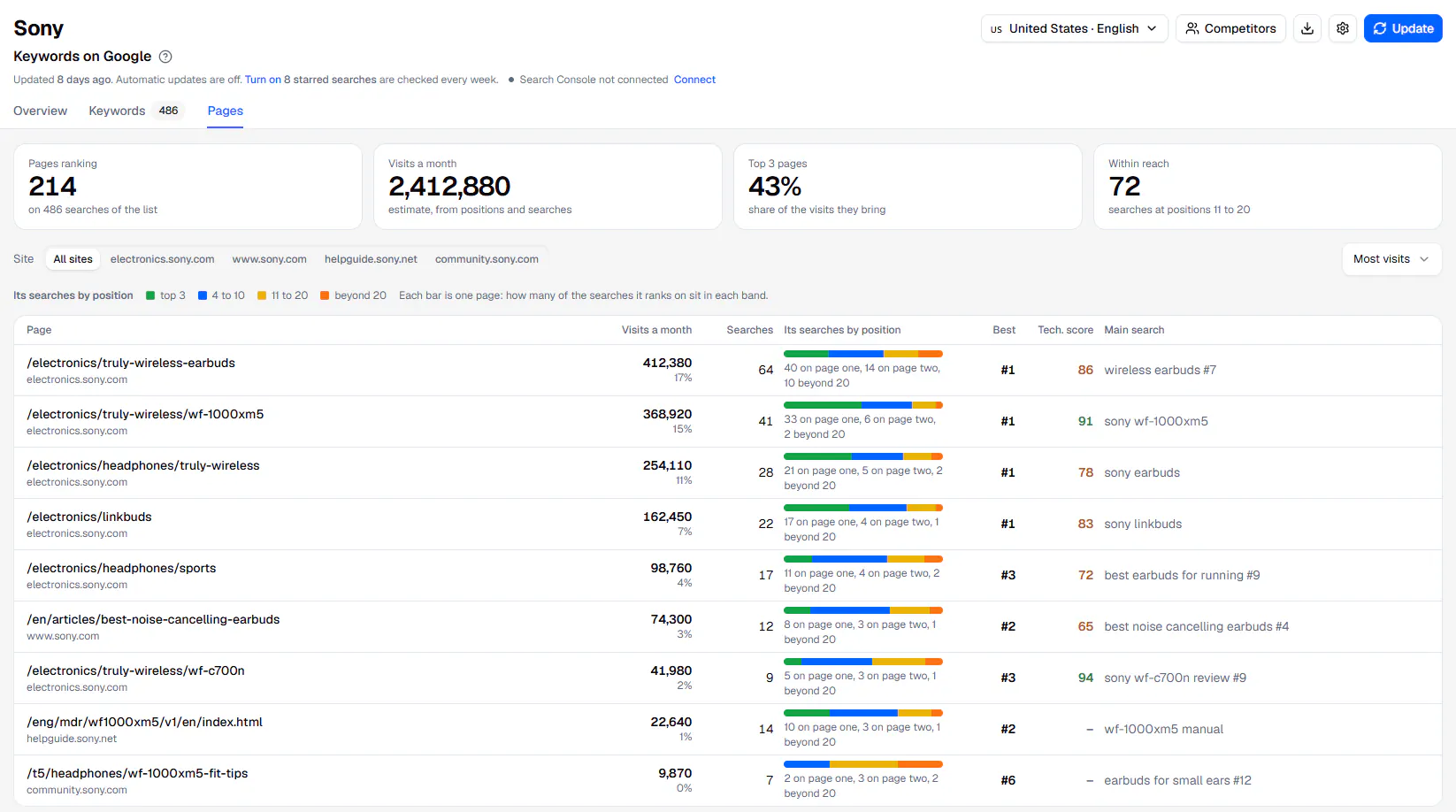
The Pages tab shows the same data page by page: Pages ranking, Visits a month (an estimate from positions and searches), Top 3 pages (the share of the visits they bring) and Within reach (searches at positions 11 to 20).
Each page shows how many of its searches sit in each position band, its visits a month, its number of searches, its best position, its main search and its Tech. score, the page’s score out of 100 in the latest technical audit of your site. Filter by site, sort by most visits, most searches or most within reach, and click a page to see its searches. With Search Console connected, real clicks replace the estimate.
Find keywords#
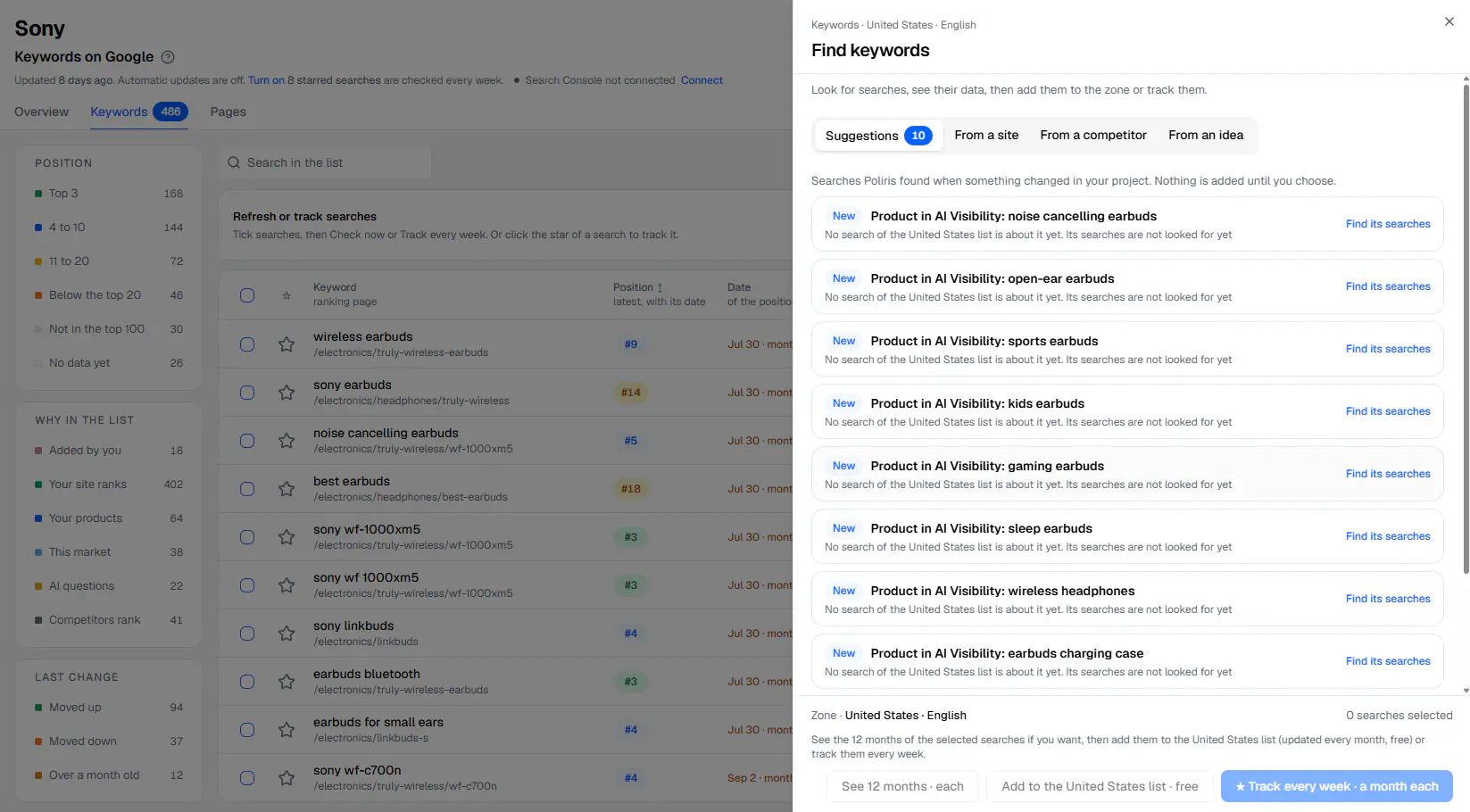
Find keywords opens a drawer to look for searches in the zone, see their data, then add them to the list or track them. It has four tabs:
- Suggestions: searches Poliris found when something changed in your project, such as a product in AI Reputation, the searches behind your AI questions or a site in the technical audit;
- From a site: the searches a page ranks on (This page) or the whole site ranks on (The whole site), yours or a competitor's;
- From a competitor: every search a competitor is in the top 20 for;
- From an idea: one idea gives up to 100 searches around it, and several lines are each looked up.
Searches that look off your topic or are in another language come last, labeled. Select searches to see their 12 months of Google history (up to 20 at a time), then add them to the list, which is free, or track them every week, which costs credits every month. A lookup's price is shown on its button; a source pulled before opens free. Lookups also have a daily limit.
Competitors and settings#
Who is a direct or an indirect competitor is decided once, in AI Reputation, product by product. In Competitors, you only choose who is compared with you, up to 12. The compared ones come first, then the others, those ranking on most of your searches first. Check who ranks on your searches reads your 200 most searched searches to see who ranks on them; its price is shown on the button, and it is free again the same day.
Settings holds the update schedule (see Zones and updates) and the searches left out as not relevant, each with Restore.
On the free plan#
On the free plan, Keywords shows your 100 most searched searches, or the 20 searches of your AI Reputation onboarding, and your first update is free. Scheduled updates do not run. Unlock all shows the plans: a plan opens every search, every update and every lookup. See Credits and plans.