Get Started
Getting Started
The first analysis is free. You enter your website, check what Poliris found, pick a few settings and choose the questions to ask. Poliris then runs the analysis, audits 100 pages of your site and prepares a first roadmap.
Quickstart: your first analysis
The onboarding has four steps. Your progress is saved on the server at every step: if you close the tab, you go back to the same step the next time you sign in.
Create your account
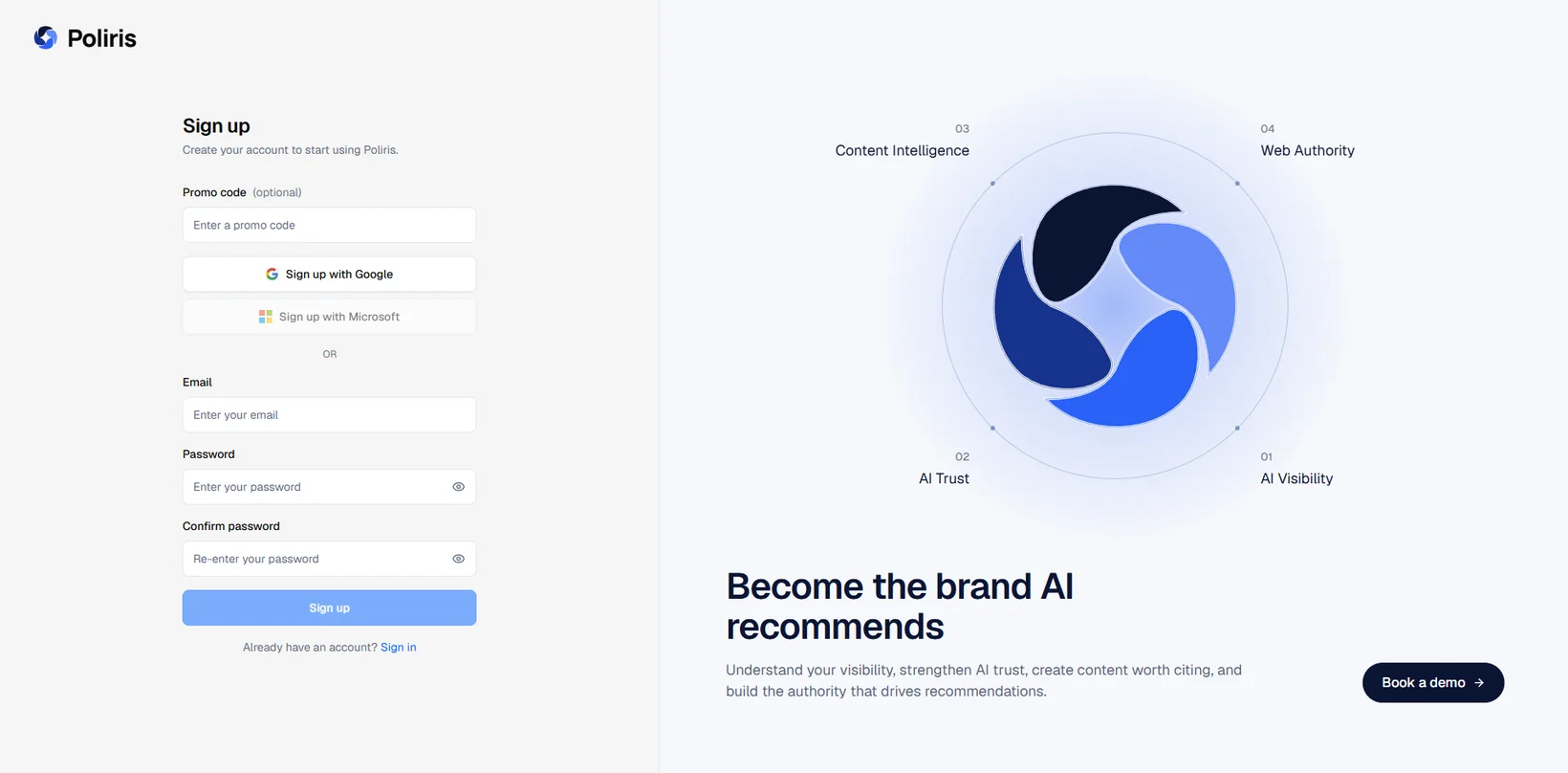
Go to the sign-up page and use Sign up with Google, or an email address and a password of at least 8 characters. With an email address, Poliris sends you a 6-digit verification code to type in before your account is created. If you received a promo code, enter it in the field at the top of the form: the extra credits are added when your account is created.
You can also start from the Poliris website by typing your domain in the form on the home page. The onboarding opens with your website already filled in and asks you to create a free account before the analysis starts.
-
Step 1: Add your website
Type your domain (for example
example.com) and click Proceed. Poliris looks up your brand and shows a card with its logo, a Brand name and a short Summary. Both are written by AI from your site: click Edit details to correct them. The flag at the top right sets the language of the project, English or French.Click Next to create the project. Poliris starts detecting your products in the background while you go on.
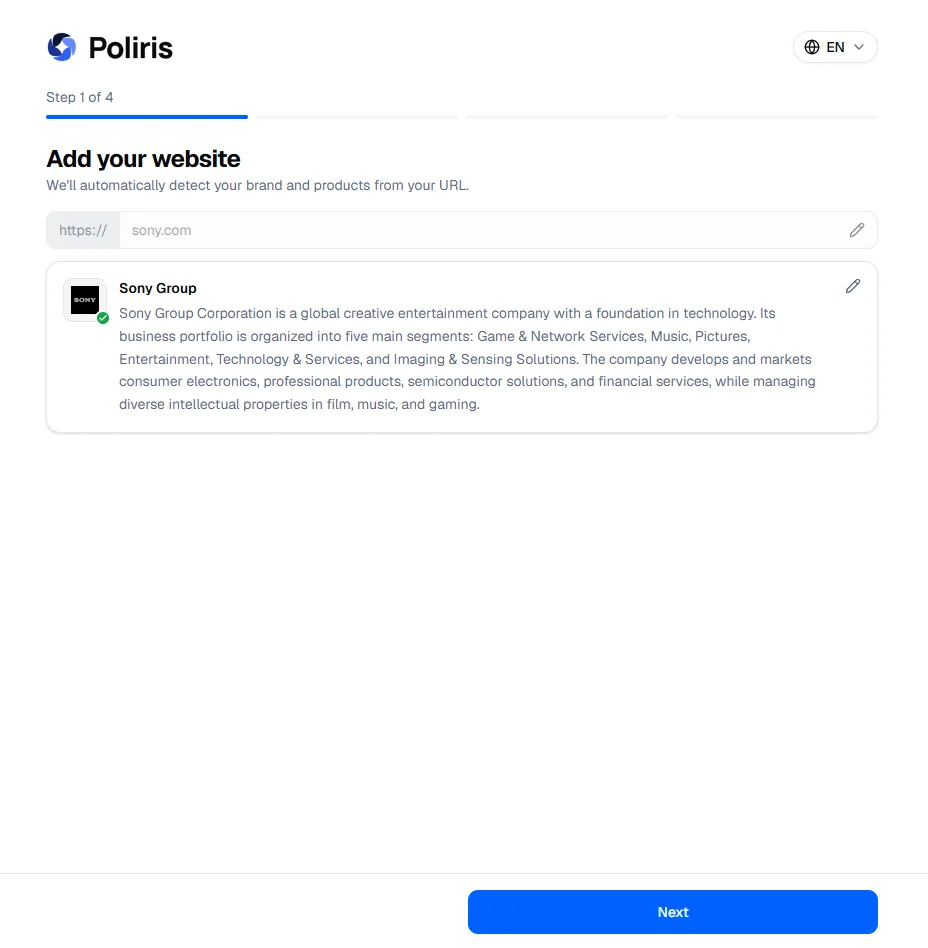
Step 1. Poliris finds your brand name and writes a short summary you can edit. -
Step 2: Help us tailor your experience
Four optional questions. You can pick several answers per question, or skip them all.
- Who are your customers? B2C, B2B or B2G.
- How do you sell? Online or Physical.
- What is your role? Founder-CEO, Marketing, Brand / Communications, Agency, Freelance or Other.
- What is your main goal? Monitor sentiment, Track visibility, Compare products or Follow competitors.
Your answers about customers, sales channel and goal help Poliris describe the people who buy your product (personas). Those personas are used to write questions that sound like real customers.
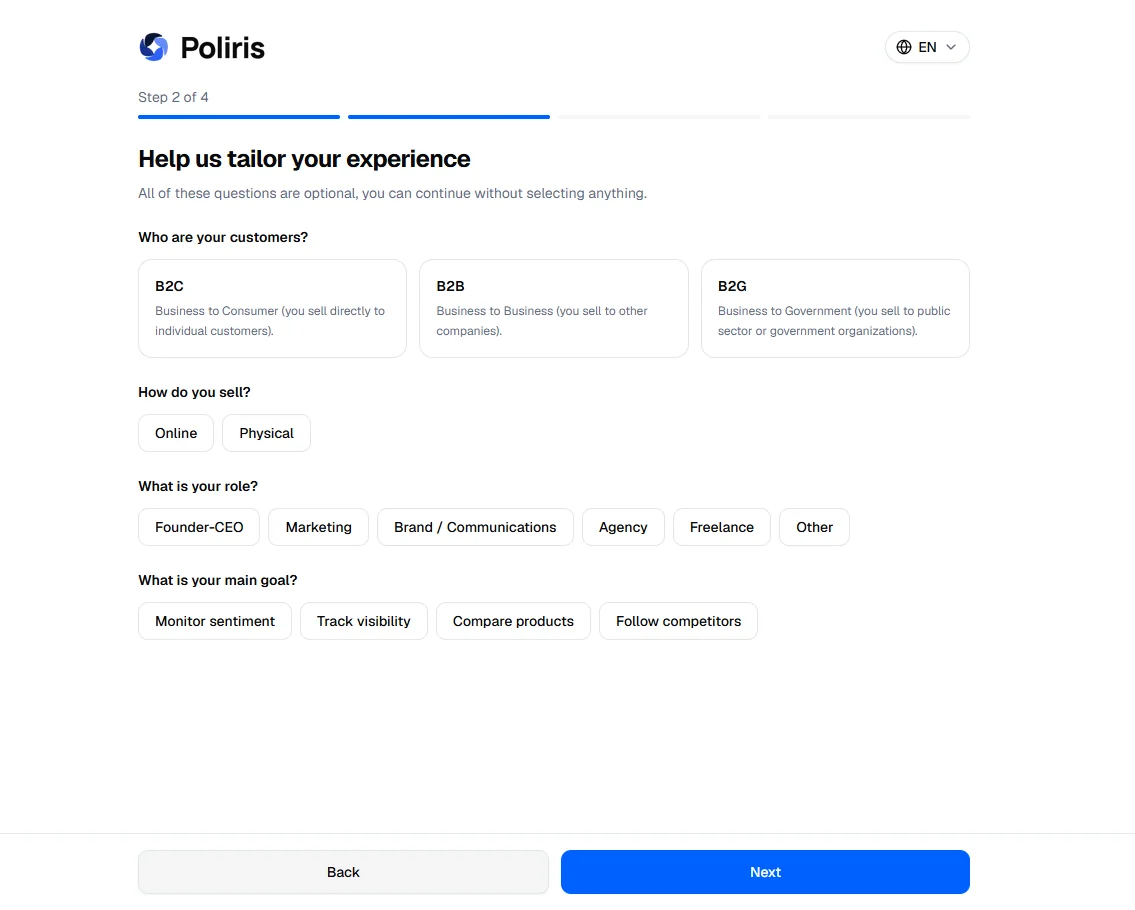
Step 2. All four questions are optional. -
Step 3: Choose your product and configure the analysis
Poliris lists the products it found on your site, at most five. A product here is a line of business, described the way a buyer would ask an AI assistant about it; variants of the same offer are grouped. The main one is selected and marked Main. The first analysis covers one product: pick it in Choose your product, or use + Add new product if the one you want is missing.
Then set the scope of the analysis:
- Trading zone The country or region where you want to track visibility. Poliris suggests zones for the product; Search trading zone lets you add any place from a map.
- Language The language the questions are written in. The list follows the trading zone.
- LLM The AI assistants to question. Select exactly two of the Free Models, which are the public web interfaces of the assistants (ChatGPT, Gemini, Perplexity, Google AI Mode, Google AI Overview). API models are available with a paid plan.
- Topics The themes your brand is measured on, such as quality, value for money or customer support. Poliris pre-selects up to four. Keep between three and five; More topics opens the full list with a search.
Click Next. Poliris writes the questions and starts the free technical audit of your site at the same time.
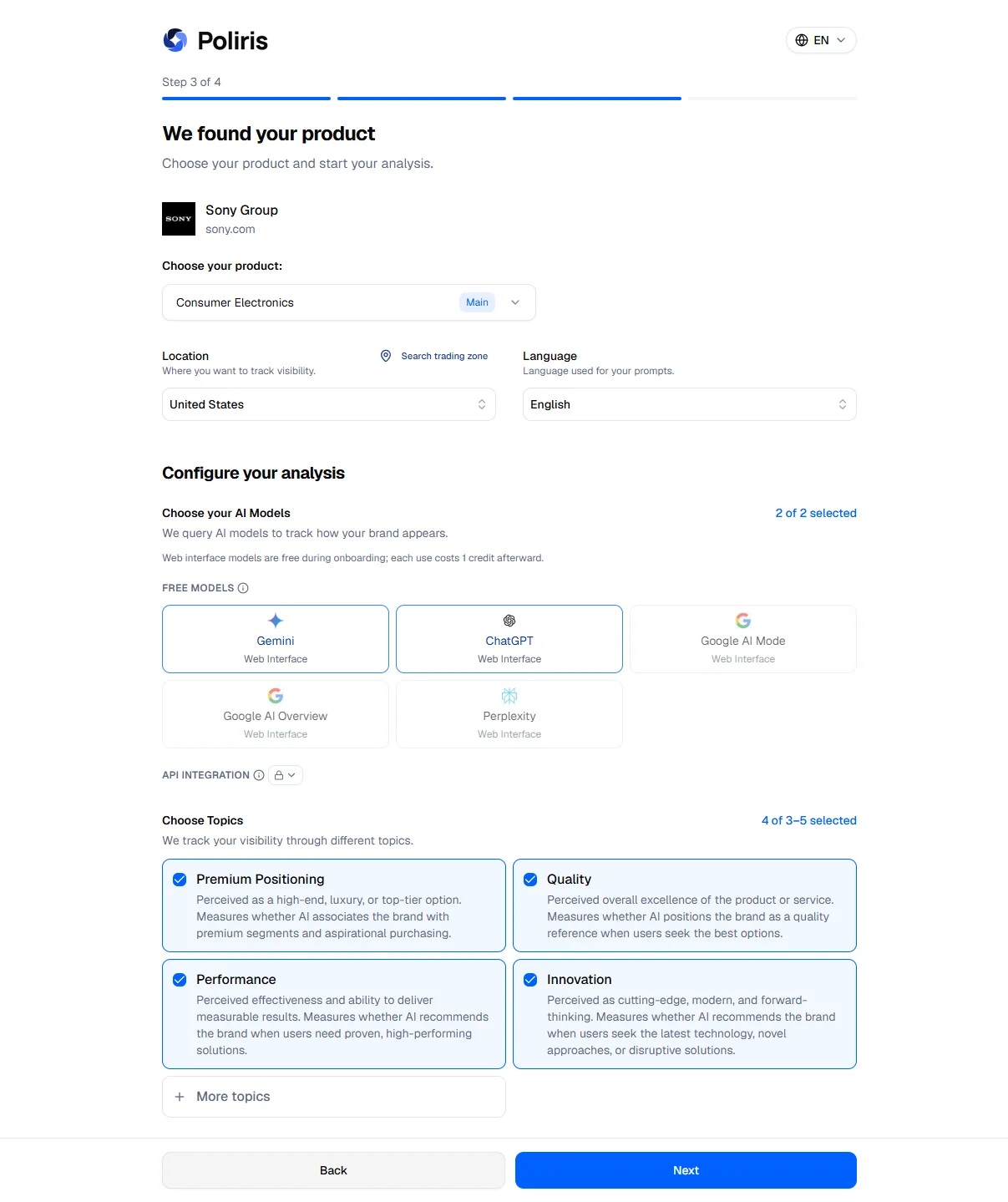
Step 3. One product, one trading zone, two AI models and three to five topics. -
Step 4: Select your prompts
Poliris writes about 20 questions (prompts) for the product and pre-selects 10. Each question carries one or more topic tags and a traffic icon. Keep between 5 and 10 questions.
- Traffic shows how much people search for the subject of the question on Google, compared with the other questions in the list (high, medium or low). A grey dash means no search volume was found, which is not the same as low.
- Add Prompt lets you add your own questions, one at a time or several at once. With Single, you pick the topics; with Bulk, Poliris suggests topics for each line and you can change them. A question must not contain your brand name: naming the brand would bias the answer.
- The topic pills at the top filter the list.
Click Start analysis.
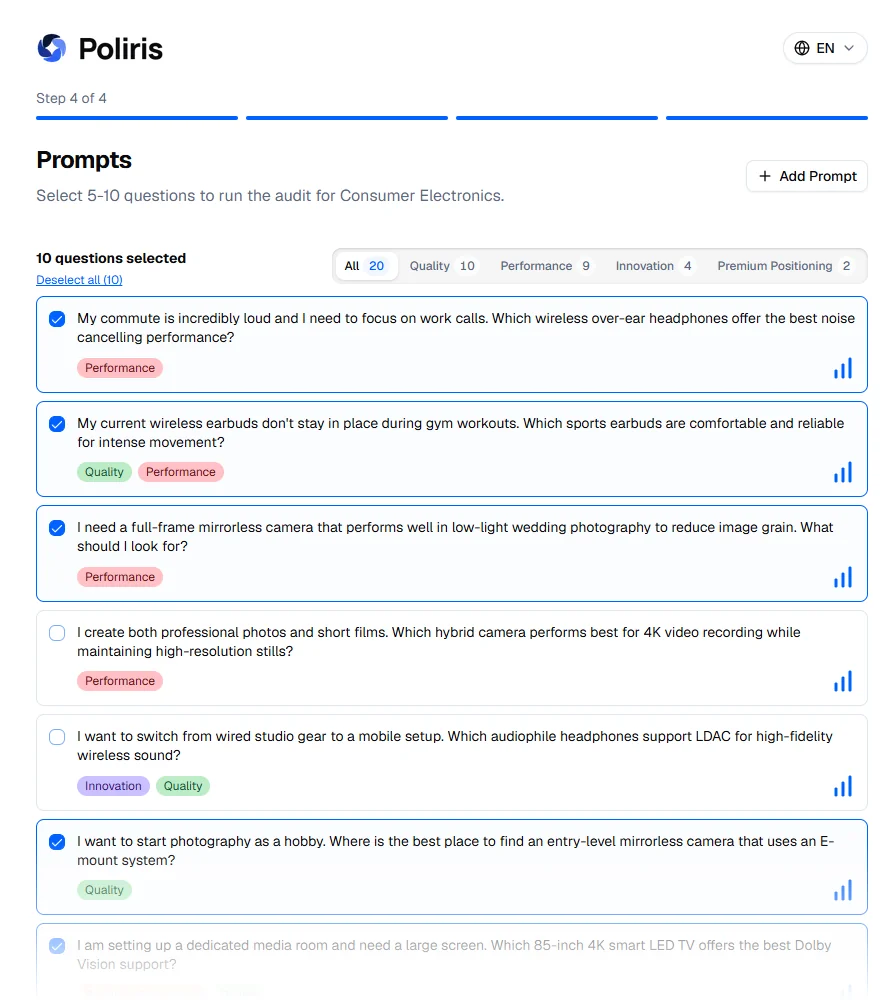
Step 4. Ten questions are pre-selected; you can keep between five and ten.
What happens after you click Start analysis
A progress screen stays open while Poliris sends every selected question to the two AI assistants in your trading zone, reads the answers and identifies your competitors. With 10 questions and 2 models, that is 20 answers to analyze. If the analysis fails, a Retry button starts it again with the same selection.
When the analysis is finished:
- Poliris creates a first SEO plan for your product, over 12 weeks at 5 hours a week, and opens the Roadmap. The plan takes 30 to 90 seconds to generate and waits for the technical audit if it is still running.
- The technical audit of 100 pages appears under Sites in the sidebar.
- Your product audit is under AI Reputation in the sidebar.
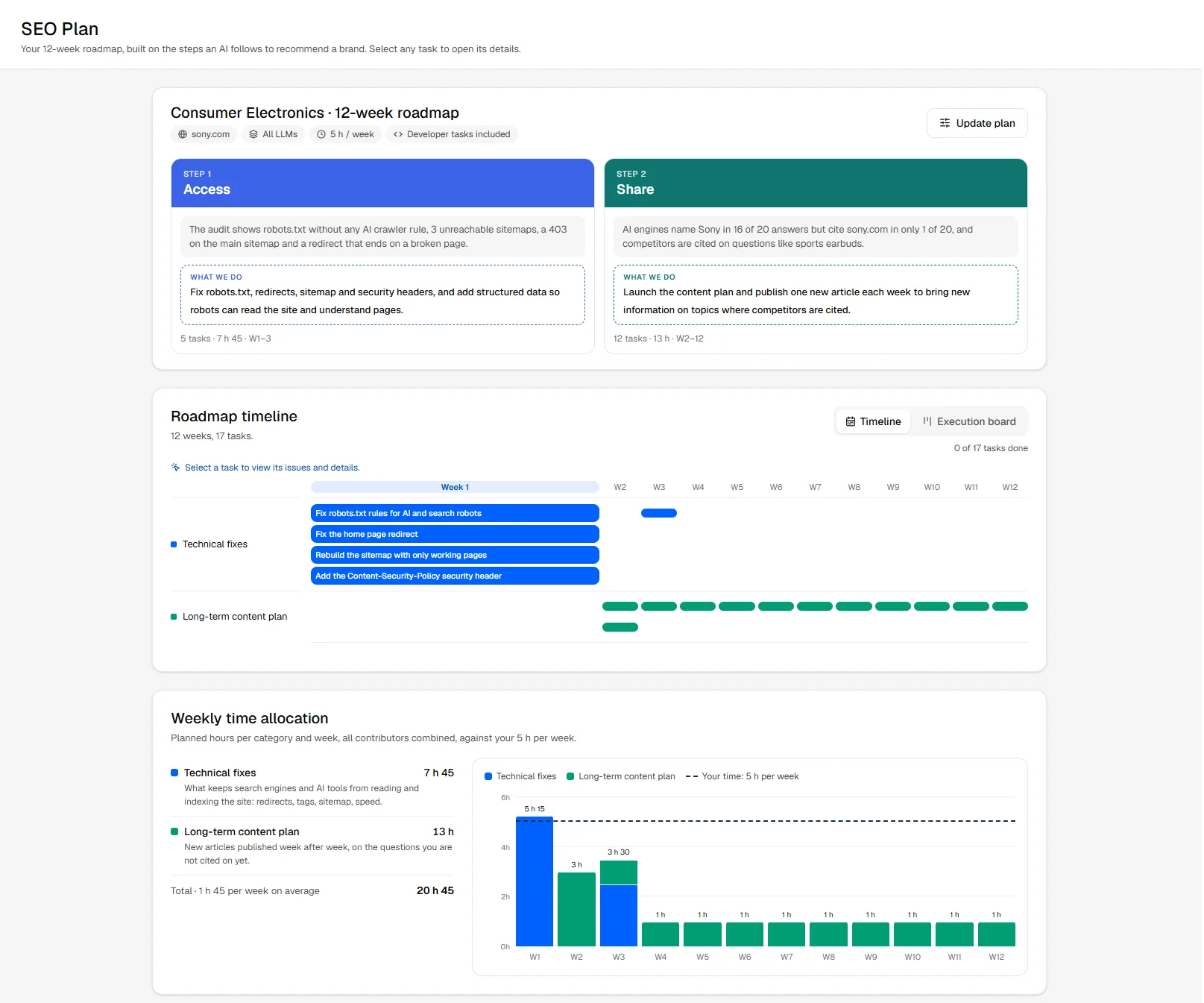
Adding another project
A project is one brand and its website. To add one, open the project selector at the top of the sidebar and click Add new project. Enter the website URL, check the brand name Poliris found, and click Proceed. Poliris builds the brand structure in the background, then opens the AI Reputation Overview where you set up and run the first audit. There is no onboarding wizard and no free analysis for additional projects. Adding a project requires at least 100 credits in the workspace.