Measure
Technical Audit
The technical audit crawls your website with the Poliris crawler and runs 151 tests on the site and its pages. It tells you whether search engines and AI crawlers can reach your pages, read their content, and find that content worth quoting.
The three stages
Every test belongs to one of three stages. A page has to pass the first stage before the next ones matter.
Page Access
Can crawlers reach the page? Status codes, redirects, robots.txt, sitemap, canonical tags, links, URL structure and speed.
Content Access
Can they read it? Title, meta description, headings, structured data, images, social tags, language tags, analytics.
Content Quality
Is it worth quoting? Depth, readability, structure and how the page fits with the rest of the site.
Your sites
In the sidebar, MEASURE › Sites opens My site & socials, the list of websites in the project. Sites are split into Owned (sites you manage: you can audit them and apply fixes) and Non-owned (sites you audit without managing them, such as a competitor or a partner). Each card shows the health score, the date of the last analysis and the progress of a running crawl. Expand a card to see its health pipeline, its Google connections and the Issues and Refresh buttons.
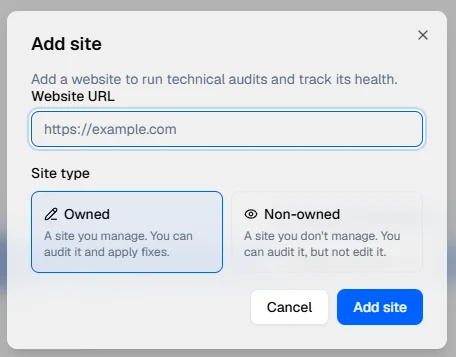
To add a site, click Add site, enter the URL and choose the site type. No audit starts until you click Run audit on the new card.
Running an audit
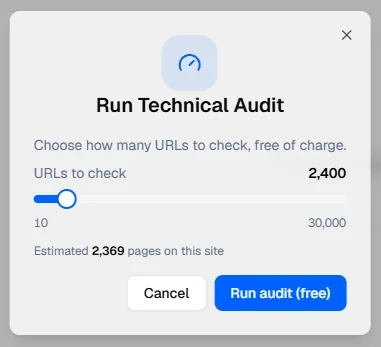
Click Run audit on a site card, or Re-crawl at the top of Site Overview. A window asks how many URLs to check: from 10 to 30,000. For a first audit, the slider starts at the estimated size of your site, based on its sitemap. The window shows the estimated cost, about 0.05 credit per page, and the slider stops at what your balance covers.
A re-crawl keeps the page limit of the previous audit and the slider cannot be moved, so that scores stay comparable from one audit to the next. This includes the onboarding audit: its re-crawls also check 100 pages.
- While the crawl runs, the site screens show the progress and the pages crawled so far, marked as partial results.
- Stop audit discards the run and refunds the credits spent; your last complete audit stays available.
- If the site blocks the crawler (Cloudflare, DataDome, Akamai and other anti-bot services), cannot be reached or returns errors, Poliris says so on the site card and refunds the run. Allowing the Poliris crawler in your protection settings usually solves it.
- History opens the list of past audits; Export on Site Overview downloads the audit as an Excel file.
On the Free plan, the technical audit is limited to the 100-page audit run during onboarding. Running more audits requires a paid plan.
Site Overview
Site Overview is the summary of one audit for the whole site. It has two tabs, Overview and Issues, and a pill at the top to switch to Page Explorer.
The header shows the site URL, the date of the last update and the number of pages crawled, with the Export, History and Re-crawl buttons. The GSC and GA4 chips at the top right show whether Google Search Console and Google Analytics are connected (green) or not (red).
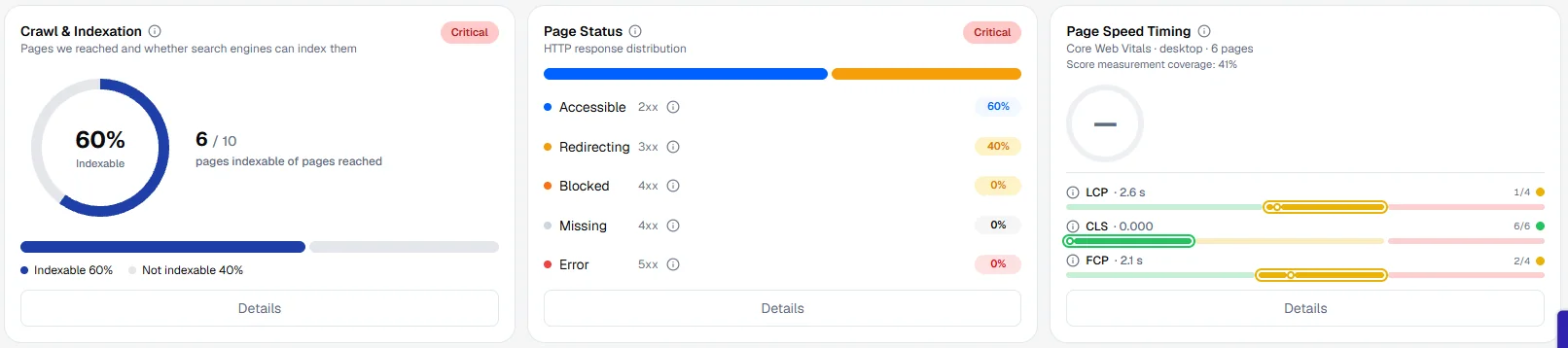
The three cards at the top can show raw figures or a chart across audits; the switch on the tab row changes all three.
Crawl & Indexation
The share of reached pages that search engines are allowed to index, according to the crawler (this is not Google’s own index). The line below gives the pages reached, audited, the number of page types and how many pages of the site the results represent. Details lists the pages that cannot be indexed and why: noindex, canonical pointing elsewhere, blocked by robots.txt, redirect, error and so on. Orphan pages are listed here too.
Page Status
How the pages answered: Accessible (2xx), Redirecting (3xx), Blocked (401, 403, 429 or disallowed by robots.txt), Missing (404, 410), Error (5xx and other 4xx) and Unreachable (no answer).
Page Speed Timing
Loading times measured by the Poliris crawler in a desktop browser: a performance score and the main vitals. Details lists the five vitals with their rating.
| Vital | Good | Poor |
|---|---|---|
| LCP, largest content shown | 2.5 s or less | 4 s or more |
| INP, reaction to a click | 200 ms or less | 500 ms or more |
| CLS, layout shift | 0.1 or less | 0.25 or more |
| FCP, first content shown | 1.8 s or less | 3 s or more |
| TTFB, server response | 0.8 s or less | 1.8 s or more |
INP needs a real interaction and is often Not measured in a crawl. The performance score is hidden when too few timing checks could be measured. Mobile timings are not measured.
Site Health Pipeline
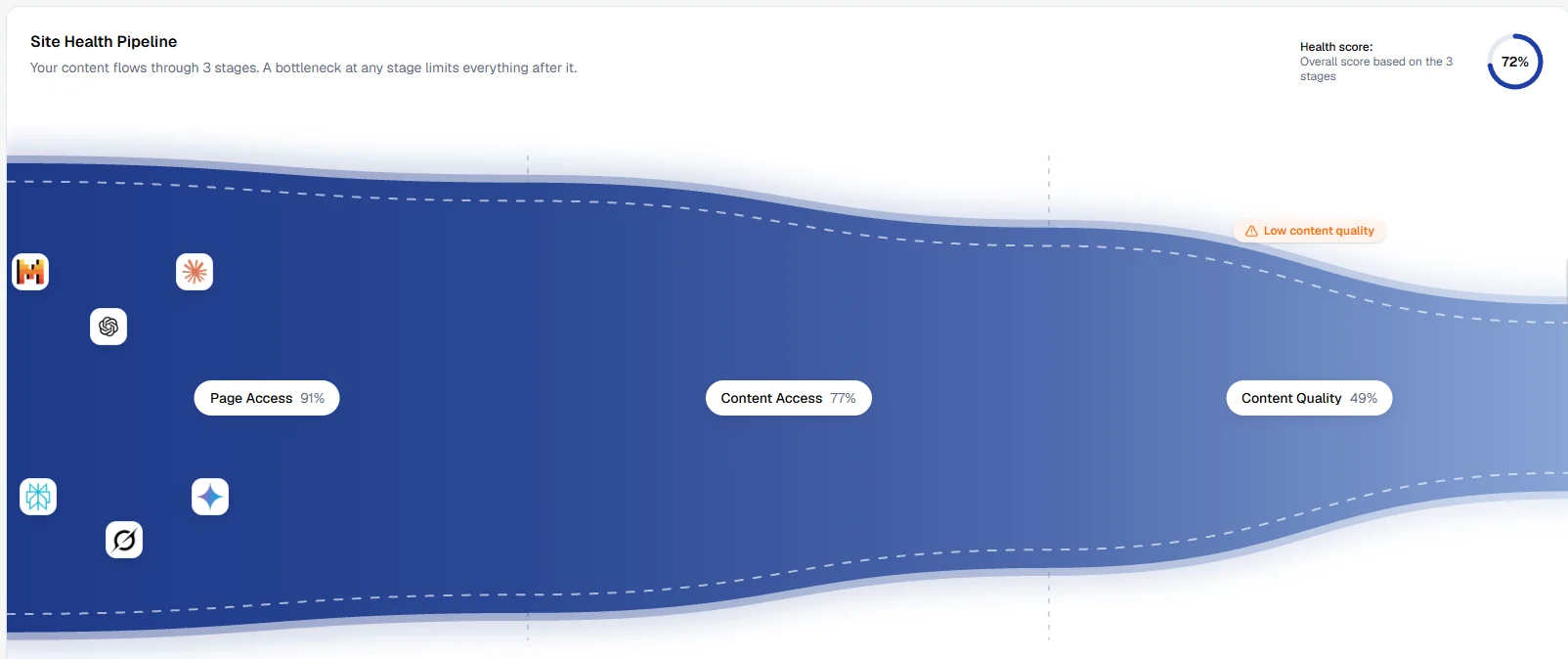
One score per stage: Page Access, Content Access and Content Quality. Together they make the site’s health score.
The first stage that holds the site back gets a bottleneck label, such as Crawl bottleneck or Low content quality, and the stages after it read Capped by that stage: fixing a later stage helps little while an earlier one is blocking. Use Filter scores by page type to see the pipeline for one type of page. Below, the three main issues of each stage are listed. Click a stage or an issue to open it in the Issues tab.
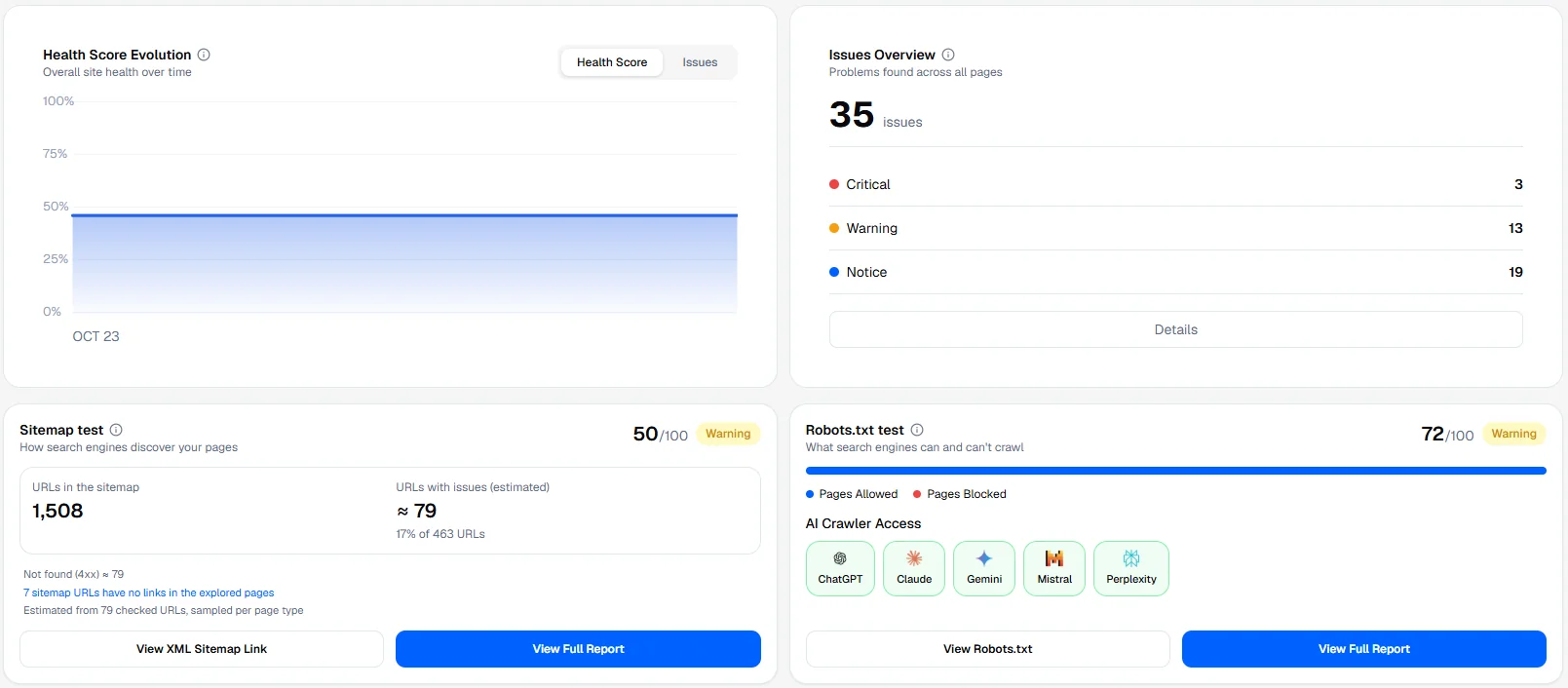
Health Score Evolution and Issues Overview
The health score (or the number of issues) across audits, and the total number of issues split into Critical, Warning and Notice with the change since the previous audit. If earlier audits of the site used a different page limit, the history starts at the current limit and the change since the previous audit is hidden.
Sitemap test
How search engines discover your pages: the number of URLs in your sitemap, an estimate of the URLs with problems (redirects, missing pages, errors, noindex, canonical elsewhere), the audited pages that are in the sitemap and the orphan pages. View Full Report lists the results of the sitemap tests.
Robots.txt test
Pages allowed and blocked by your robots.txt, and AI Crawler Access: whether the crawlers of ChatGPT, Claude, Gemini, Mistral and Perplexity may read your site. A blocked AI crawler cannot use your pages in its answers.
Connected Services
With Google Search Console connected: Total Visitors from search with the split by device, and Geography. With Google Analytics connected: Traffic Sources (Search, Direct, Social, Paid and GEO, the visits coming from AI assistants). Until a service is connected, its card is blurred with a Connect button. See Google Search Console and Analytics.
Issues
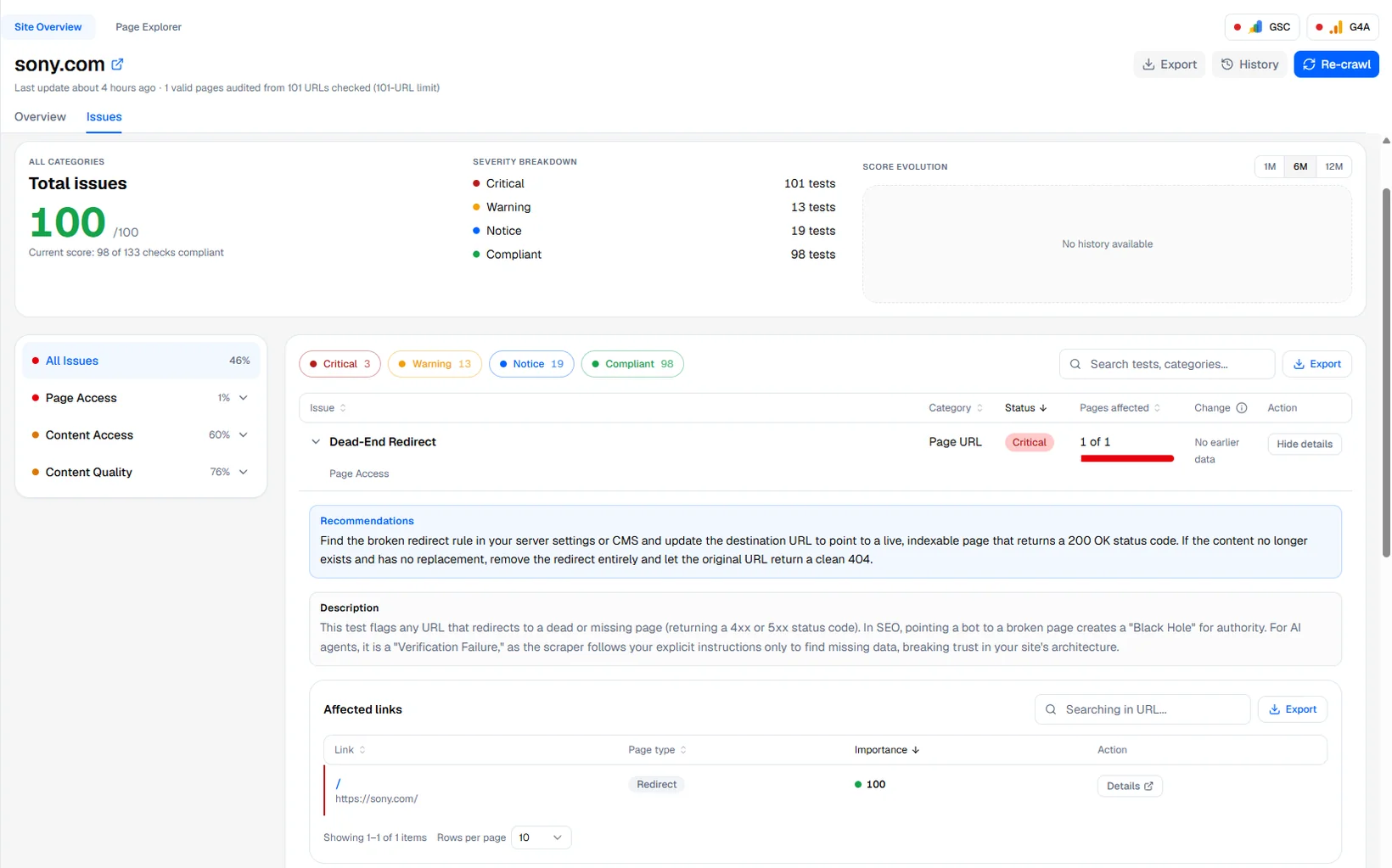
The Issues tab is the list of everything the audit found, test by test, with the pages affected.
Navigating the tests
The left column lists All Issues, then the three stages with their score and a colored dot (green, amber or red), then the categories of each stage with a score bar. Click a stage or a category to narrow the list.
The header of the list shows the score of the selection, how many tests are compliant, the split by severity, and the movement since the previous crawl: Fixed since last crawl, New this crawl and Net change, counted in pages.
The issues table
| Column | What it shows |
|---|---|
| Issue | The name of the test and its stage. |
| Category | The category of the test, such as Page Title or Sitemap. |
| Status | Critical, Warning, Notice, or Compliant when no page fails. |
| Pages affected | Failing pages out of the pages tested. |
| Change | The difference in pages affected since the previous crawl. |
Filter by severity with the pills, search a test or a category, and download the list as CSV or Excel with Export. Click a row to open it: the recommendation, the description of the test, and the Affected links table with each page, its type and its importance. Sort by importance to fix the pages that matter most first. The page URL opens the live page; Details at the end of the row opens the test details of the page on this test.
Severity
- Critical blocks crawlers or AI tools from reaching, reading or trusting the page. Fix it first.
- Warning hurts performance or coverage without blocking it.
- Notice is a recommendation or a detail.
Each test has a default severity.
Page Explorer
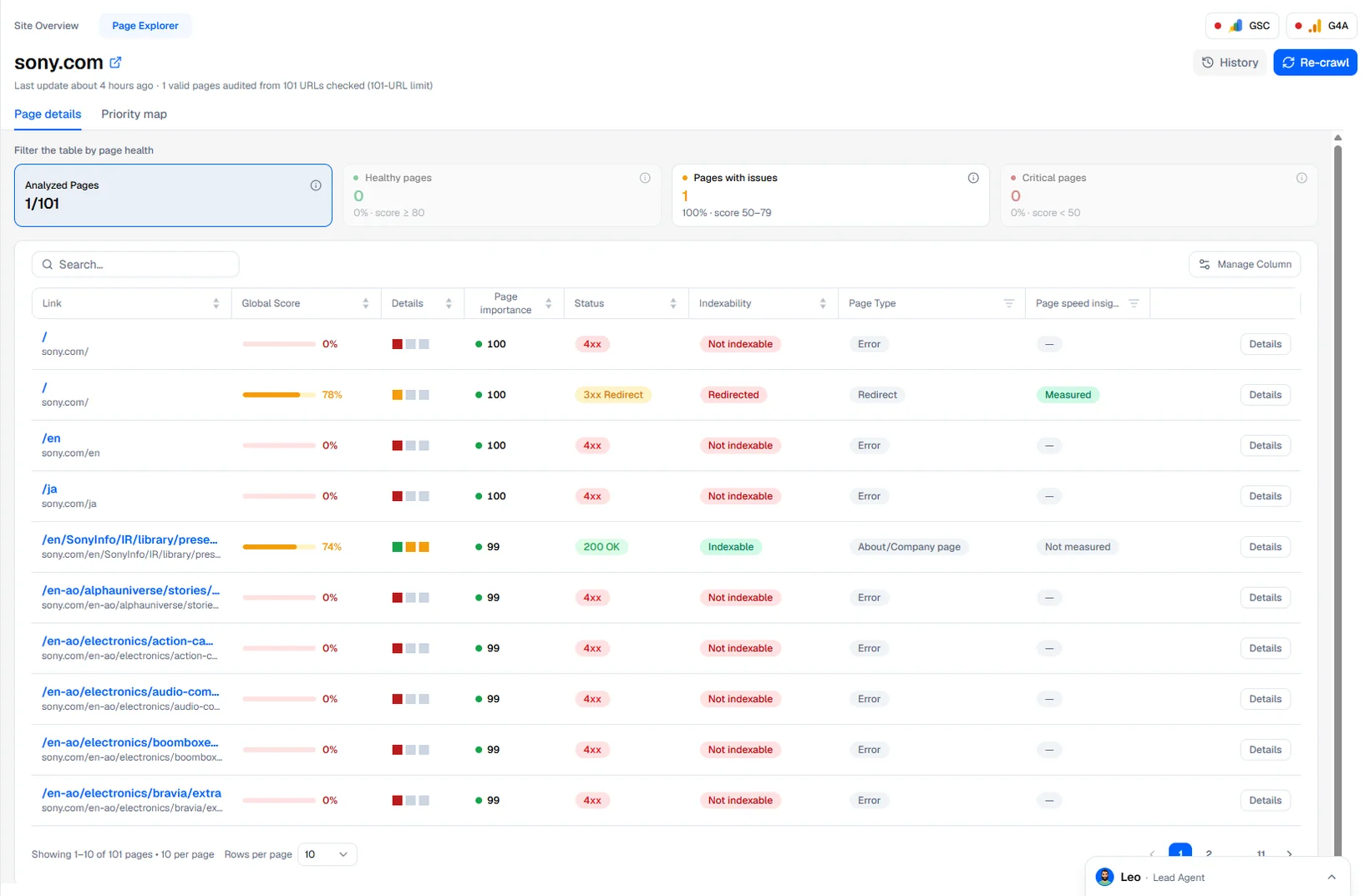
Page Explorer lists every audited page with its scores, so you can find the pages that need work and open their report.
- Analyzed Pages
- Healthy pages
- Pages with issues
- Critical pages
The four cards at the top also act as filters on the table.
Page details
The table has one row per page:
- LinkThe page title opens its report; the URL below opens the live page.
- Global ScoreThe page score, shown in green, amber or red.
- DetailsThree squares for the three stages. Grey means the stage was skipped, for example on a redirect.
- Category columnsThe score of each test category, grouped by stage.
- Page importanceFrom 0 to 100: how much the page matters within your site. Fix the most important pages first.
- Status and IndexabilityThe HTTP status and whether the page can be indexed (Indexable, Noindex, Blocked by robots.txt, Non-Canonical, Redirected).
- Page TypeHome page, landing page, article, product page, category page, service page, contact page, about page, utility or legal page. A page found only in the sitemap is marked as an orphan page.
- Page speed insightMeasured when the page was loaded in a browser, From template when it uses the timings of a page with the same template.
Manage Column shows, hides and reorders columns. Sort & Filter sorts by score or importance and filters on score ranges. Active filters appear as chips you can remove.
Priority map
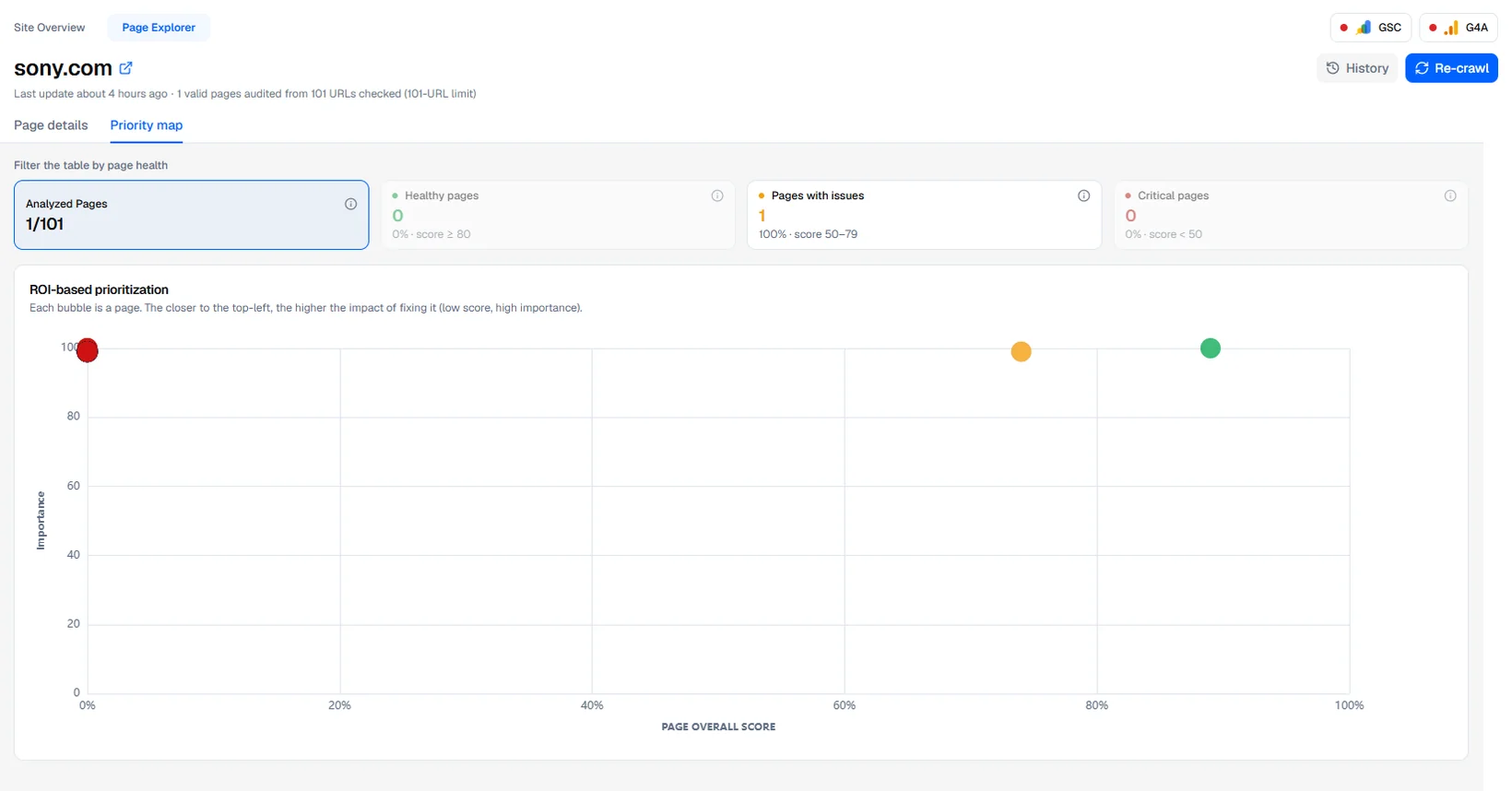
Each bubble is a page, placed by its score (horizontal) and its importance (vertical). The pages in the top left are important and in poor health: fixing them has the most effect. Click a bubble to open the page report.
Page report
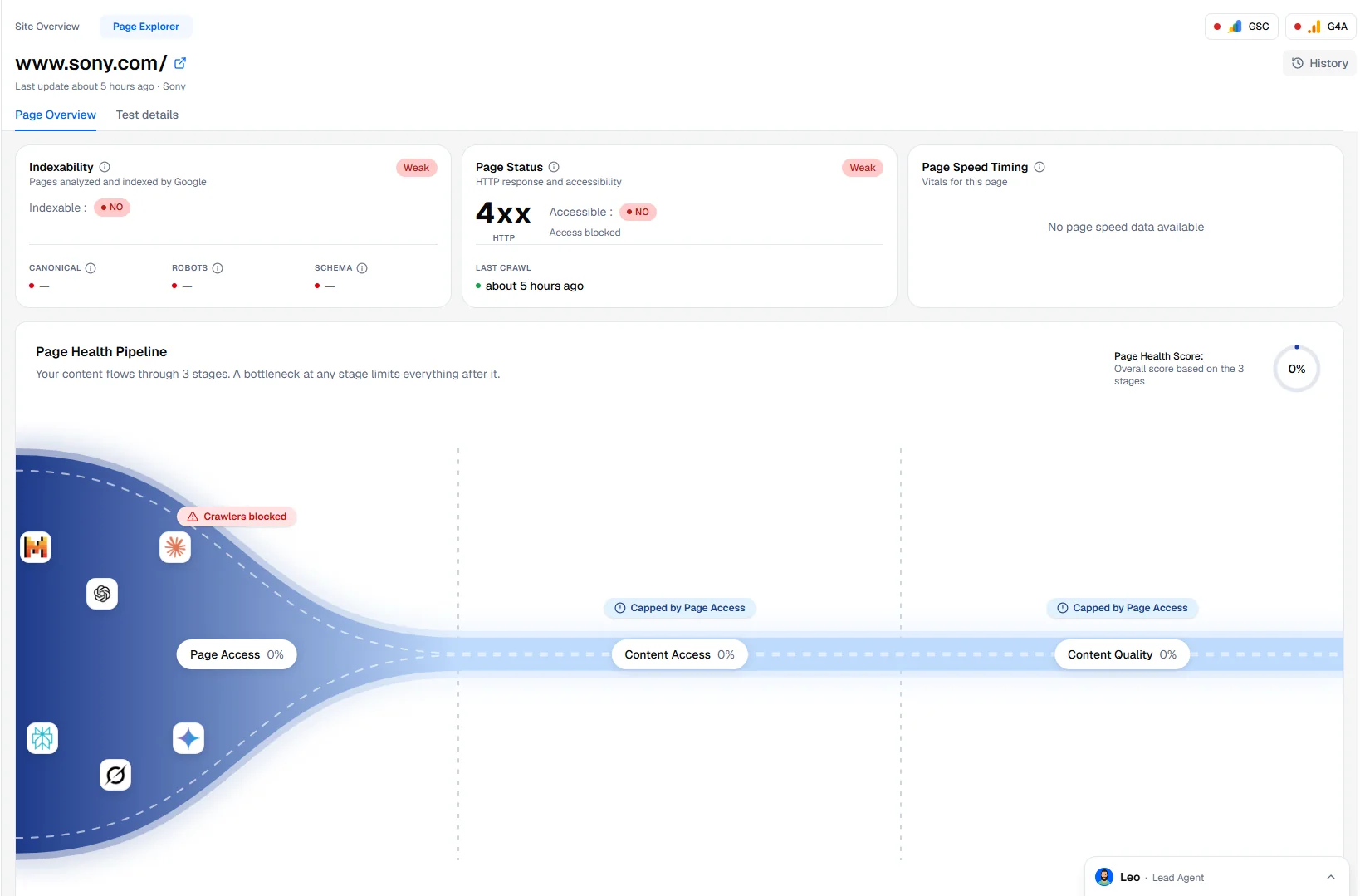
The page report shows the audit of one URL. It has two tabs: Page Overview and Test details.
Page Overview
- IndexabilityWhether the page can be indexed and, if not, why. It also shows the state of the canonical tag, robots rules and structured data.
- Page StatusThe HTTP status, whether the page is accessible, and the date of the last crawl.
- Page Speed TimingThe timings of this page, measured on it or taken from its template.
- Page Health PipelineThe three stage scores for this page, the bottleneck and the main issues of each stage.
- Health Score Evolution and Top IssuesThe page score over audits and its issues by severity.
- Connected ServicesWith Search Console: clicks and impressions over time and the top queries of the page, with the share of branded searches. With Google Analytics: engagement time, bounce, scroll and active users.
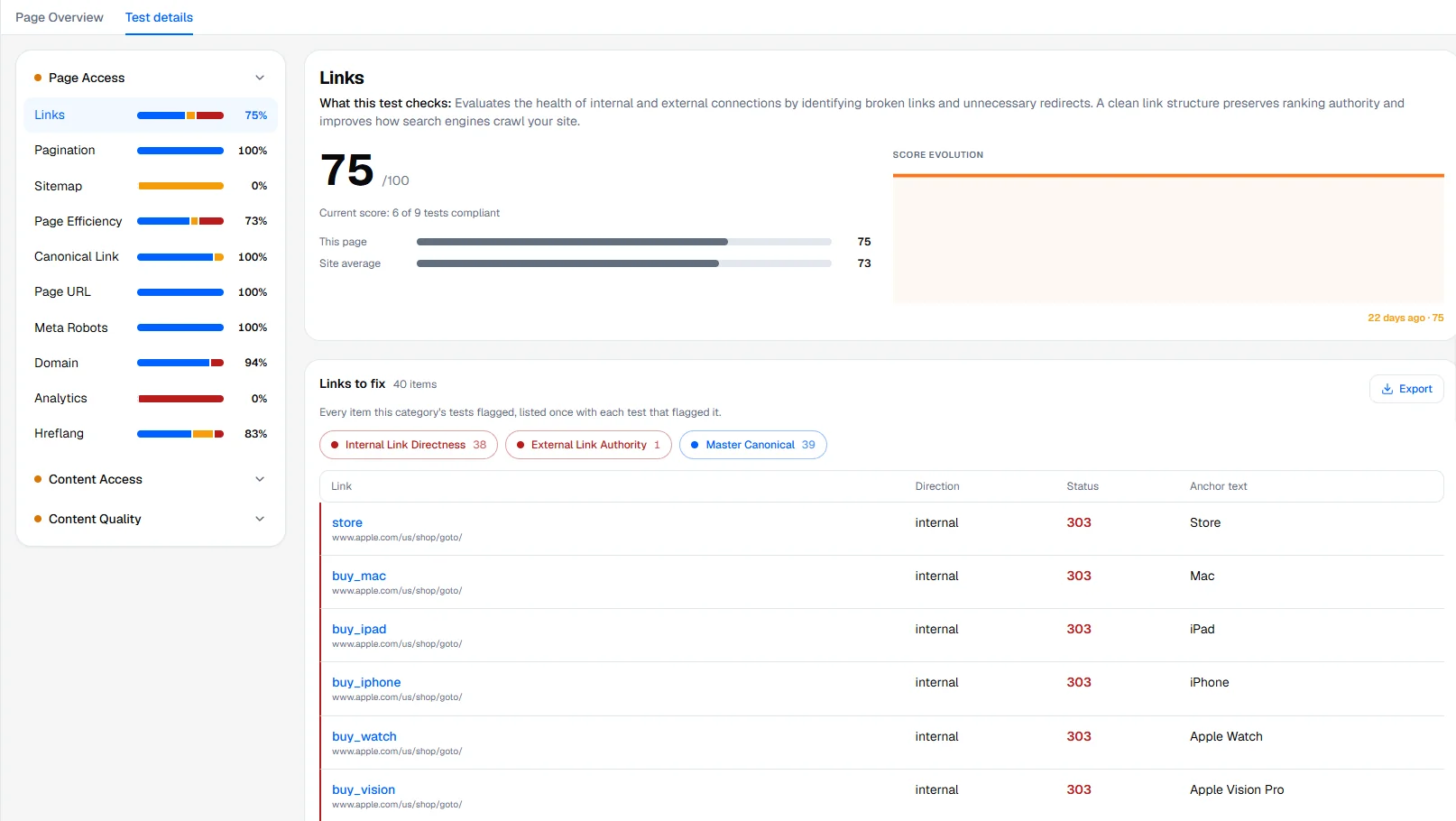
Test details
Every test run on the page with its result: Passed, Failed, Skipped, or Not evaluated when the test could not run during this audit. Open a failing test to read the assessment and the recommendation, the values found on the page (for example the title and its length) and the items to fix (for example the images without alt text). The header compares the page score with the site average.
When a fix can be prepared automatically, an Implement Fix button sends you to Implementation with the test selected.
Keywords
The Keywords tools look at classic Google search: where your site ranks, which searches you could win, and how your positions move. They sit under MEASURE › Keywords, with three tabs.
Keyword Audit
Where your site ranks and where it does not, how positions move, which pages competitors hold, and the gaps between what AI assistants answer and what Google ranks on each topic. Keywords are grouped by position band and by how winnable they are (easy, realistic, a stretch). Switch between All keywords and By product. A scan runs when you start it from the page and uses credits.
Keyword Research
Start from up to five seed terms and choose a mode: expand a head term, find adjacent searches, or measure the demand inside AI assistants with its trend over 12 months. The cost is shown before you click Run. Send the results to Content Generation or follow them in the tracker.
Keyword Tracker
A list of up to 100 keywords per market whose Google position is checked every Monday. The tracker shows your position, its movement and which competitor is ahead. A check that fails is shown as not checked rather than as a drop.