Measure
AI Reputation
AI Reputation is the audit of what AI assistants say about your products. It answers three questions: do they mention you, how do you rank against your competitors, and how do they describe you.
In the sidebar, MEASURE › AI Reputation opens the overview of all your products, and lists each product underneath. A product page has three tabs: Overview, Visibility and Sentiment.
AI Reputation Overview
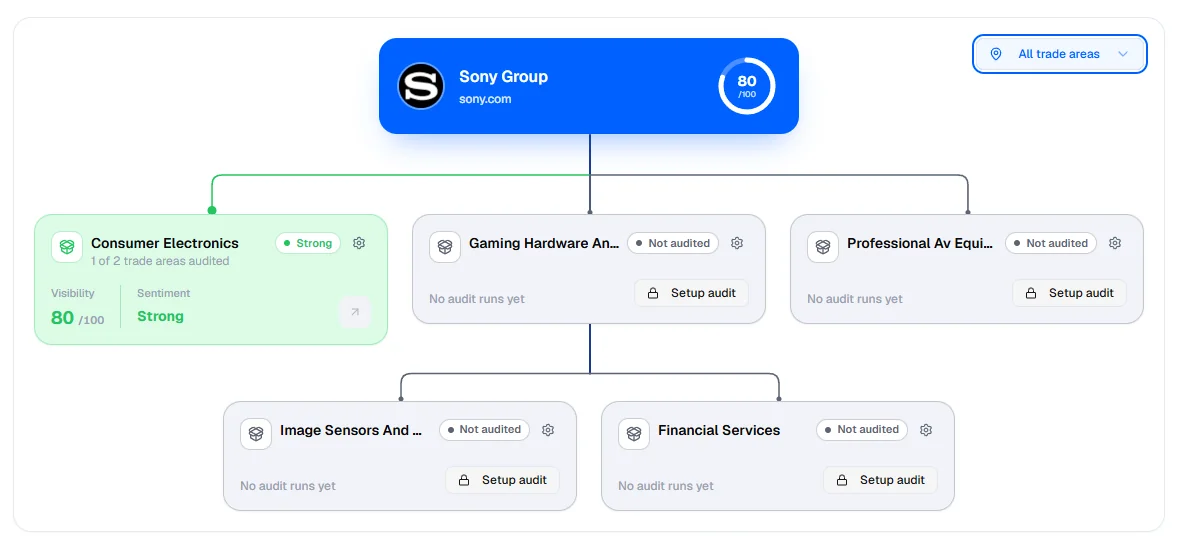
The overview shows your brand structure as cards: one card per product, grouped by category. The bar at the top lets you filter by trading zone and jump to a product with the search field.
On each product card:
- the visibility score out of 100, in a ring with its level (Very Weak to Very Strong);
- the sentiment level, shown as a word, never as a number;
- when you look at all trading zones, how many of them have been audited;
- View Audit to open the product, Run now to start a new analysis, Schedule audit to run it automatically;
- Setup audit on a product that was never audited.
Two buttons at the top work on several products at once. Run Manager starts an analysis on the products you tick (about five minutes each). Schedule Manager opens the scheduling settings. They appear once at least one product has been audited.
Edit Structure switches the page to edit mode: add a brand, a category or a product, rename or delete them. Items that already have analysis runs cannot be renamed or deleted, and deleting the only brand deletes the whole project. When you delete a product followed in several zones, Poliris asks which zones to remove it from.
Setting up an audit
Setup audit (or Configure and run audit on an empty product page) opens a panel in three steps: Configure, Generate, Select.
-
Configure
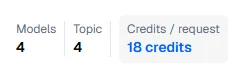
- AI Model to Query: between 2 and 4 models on a paid plan (2 on the Free plan). Each card shows its cost in credits per question.
- Topic to explore: 3 to 5 topics. Poliris suggests four for the product.
- Trading zone and Language. You can also add Worldwide as a target location.
- Auto-run this audit: run the audit again automatically every day, week or month, at the time you choose.
The footer shows the cost per question, or per run when auto-run is on. If the balance is too low, a warning says how many credits the smallest run needs.
-
Generate
Poliris writes 20 questions for the product. You can leave this step running in the background.
-
Select
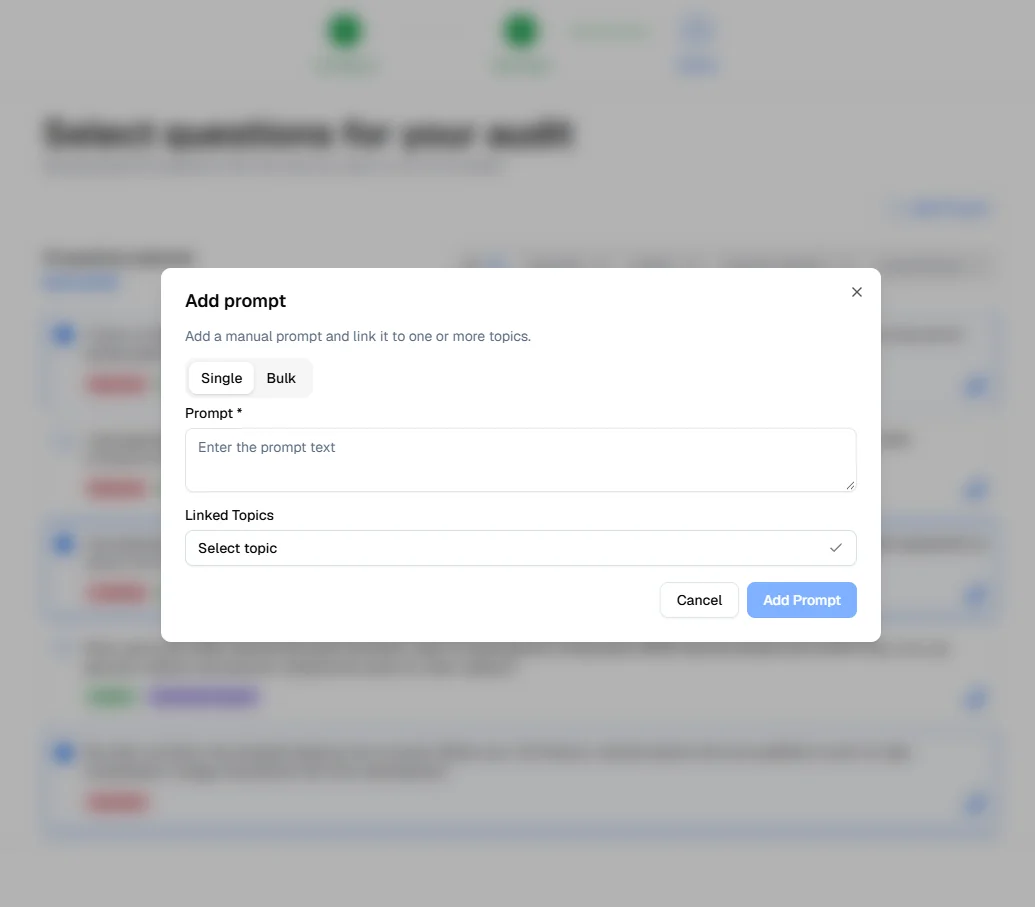
The 20 questions are listed with their topics and traffic level, sorted by search demand; 10 are pre-selected. Keep at least 5. Add Prompt adds your own questions. The footer shows the number of questions, the models, the estimated duration and the credits. Click Run Audits.
Running, history and schedules
The header of a product page gathers the controls for that product:
- Run (or Rerun) sends the product’s active questions to its current models, in the zone shown, and adds a new run. To change the questions or the models first, use Project Settings › Prompts and LLM Models.
- History lists the past runs. Pick one to see the whole page as it was on that date; Reset to latest run brings you back.
- Export downloads the data of the product and zone as an Excel file.
- The trading zone switcher changes zone. A colored dot shows the state of each zone: blue for an audit in progress, green when results are available, amber when questions are ready but not run yet, grey when there is no data.
A run usually takes a few minutes. While it runs, the page shows a progress percentage and you can keep working elsewhere. Scheduled runs use the zone of the last run, with the product’s current active questions and models.

Overview tab
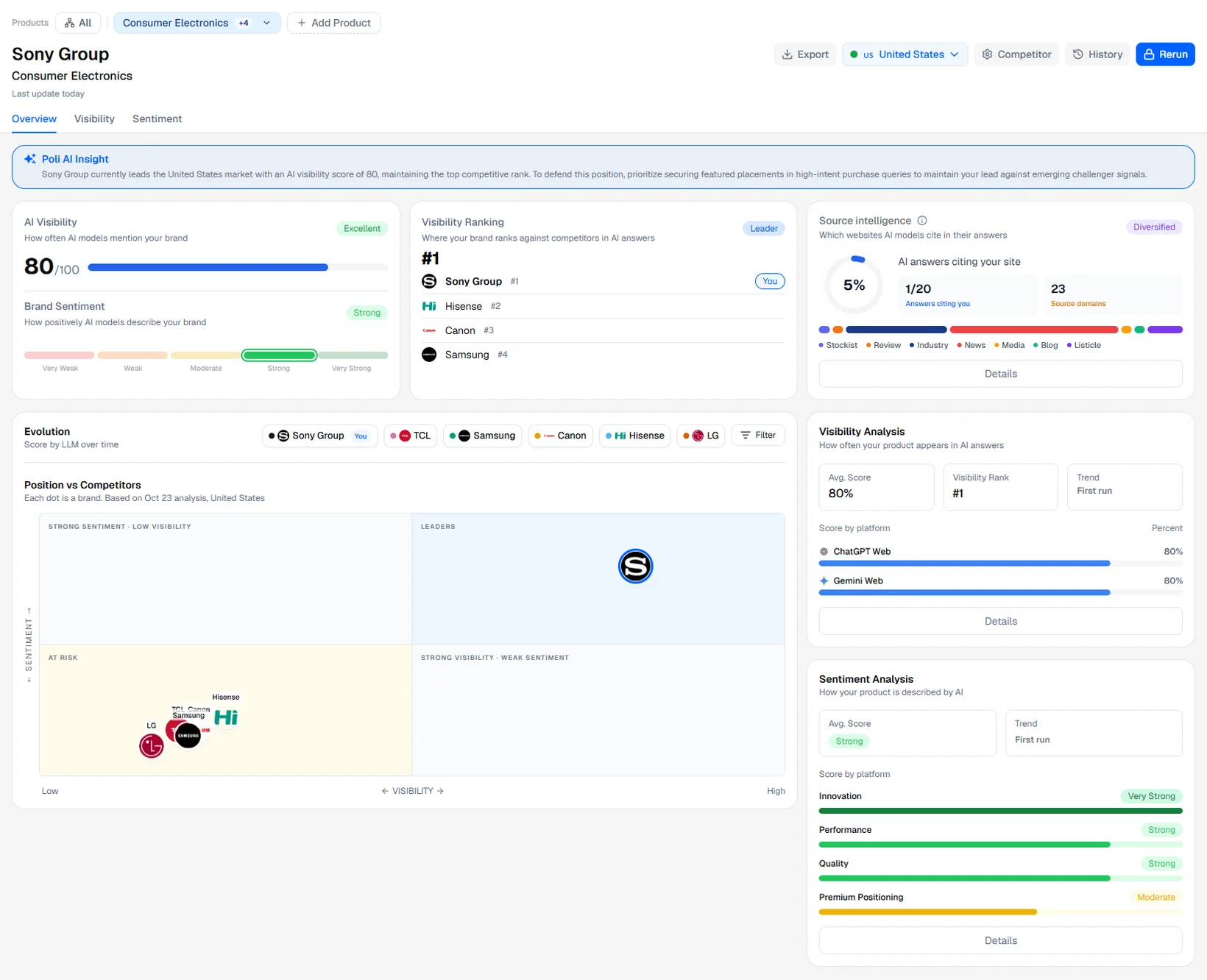
The Overview tab sums up the selected run for one product in one trading zone. Each card links to the detailed tab.
Poli AI Insight
One or two sentences written by AI from the figures of the run: your visibility and sentiment, your rank and the leading competitor. The insight is generated once per run and language and changes only when the figures change.
AI Visibility and Brand Sentiment
- AI Visibility: how often the AI models mention your brand, out of 100, with a level from Weak to Excellent.
- Brand Sentiment: how positively the models describe your brand, on a five-level scale from Very Weak to Very Strong.
Visibility Ranking
Your position among the brands Poliris follows for this product, sorted by visibility score. The badge reads Leader when you are first, Challenger in the top half and Follower below. Hover the rank to see the brands ahead of you. A brand that is never mentioned is shown as Unranked.
Source intelligence
The share of AI answers that cite your website as a source, with the change since the previous run, the number of answers citing you and the number of source domains. Details opens the Backlinks & Citations window.
Position vs Competitors
A chart with visibility on the horizontal axis and sentiment on the vertical axis. Each dot is a brand logo, yours is marked. The four areas read as follows:
- Leaders: mentioned often and described well.
- Strong sentiment, low visibility: described well when mentioned, but rarely mentioned.
- Strong visibility, weak sentiment: mentioned often, described poorly.
- At risk: low on both.
The Filter button above the chart chooses which brands to show, up to six.
Visibility Analysis
The average visibility score across models, your visibility rank, the trend since the previous run and one bar per model (Score by platform). It tells you which assistant knows you and which one does not.
Sentiment Analysis
Your average sentiment level, its trend since the previous run and one bar per topic. A topic marked No answer had no answer mentioning your brand.
Visibility tab
The Visibility tab shows where your brand is mentioned, against whom, and from which sources the AI models take their information. It is available once the product has at least one run.
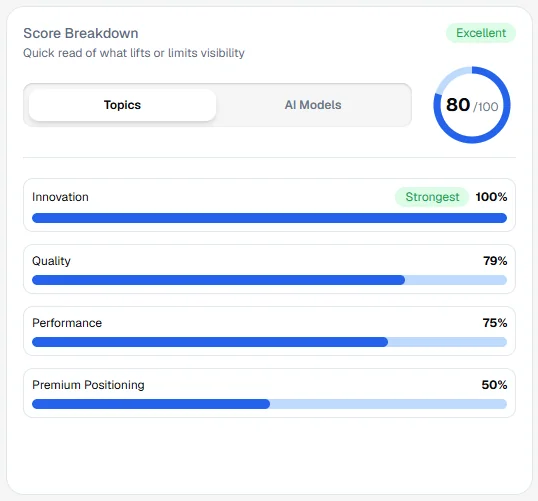
Score Breakdown
Your visibility score out of 100, broken down either by Topics or by AI Models. The best item is tagged Strongest and the weakest is tagged Priority. Hover a topic to see how many prompts it covers.
Competitive Position
Your rank among the followed brands, its change since the last run, and a chart of your rank over time (from two runs onwards). The list below shows every followed brand with its rank.
Source Intelligence
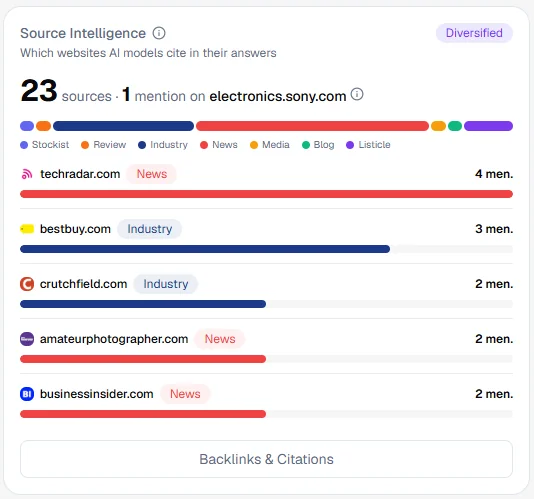
The websites the AI models cite in their answers. The header gives the number of distinct source domains and how many times your own domain is cited. Switch between Latest run and All runs.
- A colored bar splits the sources by type: Your site, Competitor, Stockist, Review, Industry, News, Media, Social, Forum, Blog, Listicle, Academic, Government and General.
- A badge describes the mix of sources: Concentrated, Moderate or Diversified.
- The five most cited domains are listed with their change since the previous run.
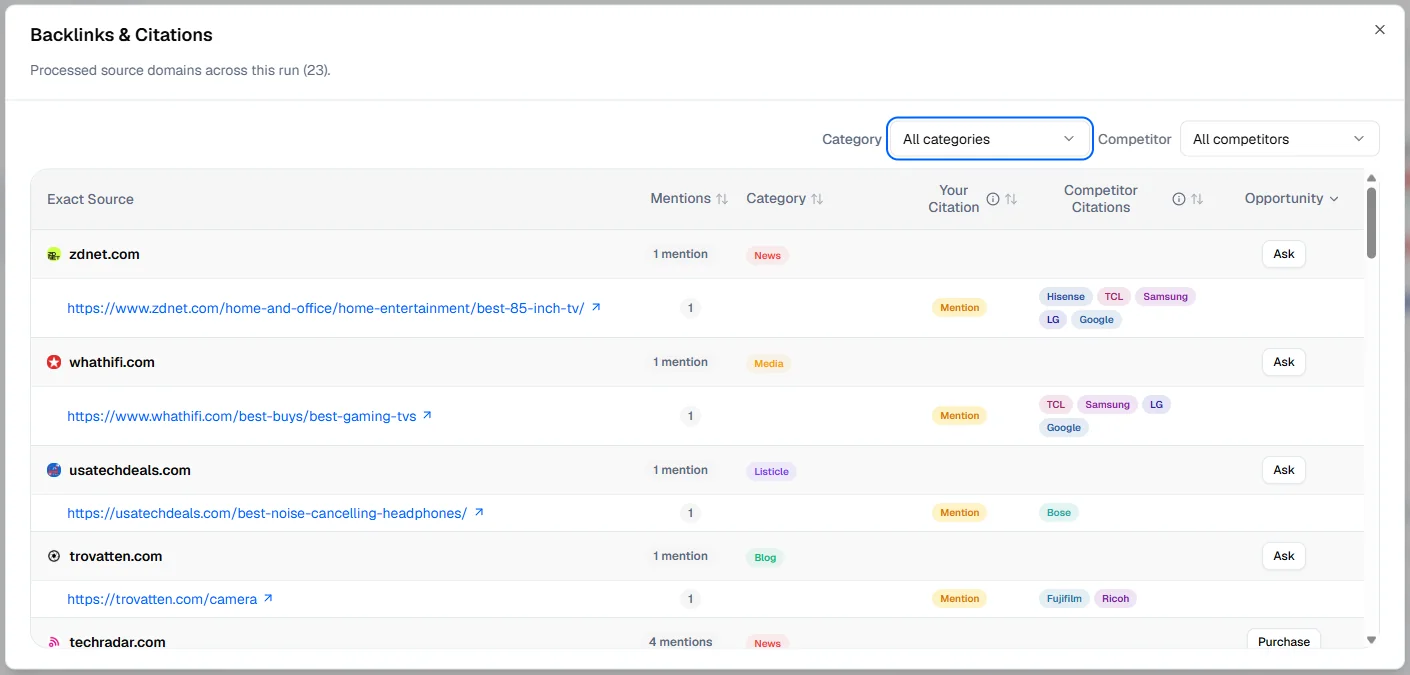
Backlinks & Citations opens the full list of cited pages. Click Process backlinks (once per run; in All mode, process the remaining runs too): Poliris opens each cited page and checks whether it links to you (Active Link), names you (Mention), ignores you (Uncited) or could not be checked (Unverified). The Opportunity column suggests the next step for each domain (Purchase, Claim, Check, Ask or View) and opens the matching Citations page.
Visibility Analysis
A grid of brands against models (By LLM) or against topics (By Topic). Warm cells show where a brand is often mentioned. Pick a column to rank the brands on that model or topic.
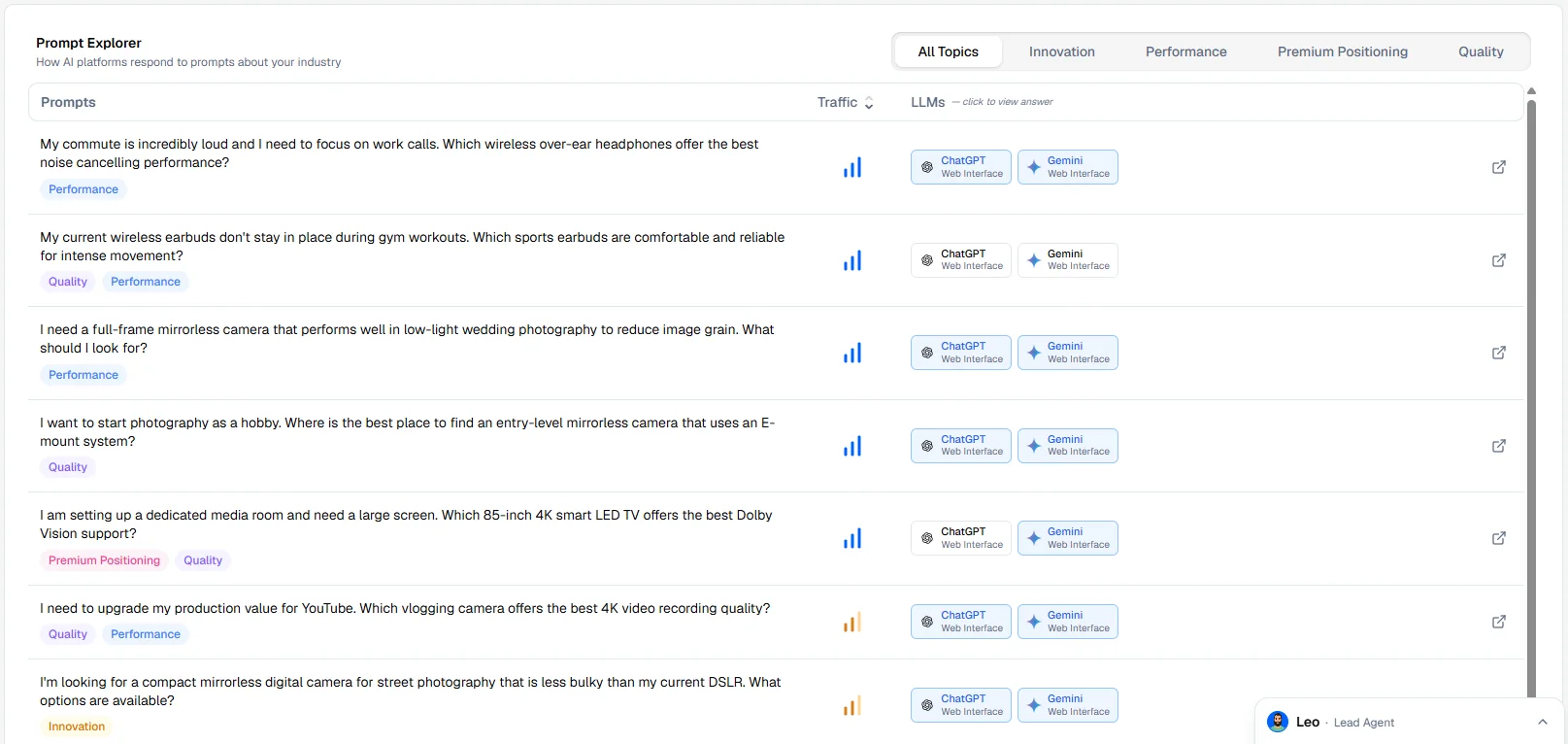
Prompt Explorer
Every question of the run, with its topic tags and its traffic level. The LLMs column shows one chip per model: blue when the answer mentions your brand, grey when it does not. Click a chip or a row to open Prompt Details:
- Response: the full answer of the model, with brands and domains highlighted.
- Details: the brands in the answer with their order of appearance, and the sources the model cited.
The traffic level shows how much people search for the subject of the question on Google, compared with the other questions of this audit: high, medium or low.
Evolution
Your visibility score over time, one line per brand. Choose the brands with Filter (up to six) and the period with the date picker. With a single run, the chart shows one point and fills in as runs accumulate.
Reading the tab
-
Find the gap
In Score Breakdown, switch between Topics and AI Models. The Priority tag points to the weakest topic or model.
-
See who wins instead
In Visibility Analysis, select that topic or model and look at the brands ranked above you.
-
Read the answers
In Prompt Explorer, filter on the topic and open the answers where you are missing. They show what the assistant says and which sources it used.
-
Go after the sources
Open Backlinks & Citations: the domains cited for your competitors and not for you are your citation targets.
Sentiment tab
The Sentiment tab looks at how the AI models talk about your brand when they mention it: positively, neutrally or negatively, topic by topic and compared with your competitors.
Every answer that mentions a brand is labeled positive, neutral or negative for that brand. Sentiment is shown on five levels: Very Weak Weak Moderate Strong Very Strong.
Sentiment Breakdown
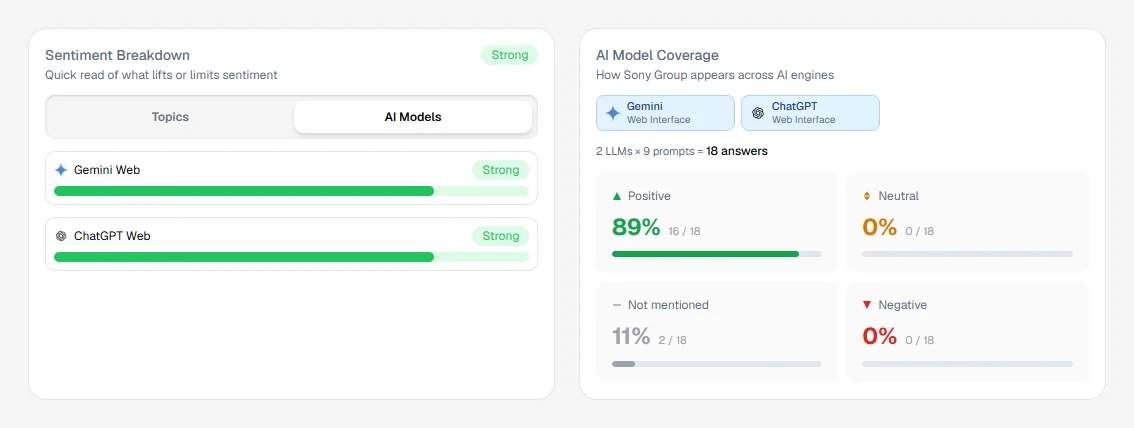
Your overall sentiment level, with one bar per topic or per AI model. The weakest item is tagged Priority. No answer means no answer mentioned your brand for that item.
Sentiment trend
Your overall sentiment level across runs, with the current and previous level and the direction (stable, improving, declining). Use the range slider to look at a period. The chart needs at least two runs.
AI Model Coverage
Each answer of the run is counted once, as Positive, Neutral, Negative or Not mentioned. The line above the grid gives the total, for example 2 LLMs × 10 prompts = 20 answers. Untick a model to see the split for the others. A high “not mentioned” share is a visibility problem, not a sentiment one.
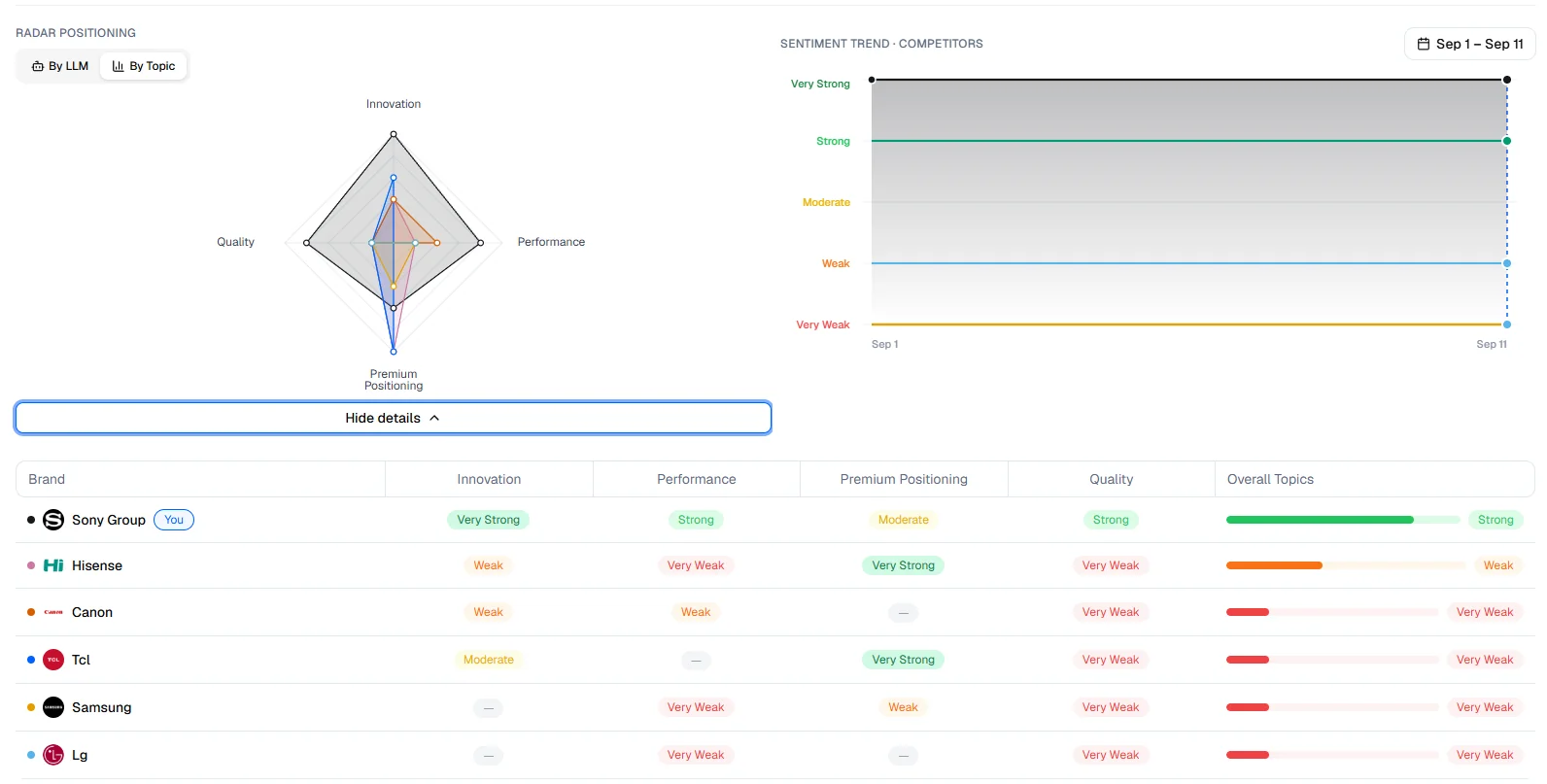
Competitor sentiment
A radar with one shape per brand, by model or by topic, and a line chart of each brand’s sentiment over time. Details opens a table with a level per topic (or per model) for every brand, ranked by overall sentiment. Use Filter to choose the brands.
Cited Prompts
Every question with one chip per model, colored by the tone of the answer toward your brand: green for positive, amber for neutral, red for negative, white when your brand is not mentioned. Filter by topic with the tabs above the table and click a chip to read the answer.
Reading the tab
-
Spot the weak topic
In Sentiment Breakdown, look for the Priority tag.
-
Compare
In Competitor sentiment, check whether competitors score better on the same topic. If everyone is weak, the topic is hard for the whole market.
-
Read the negative answers
In Cited Prompts, filter on the topic and open the red chips. The answer and its sources tell you what to correct or to prove on your own pages.
Models you can question
The AI models you can choose when you set up an audit, and the estimated cost of each question in credits.
| Type | Models | Credits per question (estimate) |
|---|---|---|
| Free Models (web interface) | ChatGPT, Gemini, Perplexity, Google AI Mode, Google AI Overview | 1 |
| OpenAI API | GPT-5.5, GPT-5.4, GPT-5.4 Mini, GPT-5.4 Nano, GPT-4o Mini | 15, 10, 5, 3, 1 |
| Google API | Gemini 3.1 Pro Preview, Gemini 3.5 Flash, Gemini 3 Flash Preview, Gemini 3.1 Flash Lite | 12, 7, 4, 3 |
| Anthropic API | Claude Opus 4.8, Claude Haiku 4.5 | 7, 2 |
| xAI API | Grok 4.3 | 2 |
| Mistral API | Mistral Large, Mistral Medium, Mistral Small | 2, 2, 1 |
Free Models are free during onboarding only; after that, each question costs about one credit. API models require a paid plan.