Connections
Site connection
Poliris reads your site without any setup. To change it, for example to apply a fix or to send an article draft, it needs a connection. You choose one per website.
Three ways to connect
| Connection | Works on | How fixes are applied | Article drafts |
|---|---|---|---|
| SEO Pixel | Any website | A script pasted once in the <head> of your pages. Fixes are applied when a visitor, or a crawler that runs JavaScript, loads the page. | No |
| WordPress plugin | WordPress sites | Written on the server, in the post and in the fields of your SEO plugin. Search engines and AI crawlers see the change on the first fetch. | Yes, as WordPress drafts |
| Webflow | Webflow sites | Through the Webflow API, in the SEO and Open Graph settings of the page. | Yes, as draft items in a CMS collection |
Where to connect a site
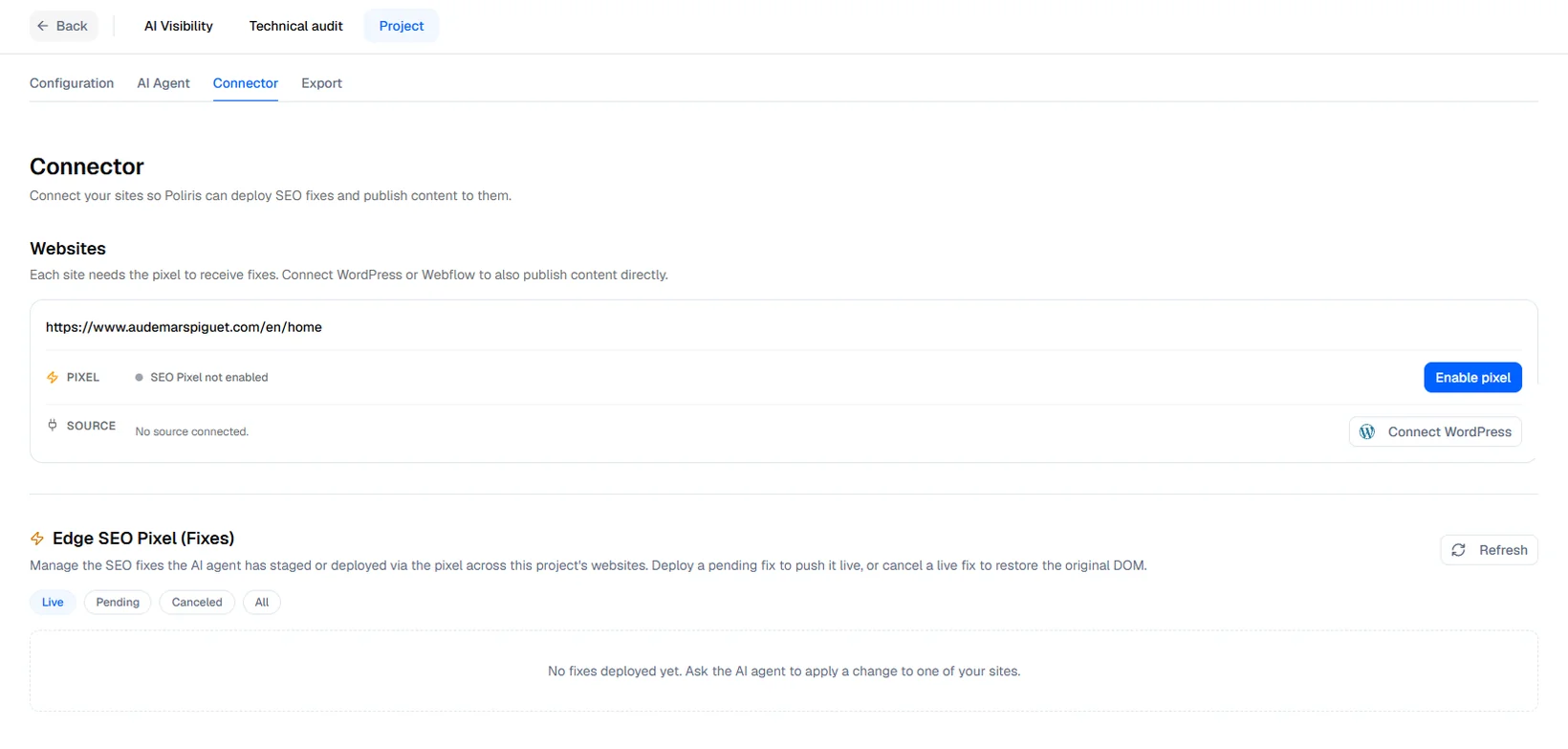
Go to Project Settings › Connector, which lists your websites with their connection status, or click Connect on the site card in My site & socials. The window Site connection lets you choose between SEO Pixel, WordPress plugin and Webflow; Poliris detects what your site runs and marks the matching option Recommended. Each option takes three steps, and the screen updates by itself when the connection is detected. Check now forces a new check.
SEO Pixel
- Enable the pixel for the site.
- Install the snippet: paste the script Poliris gives you in the
<head>of every page. If someone else manages the site, Email my developer sends them the instructions, and Copy AI prompt copies instructions for a coding assistant. - Verify: once the script has loaded on your site, the status changes to Pixel installed, with the last time it was seen.
On a WordPress site connected with the plugin, the fixes you deploy from Poli AI and the article drafts go through the plugin. The Technical Fixes page applies changes through the pixel only.
WordPress
The Poliris plugin writes fixes directly in your WordPress site, in the post and in the fields of your SEO plugin, so your team still sees one version in wp-admin. You need an administrator account and the right to install plugins.
-
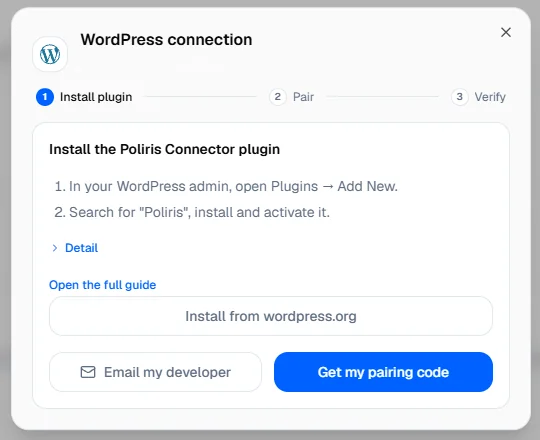
Install the plugin
In wp-admin, go to Plugins › Add New, search for “Poliris”, install and activate it. The wizard also links to the plugin on wordpress.org.
-
Pair with a code
In Poliris, click Get my pairing code. The code is valid for 15 minutes. In wp-admin, open Poliris in the left menu, paste the code and click Connect to Poliris.
-
Check the connection
The Poliris screen switches to WordPress connected on its own and shows the SEO plugin it found.
Once connected, Poliris can change a post title, the SEO title and meta description in your SEO plugin, the content of a post for approved rewrites and image alt texts, and create draft posts. Nothing is written until you apply a change.
| Status | What it means |
|---|---|
| Waiting for the plugin | The code has not been entered in wp-admin yet. Generate a new code if 15 minutes have passed. |
| Connection error | Poliris reached the site but the plugin did not answer correctly: the plugin is deactivated, its application password was revoked, or a firewall blocks the WordPress REST API. Connect again from step 1. |
| Not connected | No plugin connection on this site. Fixes go through the pixel. |
To disconnect, click Disconnect in Project Settings › Connector. To remove all access, also revoke the Poliris Connector application password in your WordPress profile.
Webflow
With a Webflow Site Token, Poliris writes SEO fixes in your page settings through the Webflow API and creates article drafts in the CMS collection you choose.
-
Create a Site Token
In Webflow, open your site settings, Apps & Integrations, and generate an API token with read and write access to Pages, CMS and Assets.
-
Paste and validate
In Poliris, click I have my token, paste it and validate. The token is stored encrypted and never shown again.
-
Choose the drafts collection
Pick the CMS collection where article drafts go, usually your blog. You can change it later in Project Settings › Connector.
Once connected, Poliris can set the SEO title and meta description of a page, the Open Graph title and description, image alt texts, and create draft items. Changes go live when you publish the site in Webflow. To disconnect, click Disconnect and revoke the token in Webflow.
Google Search Console and Google Analytics
Connecting Search Console and Google Analytics adds real traffic data to the technical audit: the searches that bring visitors, clicks and impressions per page, devices, countries and where visits come from. Both connections are read-only.
Where to connect
Use the GSC and GA4 chips at the top right of Site Overview, Page Explorer and the page report, or the chips on the site card in My site & socials. A green dot means connected, a red dot not connected. Each website is connected separately, with the Google account that manages it.
Connect Search Console
- Click GSC. The window Manage Search Console opens.
- In GSC property, enter your property as Search Console names it:
sc-domain:example.comfor a domain property, orhttps://example.com/for a URL-prefix property. The exact value is at the end of the Search Console address bar, afterresource_id=. Left empty, Poliris uses the site URL. - Click Connect Search Console. Google asks, in a popup, for one read-only permission.
- Once you accept, the property is saved and the chip turns green. Poliris then fetches your data without crawling the site again.
Connect Google Analytics
- Click GA4. The window Manage Google Analytics opens.
- In GA4 property ID, enter the numeric ID of your property. You find it in Google Analytics under
Admin › Property › Property details, for example
123456789. A measurement ID starting withG-is not accepted. - Click Connect Google Analytics and accept the read-only permission.
You need access to the property with the Google account you use: at least Viewer in Google Analytics, and the property must be verified in Search Console. If a popup does not open, allow popups for Poliris and try again.
What appears once connected
- Site Overview: total visitors from search with the split by device, visitors by country, and traffic sources (Search, Direct, Social, Paid, GEO).
- Page report: clicks and impressions over time, the top search queries of the page with the share of branded searches, and engagement (time, bounce, scroll, active users).
Changing or removing a connection
Open the chip again: the window shows the Google account in use. Use a different Google account switches account for the website. Disconnect removes the connection of that service only; the other one is not affected. The connection belongs to the website: when a teammate has connected it, the chip is green for everyone.
MCP connector
The MCP connector gives AI assistants such as Claude, ChatGPT or Cursor read-only access to your Poliris data, so you can ask them about your audits from your own tools.
Connect an assistant
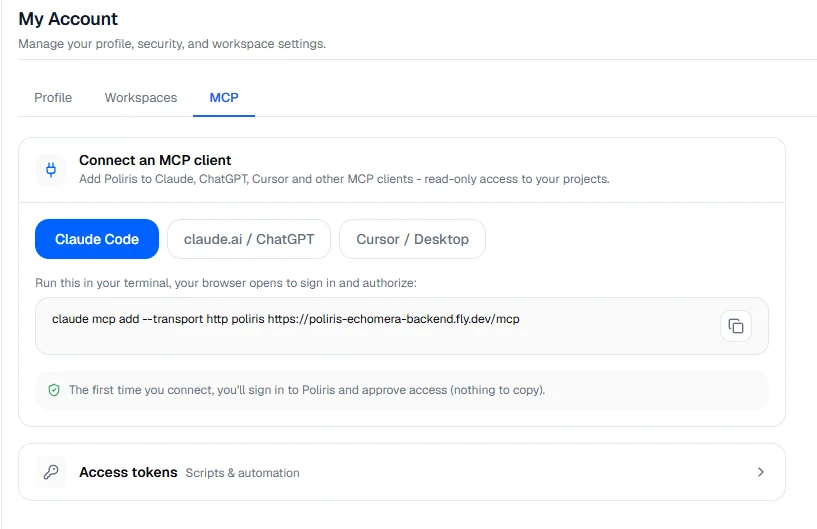
Open My Account › MCP. The tab shows the Server URL and the setup for each kind of client:
- Claude Code: a command to paste in your terminal.
- claude.ai and ChatGPT: add a custom connector with the server URL.
- Cursor and desktop apps: a configuration snippet with the server URL.
The first time the assistant connects, you sign in to Poliris and approve the access. There is nothing to copy.
Access tokens
For scripts and automations, create an access token in the same tab. The token is shown only once: copy it before leaving the page. The list shows when each token was created and last used; Revoke disables it within about 30 seconds.
What the assistant can read
| Tool | What it returns |
|---|---|
list_projects | Your projects and their identifiers. |
get_client_context | The brand of a project: name, domain, industry, tone, language. |
get_geo_visibility | Visibility scores per topic and per model, with trends. |
get_geo_competitors | Competitor visibility on the same topics. |
get_geo_cited_prompts | The prompts whose answers mention the brand, per product. |
get_radar_sentiment | How AI models describe the brand across topics. |
get_sentiment_competitors | Sentiment of the brand compared with competitors. |
get_technical_audit_summary | The latest technical audit: score, failing tests, main issues. |
get_pagespeed_scores | Speed and Core Web Vitals. |
get_content_analysis_scores | Content quality scores per page. |
- Access is read-only: the assistant cannot change anything in Poliris.
- Only the projects you created are available, not the projects shared with you in a workspace.
- Your account is limited to 60 requests per minute, across all your tokens and connected assistants.