Settings
Settings
Settings are on three levels: My Account for you, Workspace settings for your team and your plan, and Project Settings for one brand. My Account and Workspace settings are in the menu under your avatar at the bottom of the sidebar; Project Settings is the gear icon next to the project selector.
My Account
- ProfileYour photo, first and last name, username and password. Your email address cannot be changed. The Language field switches the interface between English and French.
- WorkspacesThe workspaces you belong to, with your role in each. New workspace creates one; you become its Owner and it starts on the Free plan.
- MCPConnect AI assistants to your Poliris data and manage access tokens. See MCP connector.
To delete your account, write to support@poliris.io.
Workspace settings
A workspace is your team: its members, its projects, its plan and its credits. The settings have five tabs.
General
The name, logo and description of the workspace. The Owner can delete the workspace from the Danger Zone, which deletes its projects, audit data and member access.
Members and roles
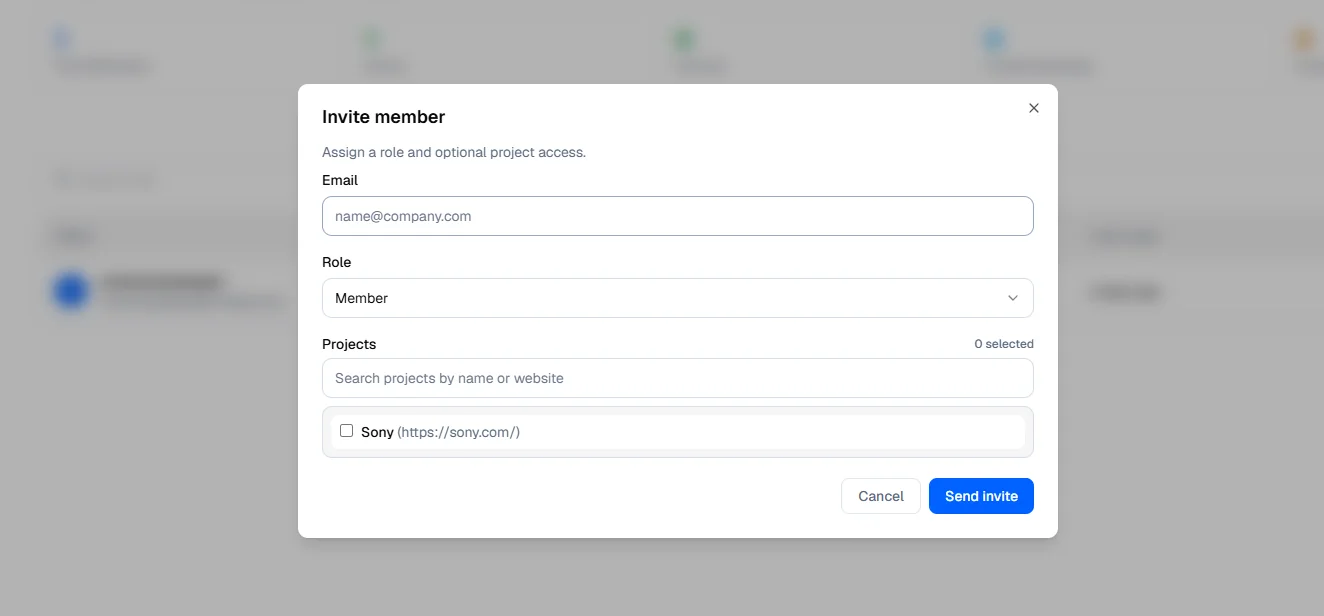
Invite Member sends an invitation by email with a role. For the Member and Viewer roles, you also choose which projects they can open. A pending invitation can be resent or canceled. The person accepts it from the link in the email, signed in with the invited address.
| Role | Projects | What they can do |
|---|---|---|
| Owner | All | Everything, including the plan, payment methods and deleting the workspace. The creator of the workspace is its only Owner. |
| Admin | All | Invite members and change their role, manage project access, add projects, change project settings. |
| Member | Those assigned | Work in the projects: run audits, use the tools, edit prompts. |
| Viewer | Those assigned | Open the assigned projects. |
Projects
The projects of the workspace with their website, last audit, creator and members. Manage Access chooses which Members and Viewers can open each project. Add Project creates a project from a website URL.
Usage
The credits of the current billing period: total, used and left, the split by type of action (GEO Audit, Technical Audit, Content Generation and others), the number of audits, and the credits used by each project.
Billing
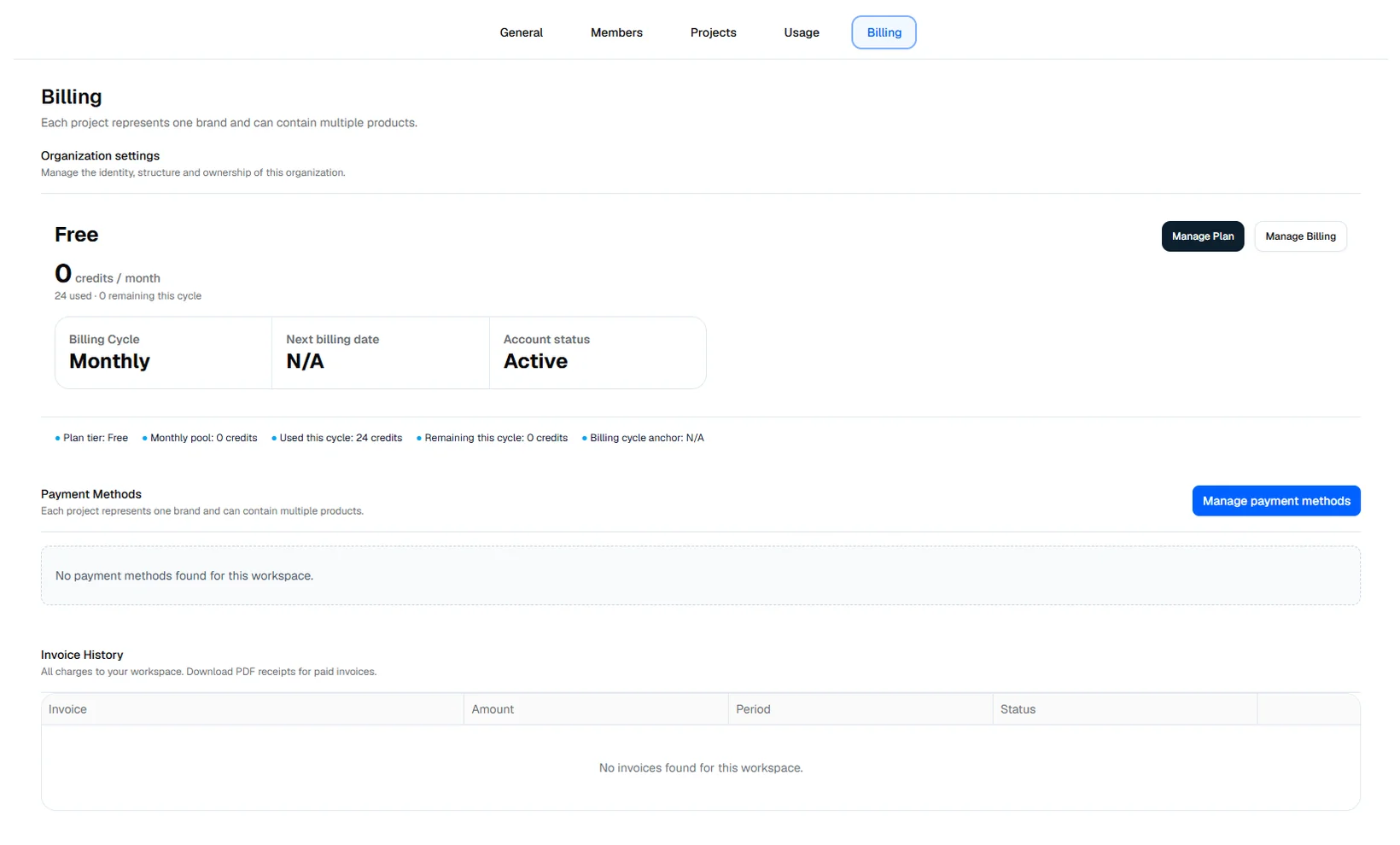
The current plan, its monthly credits, what is used and left, and the next billing date. Only the Owner can change the plan or the payment method.
- Manage Plan shows the plans. An upgrade applies at once, with a prorated charge, and the larger pool is available immediately. A downgrade applies at the end of the current period; until then a banner reminds you of the change and Keep current plan cancels it.
- Manage Billing opens the Stripe customer portal, where you update your card or cancel the subscription. A canceled workspace goes back to the Free plan.
- The invoice history links to each invoice as a PDF.
Project Settings
The settings of one project. Owners and Admins can change them; every member with access to the project can edit its prompts.
- ConfigurationProject name, description and color. The main website URL cannot be changed. The Danger Zone deletes the project.
- LLM ModelsThe models questioned for each product. Changes apply from the next run.
- PromptsThe questions of each product: edit the wording and topics, turn a question on or off, delete it. Active questions are asked at each run. New questions are added from the audit setup panel.
- Trade AreasThe trading zones of each product. Removing a zone keeps its audit history.
- Visibility TopicsThe topics followed for each product, chosen from the list.
- SchedulingAutomatic runs of the AI visibility analysis per product: daily, weekly or monthly, with the time, day, time zone and trading zone. The table shows the next run and the recent runs with their credits. A scheduled run is skipped, without any notification, when the workspace has fewer than 100 credits.
- Technical AuditThe default maximum number of pages for the site. The number chosen in the run window takes precedence.
- AI AgentThe default language and default model tier (speed) of Poli AI, the conversation log and the memory of Poli AI for the project.
- ConnectorHow Poliris connects to each website: SEO pixel, WordPress or Webflow. See Site connection.