Act
Roadmap
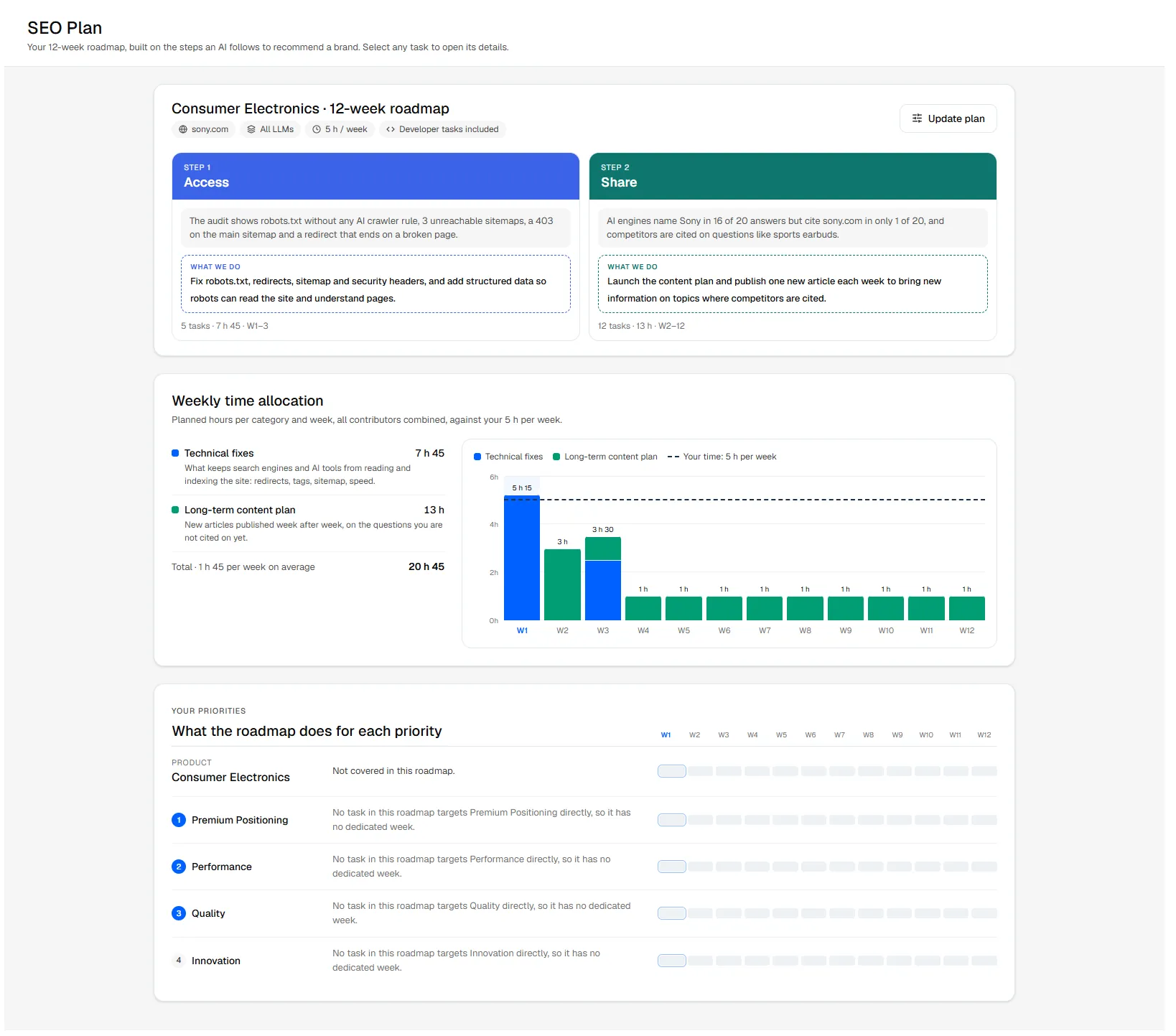
The Roadmap turns your audits into an SEO plan: a list of actions placed week by week within the time you have, each one opening the tool that carries it out. It is the Roadmap button at the top of the sidebar.
Creating a plan
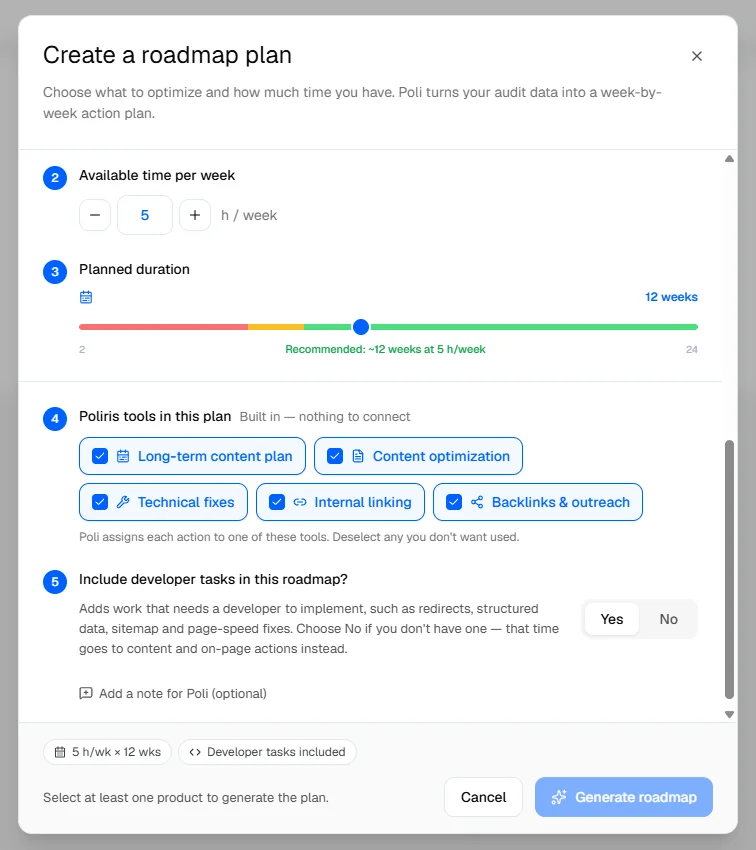
A first plan is created automatically at the end of onboarding. If the Roadmap is empty, click Create an SEO plan and fill in the form. Once a plan exists, Update plan opens the same form (see below).
- Website to optimizeThe site the plan works on. A site that was never audited is flagged: the plan would stay generic.
- LLM to favourShown when the project follows several models. Choose one model to target its answers and sources, or keep All LLMs.
- Product to optimizeOne or more products, ranked by priority. Drag to reorder.
- Focus topicsThe topics to work on, ranked. By default, the three main topics of the main product.
- Available time per weekFrom 1 to 20 hours, 5 by default. Split by contributor divides it between a developer, work done in Poliris, and the client.
- Plan durationFrom 2 to 24 weeks. Poliris recommends a duration from the work found and the time available.
- Tools to useLong-term content plan, Content optimization, Technical fixes, Backlinks & outreach. Turn off what you will not use.
- Developer tasksTurn off if no developer is available: canonicals, redirects, schema, sitemap or performance work is then left out and the time goes to the rest.
- Anything else?A free note for the plan.
Click Generate plan. Generation takes 30 to 90 seconds and continues if you close the window. If the technical audit of the site is still running, the plan waits for it. The plan is published to the Roadmap as soon as it is ready.
Reading the plan
- Overview: where you stand, the approach chosen and what to expect.
- Your priorities: for each product and topic, the weeks of the plan that work on it, or Not covered in this roadmap.
- Timeline: the actions week by week, within your weekly capacity, with a marker on the current week. Each action shows its category, status and duration. Drag an action to change its order; the plan re-packs the weeks.
Click an action to open its details:
- why it is in the plan and the audit findings it answers;
- the fixes it includes, marked One-click when Poliris can apply them through the pixel, or Guided when someone has to apply them;
- the pages affected, the time it takes, who does it and the week;
- Launch task, Mark accomplished and Remove from planner.
Action categories
| Category | What Launch task opens |
|---|---|
| Technical fixes | A conversation with Poli AI, with the brief of the task |
| Content optimization | The content optimizer on the page to improve |
| Long-term content plan | Content Generation with Kate for new articles, or the long-term plan form |
| Backlinks & outreach | Acquire Citation, filtered on the domain to target |
Execution board
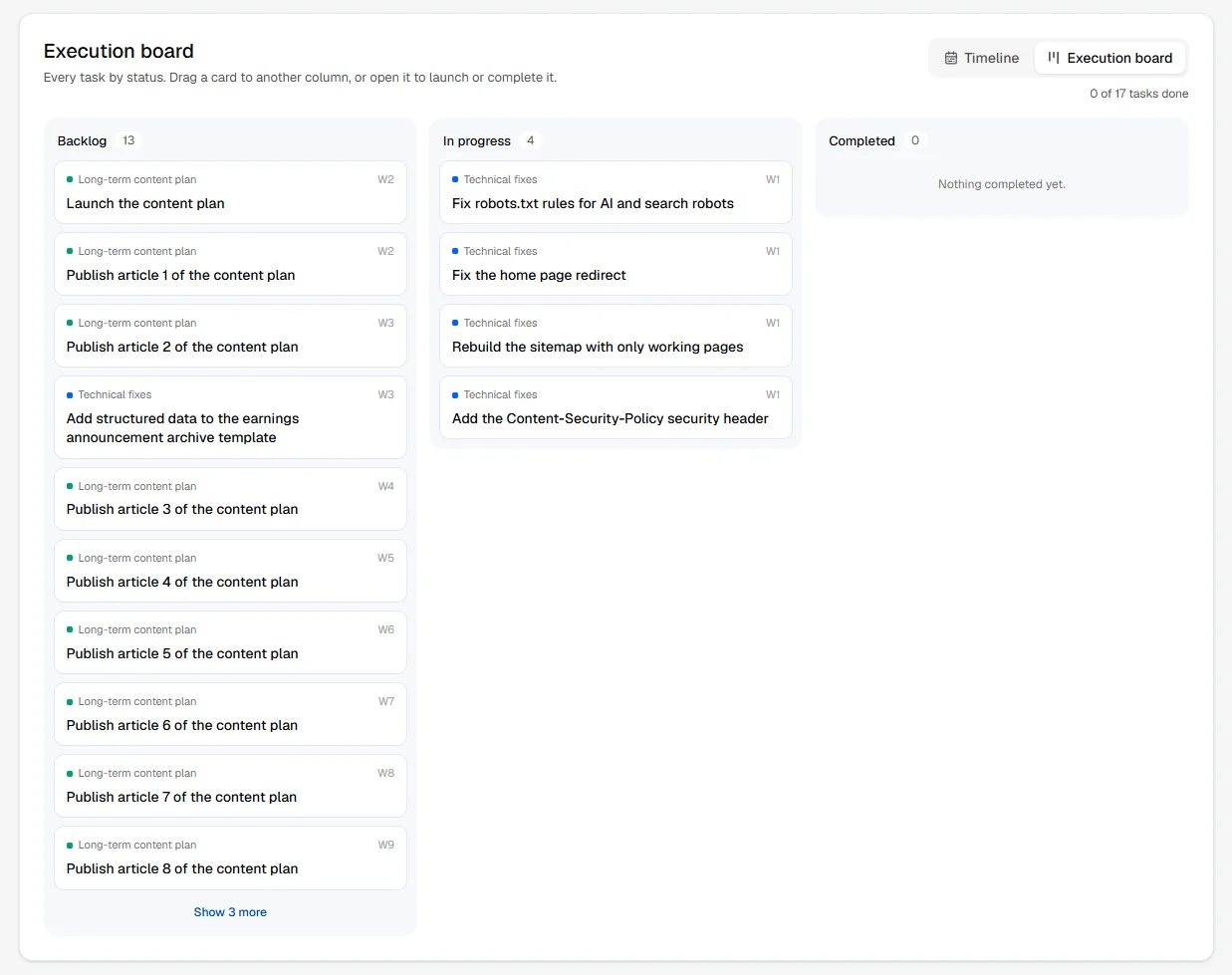
The board shows the same actions in three columns: Backlog, In progress and Completed. Launching a task moves it to In progress for the current week. Drag a card back to Backlog to park it until next week, or to Completed when it is done. An action still in the backlog after its week is flagged Late. Filter the board by category.
Updating the plan
After a new audit, click Update plan. Poliris recomputes the plan on the latest results: finished work stays finished, actions the audit no longer needs are closed and new findings are added. Preview changes shows the suggested plan with resolved and new actions; untick or reorder them, then click Apply validated plan. The plan is not updated automatically.