Welcome to POLIRIS
The world doesn’t just search anymore - it asks AI. POLIRIS makes sure that when people ask, your brand is the answer.
Docs / 01 - Hero dashboardWhat is POLIRIS?
POLIRIS is the platform that gets your brand picked by AI.
When people ask ChatGPT, Gemini, or Perplexity “what’s the best…?”, only a few brands get recommended. POLIRIS makes sure yours is one of them.
We don’t just check how you look to AI. We help you win there.
Not just another audit tool
Most tools tell you what’s broken on your site. POLIRIS goes further - it makes your brand the one AI understands, prefers, cites, and speaks well of.
That’s four big wins most other tools can’t give you:
Be understood
We make your brand crystal clear to AI, so every model knows exactly who you are, what you sell, and who you help.
Be preferred
When AI picks the “best” option, we help it pick you. Not just mentioned. Chosen.
Be cited
We help AI quote you by name - with links pointing back to your site in its answers.
Be framed positively
We shape how AI describes your brand, so the story it tells is positive, on-brand, and accurate.
Who is it for?
POLIRIS is built for anyone who cares how their brand appears online:
- Brands & marketers who want to be mentioned by AI.
- SEO & GEO specialists who want one place to run audits.
- Agencies who manage many clients and need clear reports.
- Content teams who want AI help with drafts, but still want quality.
What you’ll learn in this guide
- How to create your account and set up your brand.
- What Products, Trading Zones, Requests, and LLMs mean.
- How to run your first audit - step by step.
- How to read your dashboards and reports.
- How plans and usage work.
Getting Started
You can go from sign-up to your first audit result in about 5 minutes. Here’s the path.
5-Minute Quickstart
POLIRIS has a smart onboarding wizard that does most of the work for you. You just confirm what it finds and press Next. Here’s what to expect.
-
Sign in
Open poliris.io and sign in. You can use an email and password, or just click Continue with Google or Continue with Apple.
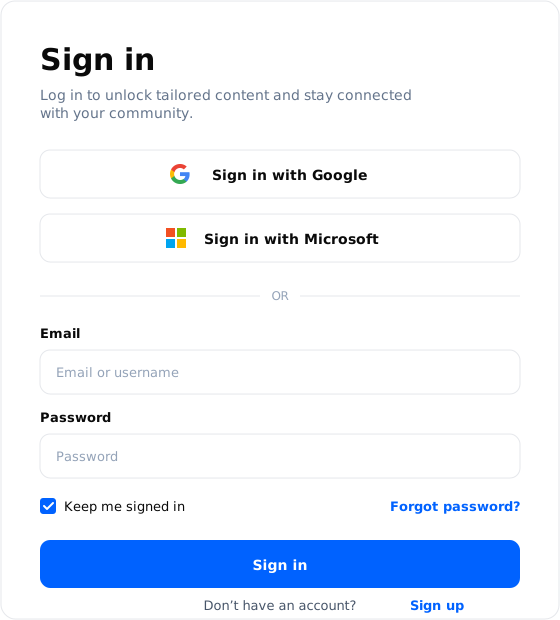
Figure 1. Sign in - the entry point. Use Google, Microsoft, or an email-and-password combo; Keep me signed in and Forgot password are both one click away. -
We found your brand
Paste your website URL. POLIRIS reads your site and shows you “We found your brand” with what it detected - the brand name, logo, and description.
If everything looks right, click Next. If not, edit it and keep going.
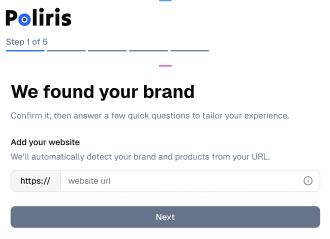
Figure 2. Step 1 - We found your brand. Drop in your website URL and POLIRIS auto-detects your brand and products so you don’t have to type 50 fields. -
Help us customize your experience
POLIRIS asks four short questions so it can tailor your dashboard to your business and the way you work. Just tap the chips that fit you best and click Next.
Good to know. Every question is optional - you can skip them all and still continue. Your answers only shape how POLIRIS personalises the experience.- Who are your customers? Pick the audience you sell to: B2C (everyday shoppers), B2B (other businesses), or B2G (government).
- How do you sell? Tell us where the sale happens: Online, Physical (in-store), or Others if you mix both or sell another way.
- What is your role? Choose the hat you wear day-to-day: Founder / CEO, Marketing, Brand / Communications, Agency, Freelance, or Other.
- What is your main goal? Tell POLIRIS what success looks like for you: Monitor sentiment, Track visibility, Compare products, or Follow competitors.

Figure 3. Step 2 of 5 - Help us tailor your experience. Four optional chip questions cover your customers, how you sell, your role, and your main goal - just enough for POLIRIS to personalise your dashboard. -
We found your products
POLIRIS now scans your site and shows every product or service it detected. Each one becomes a Product you can track inside POLIRIS - most brands have several, and you can audit them in parallel.
Pick the products you want to track first from the list, or just confirm the defaults. You can always add, remove, or re-prioritize products later from Settings › Products.
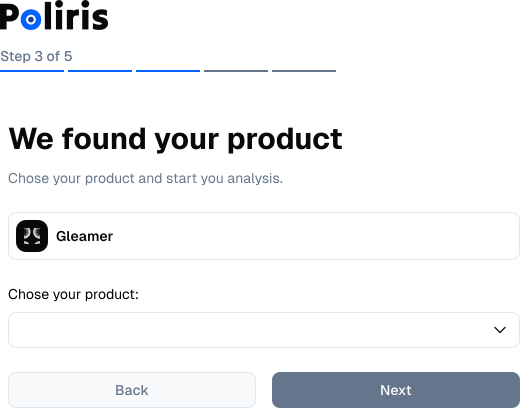
Figure 4. Step 3 - We found your products. POLIRIS lists every product or service it detected on your site. Tick the ones you want in your first audit - multiple products are supported - or accept the auto-selection and keep going. -
Advanced settings
Step 4 is where POLIRIS turns your inputs into a real audit configuration. The wizard pre-fills sensible defaults from the brand and product it just detected - you only need to tune what matters to you and click Next. Five blocks live on this screen:
- Brand & Product context. The detected brand sits at the top with a product dropdown below it. Switch the dropdown if you want this audit scoped to a different product than the one shown.
- LLM selection. Pick which models POLIRIS should query for this audit. Each model is a card you can tick or untick - ChatGPT, Claude, Gemini, Perplexity, Mistral, and Grok are all available. The selection here drives both Visibility and Sentiment scores, so include every model your customers actually use. See LLMs & Categories for the full list of supported web-interface and API models.
- Categories. The Category cards (Customer Experience, Value and Pricing, Quality and Performance, Innovation and Technology, and so on) define the perception dimensions Poliris will track for your product. Pick the four to six that best describe how your customers actually evaluate this category. These selections drive the radar chart in Sentiment Audit and the Category bars in Visibility Audit.
- Trading zone. The country or region where you sell - United States, France, Japan, etc. AI answers vary by zone, so this is what tells POLIRIS where to look.
- Language. The language the LLMs should answer in. Match this to the language your customers speak in the trading zone you picked.
On the left side of the screen you’ll see a help card with quick tips, and an Ask Poli AI banner that lets you talk to Poli Agent if you’d like a recommended configuration based on your industry and goals.
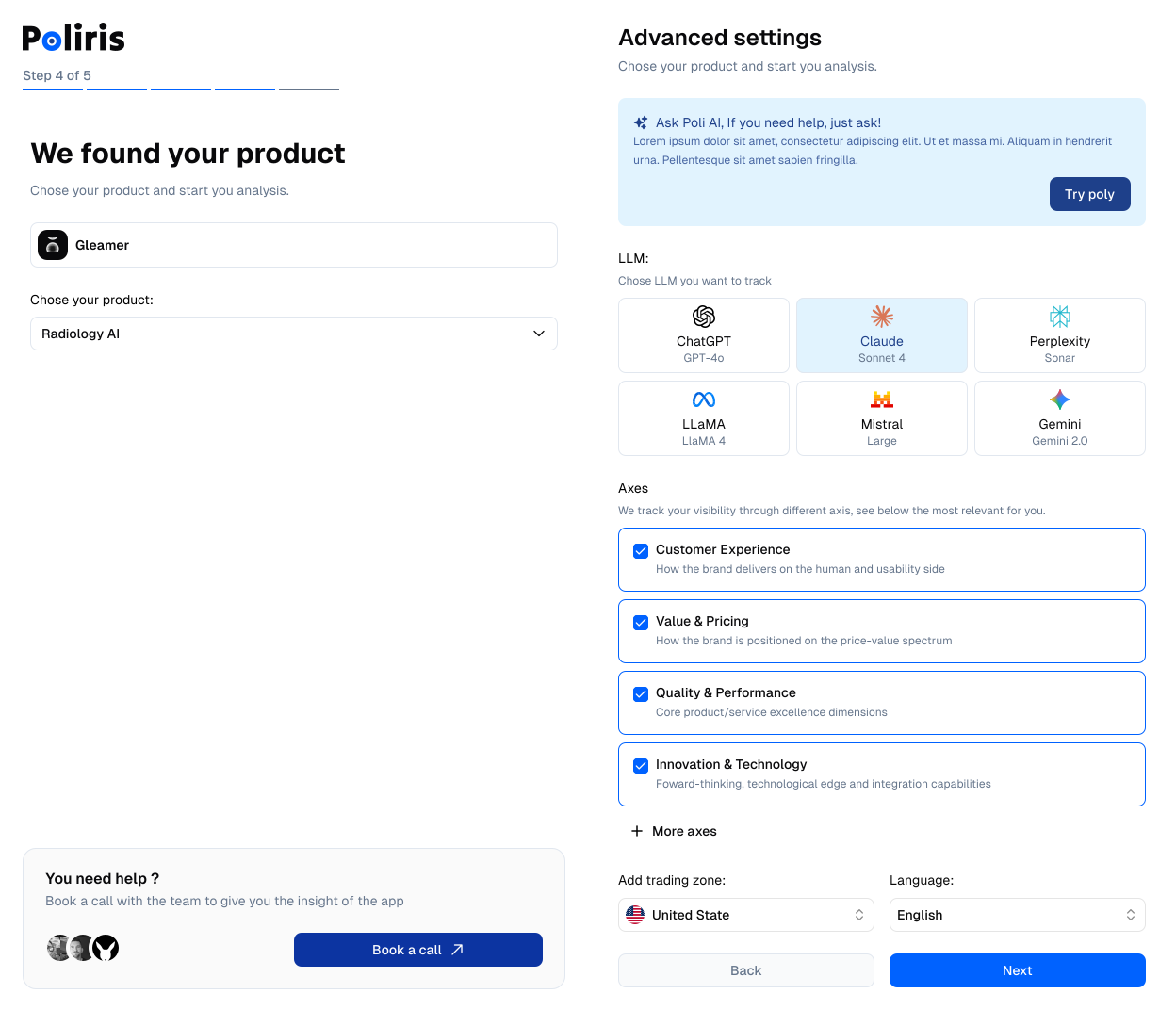
Figure 5. Step 4 - Advanced settings. Confirm the brand and product, pick the LLMs to query, choose the Categories that matter for your brand, and set the trading zone and language. The defaults are sensible if you’re new - tweak only what you actually need. You can change these later. Everything on this screen is editable from Settings › LLM Models, Settings › Configuration, and Settings › Visibility Area. The wizard is just to get you to your first audit fast. -
Review your rules
POLIRIS shows a list of Prompts (the questions it will ask LLMs) and lets you decide which ones go into your first audit.
Each prompt is linked to one or more Categories - the same Categories you picked in Advanced Settings - so you can see at a glance which perception dimension each question feeds into. A prompt can sit under several Categories at once if it touches more than one topic.
Each prompt also carries a Traffic indicator - High, Medium, or Low. Traffic is a measure of how often this prompt (or one very close to it) is actually asked across the LLMs, based on aggregated query data. High-traffic prompts are the questions your customers are really asking AI today, so they have the biggest impact on your visibility - prioritize them.
You can check or uncheck any prompt to include or exclude it, edit the wording, or add your own. When you’re happy, click Start analysis to launch the audit.
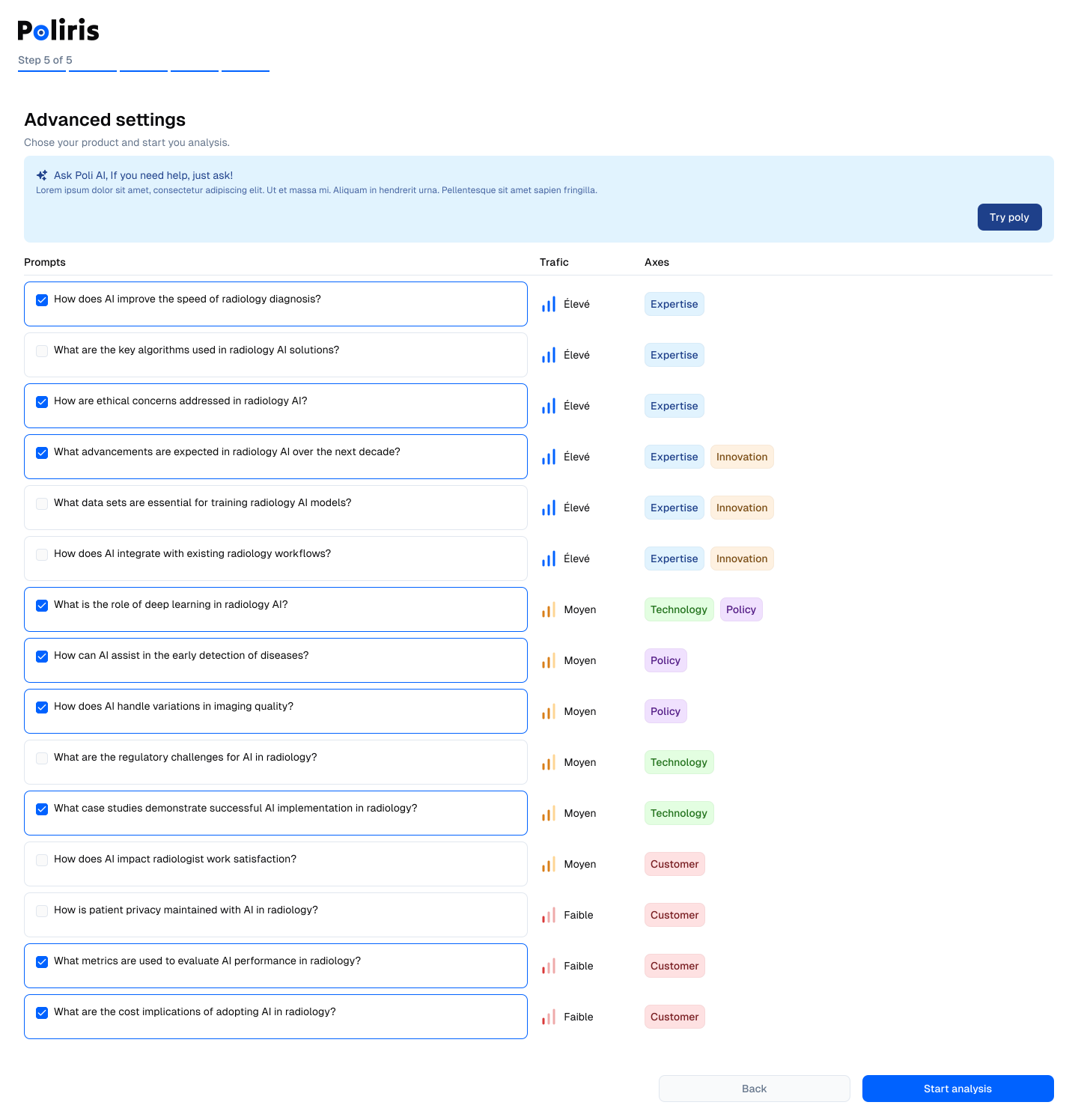
Figure 6. Step 5 - Review your prompts. Every question POLIRIS will ask the LLMs, sorted by Traffic and tagged with the Categories each prompt belongs to. Check or uncheck prompts, then hit Start analysis. -
Launch your first audit
Click Start audit. POLIRIS asks every Request to every LLM in your Zone, reads the answers, and saves everything. This takes a few minutes.
-
Discover Poliris
While your audit runs, the Analyzing bar at the top of the screen shows live progress and an estimate of how long is left. The audit usually takes a few minutes - long enough to grab a coffee, short enough that you don’t need to leave the tab.
The loading screen is also useful: it rotates through quick tips about what each card in the dashboard means, how to read your first scores, and where to find Poli Agent. You can read along while the audit runs, or just click Cancel if you change your mind about the configuration.
During or right after analysis, POLIRIS may invite you to connect Google Search Console and/or Google Analytics. These integrations enrich your audit with classic-search and traffic data, and they unlock more accurate Technical Audit findings. If you connect both, you receive free trial days on Technical Audit as a thank-you for hooking up the data - so it’s worth doing it now rather than later.
When the audit is done, you land on the Discover Poliris welcome screen. It walks you through your first dashboard and shows you what to look at first - visibility, competitors, and the actions you can take next. The Discover all our AI Agents card on the same screen is a quick tour of every agent inside POLIRIS, with a See all the AI Agents link and a Got it button to dismiss.
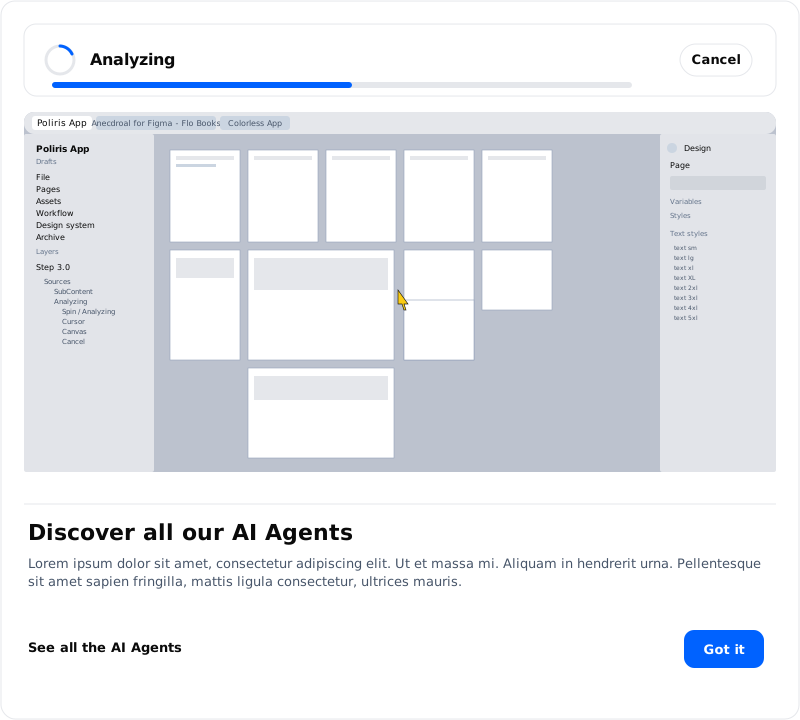
Figure 7. Analysis & Discover - while your first audit runs, the Analyzing bar shows progress and rotating tips. POLIRIS may also offer a Google Search Console and Google Analytics hookup; connect both and you unlock free trial days for Technical Audit. When analysis finishes, the Discover all our AI Agents card walks you through what POLIRIS can do next.
LLMs & Categories
Two ideas show up everywhere in POLIRIS: LLMs (the AI models we ask) and Categories (the topics we measure your brand on). This page explains both, and lists every model POLIRIS currently supports.
What is an LLM?
LLM stands for Large Language Model. It’s the kind of AI behind ChatGPT, Claude, Gemini, and Perplexity - a model trained on huge amounts of text that can answer questions, summarize documents, compare products, and recommend brands.
When a customer asks an LLM “what’s the best running shoe under $150?”, the LLM decides which brands to mention. That decision is what POLIRIS measures - and to measure it accurately, we have to ask the same questions to the same models your customers are using.
POLIRIS connects to LLMs in two different ways, and both are available inside the platform:
Web Interface LLMs
These are the LLMs as a customer experiences them - through a browser, with web search baked in, retrieval-augmented results, and the latest training cutoffs. POLIRIS automates the same browser flow your customers use, so the answers we capture match what real users actually see.
- Gemini - Google’s flagship chat experience.
- Google AI Mode - the deep-reasoning, multimodal experience inside Google Search.
- Google AI Overview - the AI-generated answer box at the top of Google results pages.
- Perplexity - an answer engine that always shows its sources.
- Mistral - the European LLM, popular in French and EU markets.
- ChatGPT - OpenAI’s conversational experience, the most-used LLM globally.
- Grok - xAI’s assistant, integrated with X (formerly Twitter).
API Integration LLMs
These are LLMs called directly through their API. We use them for fast, repeatable, controlled queries - ideal for high-volume Sentiment passes and structured Visibility checks where consistency matters more than web freshness.
- ChatGPT - GPT-4o Mini: OpenAI’s fast, cost-efficient general model.
- Claude - Haiku 4.5 (2025-10-01): Anthropic’s latest small/fast model, great for high-throughput perception scoring.
- Gemini - 3 Flash Preview: Google’s next-gen lightweight model with strong reasoning.
What is a Category?
A Category is one of the topics POLIRIS scores your brand on - a perception dimension your customers actually care about, like Customer Experience, Innovation and Technology, Quality and Performance, or Value and Pricing. Categories are the rows in your radar chart, the bars in Score Breakdown, the chips in Competitive Position, and the tags on every prompt.
Categories are tied to the product Poliris identified for you. When you confirm a product during onboarding, Poliris uses the public information we have about that product - what it does, who it’s for, and how the market typically evaluates it - to suggest the four to six Categories that best describe how AI models are likely to talk about it. You can keep the suggestions, swap a few, or add your own from Settings › Configuration.
The same set of Categories then drives:
- The Categories vs. Models bar toggle in Visibility Audit.
- The Category chips on Competitive Position.
- The radar spokes in Sentiment Audit.
- The Category tags on every row in Prompt Explorer and Cited Prompts.
Core Features
POLIRIS has four big features that work together: GEO Audit, Technical Audit, Poli Agent, and Content Generation. Each one has its own job.
GEO Audit
GEO stands for Generative Engine Optimization. That’s a fancy way of saying: “making sure AI tools know about your brand.”
The GEO Audit asks AI models questions for you, listens to the answers, and tells you what it heard. It is organized into three views: a Product Overview (the at-a-glance dashboard for one product), a Visibility Audit (how often you show up), and a Sentiment Audit (what the AI says about you).
Features / GEO AuditProduct Overview
The Product Overview is the landing page for any product you track in POLIRIS. It combines the most important signals from Visibility and Sentiment on a single screen so you can answer “how is this product doing in AI right now?” in under a minute, then drill down only when a number surprises you.
1. Tabs
The product page is split into three tabs at the top:
- Overview - the screen described here. The default landing tab.
- Visibility - the full Visibility Audit.
- Sentiment - the full Sentiment Audit.
2. Headline metrics
Three cards across the top row give you the full GEO read at a glance. Each card carries an Excellent / Good / Average / Weak badge so you can read the headline without doing math.
Global
The overall GEO Audit score, expressed as a percentage on a circular ring. It combines Visibility and Sentiment into one number you can track week over week. Below the ring you’ll see:
- Delta vs. last run - the percentage-point change with an up or down arrow.
- Time range trend - e.g. 0% → 67% · 3 months.
- Biggest gain - the LLM that contributed the largest score improvement.
If the audit is brand new, the trend reads Not enough runs for trend.
AI Visibility & Brand Perception
The middle card stacks the two GEO inputs that feed into the Global score:
- AI Visibility - the score derived from the Visibility analysis across LLMs (out of 100, shown as a horizontal bar).
- Brand Perception - the score derived from the Sentiment analysis. If sentiment data isn’t available yet, the row shows No data.
Competitive Position
Your product’s ranking among tracked competitors - e.g. #4 of 6. A position badge sits in the top-right (Top, Mid, or Bottom). Below the rank you see a short list of the brands ranked immediately above and below you, with your own brand flagged with a You tag.
3. Evolution
A line chart in the middle row showing each tracked brand’s score by LLM over time - one line per brand, coloured by brand identity. Two key controls:
- Time range - 1W, 1M, 3M, 6M, 1Y.
- Visibility / Sentiment toggle - switch the chart between the two evolution views without leaving the page.
The brand chips above the chart act as a legend and can be toggled to focus the view on the comparisons that matter to you.
4. Visibility Analysis
The right-hand panel of the middle row summarises how often your product appears in AI answers.
- Avg. Score - average visibility score across the LLMs in scope.
- Mentions - share of audited responses that mention your product.
- Avg. Position - the average rank you hold in answers that list multiple products.
- Score by platform - per-LLM score (e.g. ChatGPT 0%, Gemini 67%) so you can see where you’re strong and where you’re absent.
- Insight callout - a short Poli AI line highlighting the best opportunity (e.g. “ChatGPT coverage is weakest, highest opportunity to improve mention rate here.”).
- Details button - opens the full Visibility Audit.
5. Position vs Competitors
A BCG-style 2×2 matrix that plots every tracked brand on two axes: visibility on the horizontal, perception on the vertical. Each dot is a brand logo - your own dot is outlined. The four quadrants tell you exactly what kind of competitor each brand is:
- Leaders (top right) - high visibility and high perception.
- Strong Perception · Low Visibility (top left) - well regarded but rarely mentioned.
- Visible · Weak Perception (bottom right) - mentioned often but not loved.
- At Risk (bottom left) - weak on both axes.
Use the Filter button to narrow the view by Category, LLM, or competitor set. The caption beneath the chart shows the audit date the snapshot is based on (Each dot is a brand. Based on Apr 27 analysis).
6. Sentiment Analysis
The right-hand panel paired with the matrix. Two tabs at the top control which sentiment lens you’re reading:
- Web Analysis - how the product is described across web sources (reviews, articles, forums).
- Model Analysis - how leading AI models describe the product directly in their answers.
Both tabs share the same layout:
- Overall Tone - Positive, Neutral, or Negative.
- Tone trend - direction since the previous run (or First run if there’s no history).
- Confidence - how strong the signal is (Strong, Medium, Weak).
- Score by platform - per-attribute scores (e.g. Fair Price 38%, Quality 34%).
- Insight callout - a short Poli AI summary of the attribute scores.
- Details button - opens the full Sentiment Audit.
7. Target Audience
A ranked list of the audience segments AI platforms associate with this product in the selected trading zone. Each row shows:
- An audience name (e.g. High Mobility Consumer Technology Enthusiasts).
- A type tag - individual or professional.
- A share of mentions percentage with a small ring chart, indicating how strongly AI ties this audience to your product.
Use this to validate that AI sees your product the way your brand intends - if the top audience here isn’t the audience your marketing targets, that’s a positioning gap to close.
8. Competitor Momentum
A trend view of how competitors ranked near you are moving over time across LLMs. If there isn’t enough history yet, the card shows No data available.
9. Recommended Action (PULSE)
A core POLIRIS feature: a prioritised list of next-best actions generated from all the data on this screen. Each action card shows:
- An action title (e.g. Optimize product schema markup).
- A short description grounded in the current audit.
- A priority badge - High, Medium, or Low.
- A chevron on the right that opens a deeper Poli AI conversation about the action.
The Ask Poli AI for more button at the bottom of the card opens a single conversation that discusses every recommendation in context - a fast way to brief content, PR, or engineering teams.
Visibility Audit
The Visibility Audit shows how often your brand actually appears in AI answers and how that compares to the competition. It pulls together a single headline score, a competitive ranking, the sources AI models are citing, a model-by-model breakdown, and every underlying prompt - so you can move from a high-level number all the way down to the exact question an AI answered.
The tab is organized into a Poli AI Insight banner plus five cards, each focusing on a different layer of your visibility profile. The sections below walk you through what each piece shows (Findings), how to read the data together (Insights), and what to do next (Recommendations).
Findings - what each card shows
1. Poli AI Insight
A banner at the very top of the Visibility Audit, and the first thing you see when you open the page. This is the same Poli AI experience used in Sentiment Audit: Poli AI reads your live visibility data and writes a two-sentence strategic summary, the way a brand consultant would explain it.
- Sentence 1 highlights the most important gap or strength in your current visibility data - for example, a high overall score paired with a weak performance on a specific LLM, or a strong Category that’s sliding run-over-run.
- Sentence 2 gives you one clear, high-leverage action you can take right now to improve visibility - the same kind of recommendation you’d find on Sentiment’s insight banner.
- Use the refresh icon on the right side of the banner to regenerate the insight at any time.
- The insight is cached, so it loads instantly on return visits until your underlying data changes.
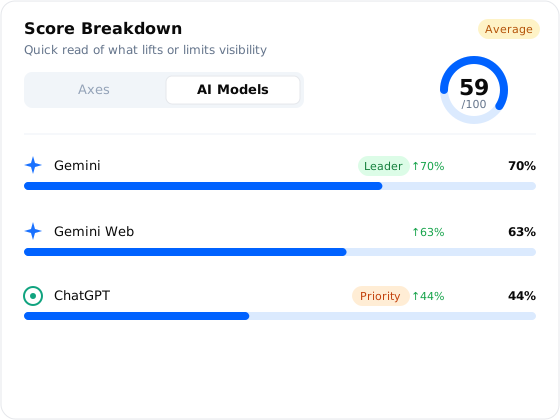
2. Score Breakdown
A quick look at what helps or hurts your brand’s visibility. The circle at the top shows the overall score out of 100, labeled as Excellent, Good, Average, or Weak.
- Below the circle, a list of bars ranks performance by either Categories (topics such as Performance, Price, or Durability) or by AI Models (such as ChatGPT, Gemini, or Perplexity) - a toggle switches between the two views.
- The top bar is tagged as Leader, and the weakest is tagged as Priority.
- Each bar shows how much the score has changed since the last check.
3. Competitive Position
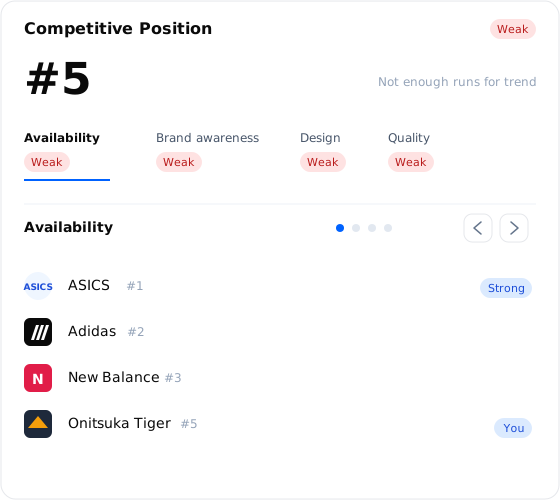
Shows how the brand stacks up against its competitors. The current rank (for example, #3) appears at the top, along with a small chart showing how the rank has moved over time.
- A row of topic chips labels each one as Leader, Strong, Moderate, or Weak.
- Selecting a chip filters the list below to show only that topic.
- The list displays the top brands in the selected topic, with the target brand highlighted and marked as You.
4. Source Intelligence
When an AI model answers a question, it doesn’t just rely on what it learned during training. It visits sources on the live web - websites, articles, Reddit threads, news pages, forums - reads them, and uses what it finds to build the response. Source Intelligence shows you where those visits are happening for prompts about your category, and how often your website is among the pages cited.
Two key terms drive this card:
- Sources - the websites or pages an AI model actually visited while researching its answer (e.g., reddit.com, your blog, a comparison article on a media site). Think of this as “where AI is reading from.”
- Citations - the number of times your website is mentioned or linked inside those sources, or directly cited by the LLM in its answer. Citations are how often your domain is actually showing up in the conversation, not just being read.
The header displays the total number of sources and citations, along with a label describing how varied the source mix is: Concentrated, Moderate, or Diversified.
- A colored bar breaks the sources down by type - Your Site, Retail, Industry, Social, Blog, Media, Academic, and General.
- The five most-cited websites are listed below, each with its citation count and change since the last check.

5. Visibility Analysis
A closer look at how often the product actually shows up in AI answers. Tabs at the top switch between All LLMs and a specific AI model.
- Two small panels display the average Position (ranking) and Visibility Score (percentage), each with a change indicator.
- Below, a two-column view shows all brands ranked by score on the left.
- A color-coded grid on the right reveals how each brand scores on each AI model - making it easy to see which models favor which brands.
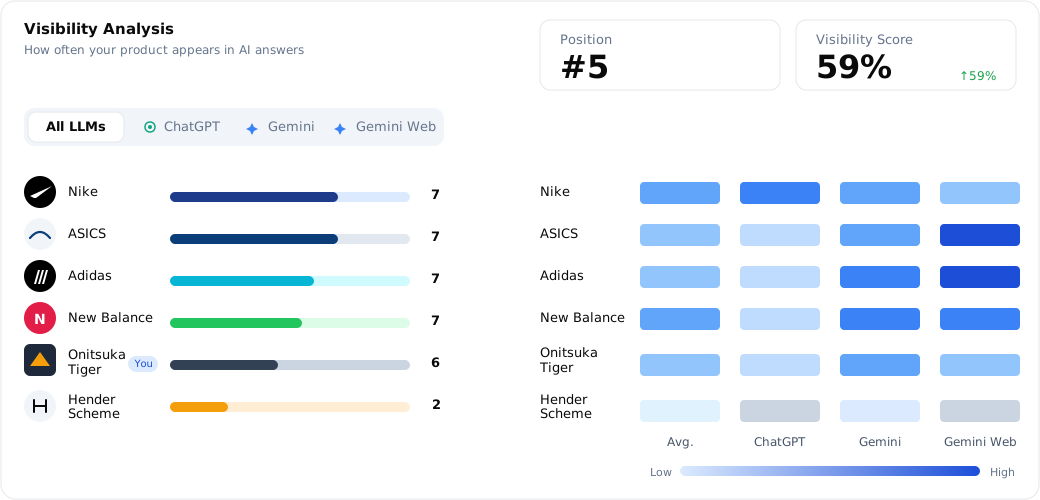
6. Prompt Explorer
A searchable table of every prompt POLIRIS asked during this audit. Each row is one of the prompts you previously selected in Step 5 - Review your prompts (or that POLIRIS added automatically based on your category and Categories). The Prompt Explorer is where you go from high-level scores to the literal questions and answers that produced them.
What each row tells you:
- Prompt text - the actual question POLIRIS asked the LLMs.
- Category tags - one or more chips showing every Category this prompt is linked to (e.g., Design, Quality, Availability). The same Categories you picked in Advanced Settings.
- Traffic indicator - High, Medium, or Low. Traffic shows how often this prompt is asked across the LLMs, based on aggregated query data. High-Traffic prompts move your visibility number the most.
- LLM icons - one icon for every model that answered this prompt. An icon renders in BLUE if your brand or product was mentioned in that model’s answer; if the icon stays gray, the model answered without mentioning you. Scan the row to see which models picked you up at a glance.
Results can be filtered by keyword or by Category, and sorted by Traffic to surface the most impactful prompts first.
Selecting any row slides open a detail panel with everything behind that prompt:
- The full AI response, exactly as the model wrote it - one tab per LLM that answered.
- The brands mentioned in the response, including your competitors and the order they appeared in.
- The cited sources - every website or page the model used to build its answer, with links you can open and read.
Use the detail panel as evidence when you brief content, PR, or SEO teams - it’s the literal ground truth of what AI is saying about your category today.

Recommendations - what to do next
Recommendations are generated automatically from your AI Visibility Score. POLIRIS reads the live audit data - your score, your weakest Categories, the LLMs where you under-perform, the prompts you’re missing - and turns it into a focused action list designed to improve your AI visibility, increase your AI Visibility Score, and uplift your brand’s positioning across AI platforms.
Every recommendation is data-driven and tied directly to a finding in this audit, so you always know why POLIRIS is suggesting it and which number it’s designed to move.
Insights - how to read the data together
The Visibility Audit has nine cards, but you don’t need to read them in order. Follow the four-step flow below to move from headline → diagnosis → context → action.
-
Start with the headline
Open Score Breakdown. The big circle, plus its Excellent / Good / Average / Weak label, is your baseline. Everything else on the tab explains why the number looks the way it does.
-
Diagnose the gap
Toggle between Categories and Models to see where the weakness sits.
- Weakest Category The gap is about topics - you don’t show up for things like Price or Design.
- Weakest Model The gap is about where - for example, Perplexity barely knows you.
The Priority tag points at the single biggest lever. Leader tags show where to defend what you already have.
-
Add context from the supporting cards
Each card layers extra meaning on top of the headline score.
- Competitive Position Pair your rank with the trend chart. A static rank trending up is very different from a static rank that’s been sliding.
- Topic chips Leader / Strong - keep the pressure on. Moderate / Weak - competitors are winning the conversation.
- Source Intelligence Concentrated = AI leans on a few sites (be there or be invisible). Diversified = you need broader coverage.
- Visibility Analysis Low Position + high Score = often mentioned, never at the top. High Position + low Score = you place well but rarely show up.
- Brand × Model grid Warm cells = friendly models. Cold cells = models competitors dominate.
-
Drill down to the prompt
When a score moves, open Prompt Explorer, filter by topic, and sort by Traffic. Read the high-traffic rows first - those questions drive the biggest share of your visibility up or down.
Sentiment Audit
The Sentiment Audit (the Sentiment tab inside GEO Audit) gives you a real-time view of how your brand is perceived - both across the open web and inside leading AI models like Claude, ChatGPT, and Gemini. It answers one central question: when people (and AI) talk about your brand, is the conversation positive, neutral, or negative?
The tab is organized into seven cards, each focused on a different angle of your sentiment profile. The sections below walk you through what each card shows (Findings) and how to read them together (Insights).
Findings - what each card shows
1. Poli AI Insight
A banner at the very top of the Sentiment tab, and the first thing you see when you open the page. Poli AI reads your live sentiment data and generates a short strategic summary, written the way a brand consultant would explain it.
- Sentence 1 highlights the most important gap or strength in your current sentiment data - for example, an exceptional brand perception score paired with neutral web mentions.
- Sentence 2 gives you one clear, high-leverage action you can take right now.
- Use the refresh icon on the right of the banner to regenerate the insight at any time.
- The insight is automatically cached so it loads instantly on return visits until your underlying data changes.
2. Score Breakdown
A breakdown of your overall sentiment score across two dimensions, so you can see where your brand is strong or weak rather than just how strong overall. A tab control at the top switches between the two views.
- Axes tab - the score broken down by Category / Axis: Brand Awareness, Quality, Availability, Design, and any other Categories defined for your project. Each row has a horizontal bar and a performance badge (Excellent, Good, Average, Weak).
- AI Models tab - the same score broken down by AI model instead. Each row shows one LLM (ChatGPT, Gemini, Claude, Perplexity, and so on) with its bar and badge, so you can see which models hold a strong opinion of your brand and which don’t.
- An overall performance badge in the top right (Excellent, Good, Average, Weak) summarises the combined score at a glance.
3. Prompt Distribution
A count-level view of how AI models responded to every prompt in your analysis. Where the other cards show scores and averages, this one shows the raw distribution of prompts by sentiment, so you can see how many of your prompts came back well and how many came back missing or negative.
- Positive - prompts where the dominant AI response about your brand was favorable.
- Mixed - prompts where responses were a blend of positive and neutral or slightly negative.
- Negative - prompts where the dominant AI response was unfavorable.
- Not Mentioned - prompts where your brand was not referenced at all in the AI’s answer.
- A segmented color bar below the counts shows the proportional split (e.g., 92% Positive / 8% Mixed) and a sentiment badge in the top right summarises the overall mood: Positive, Mixed, or Negative.
- Small delta arrows appear next to each count when a previous run is available, so you can see whether each bucket has gone up or down.
4. Web Analysis
A combined view that shows how your brand stacks up against the competition on every Category, plus how each Category’s sentiment is trending over time. It pulls together two visualisations on one card, with a row of brand toggle pills at the top so you can compare any subset of competitors without visual clutter.
- Sentiment score per axis across brands - one polygon per brand laid over a radar (spider) chart, with one spoke per Category. The bigger and more even the polygon, the stronger the brand’s sentiment profile.
- Radar positioning of the client - your own brand is highlighted (with a You tag in the legend) so you can immediately see your shape against the field.
- Sentiment trend · competitors - a line chart on the right tracks each brand’s sentiment score over time, so you can read direction (rising, falling, holding) alongside position.
- Brand toggle pills at the top - click any brand pill to show or hide it on both views, making head-to-head comparisons quick.
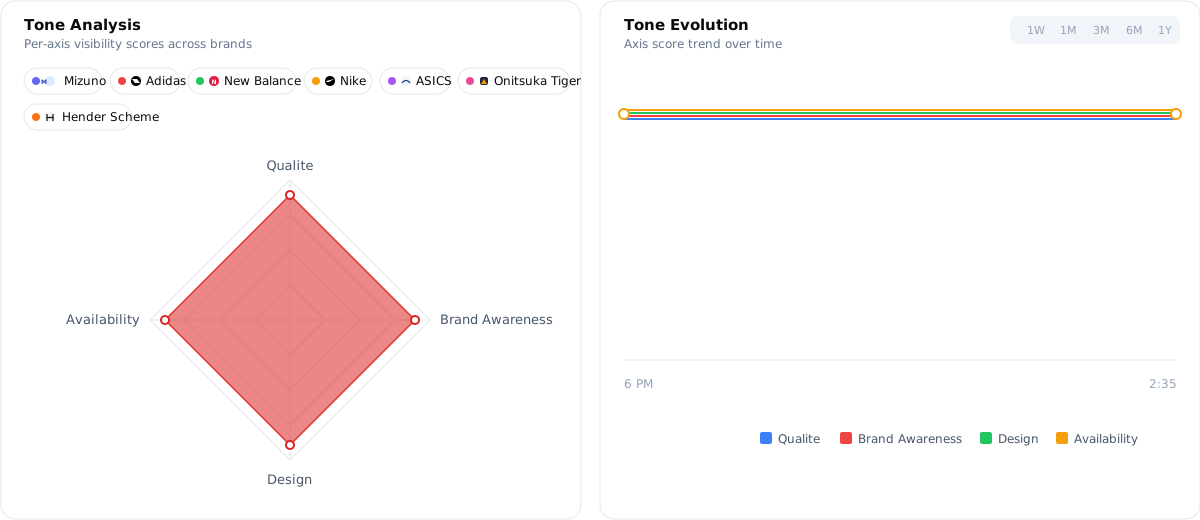
5. Competitors / Brands
A precise, sortable table of every competitor identified in the sentiment analysis, ranked by their position and visibility score. Where the radar gives you a visual feel, this table gives you the exact ranking and the per-Category breakdown.
- A row for each brand, starting with the logo and name. A “You” tag is pinned to your own brand so it’s easy to spot in a long list.
- A column for each perception Category (e.g., Availability, Brand Awareness, Design, Quality), each showing a color-coded badge: Very Strong, Strong, Moderate, Weak, or Very Weak.
- A Visibility column on the right with a horizontal bar showing the brand’s overall visibility score - the table is ranked by this column.
Badge colors at a glance:
- Green - Very Strong or Strong. Your brand is well represented in this Category in AI responses.
- Orange / Yellow - Moderate. Room for improvement.
- Red / Pink - Weak or Very Weak. This Category is an urgent gap.
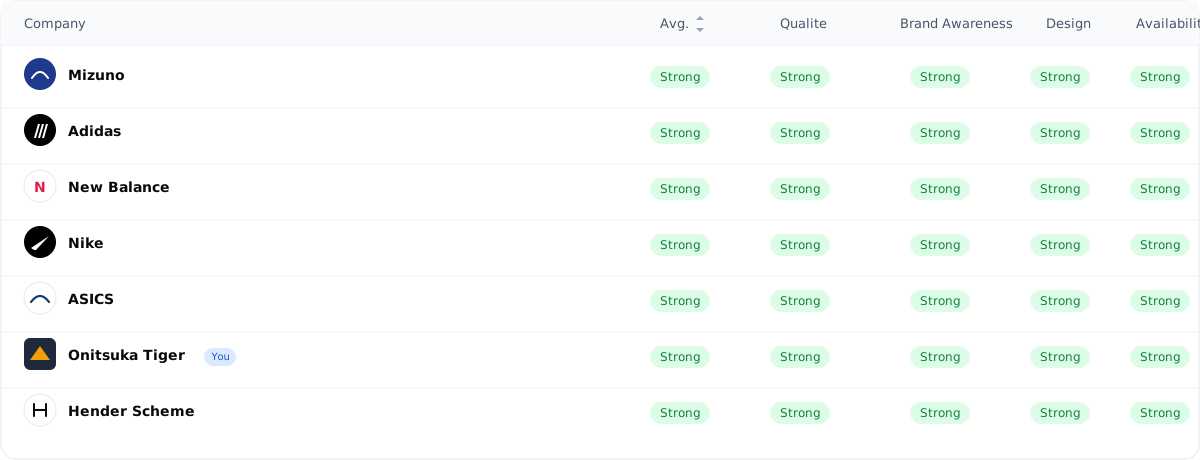
6. Cited Prompts
Cited Prompts displays the prompts with their dominant sentiment analysis results. It’s the most granular view on the Sentiment tab and shows you exactly which questions AI is being asked about your category, how it answers, and which models are involved.
The card lays out four pieces of information for every prompt:
- All prompts analyzed by the platform.
- The category / group each prompt belongs to.
- The sentiment toward your brand or product based on the LLM response.
- The LLMs that responded to that prompt.
What each column shows:
- Prompt The actual question or prompt analyzed (e.g., “What are the best-rated evaporated milk brands in the Philippines for everyday home cooking?”).
- Category The category or group the prompt belongs to - for example, Brand Awareness, Competitor Comparison, Product Discovery, Quality. Use the tab row at the top of the card (All Axes, Brand awareness, Quality, etc.) to filter the table to a single category - for example, click Brand Awareness to see only those prompts.
- Sentiment The sentiment toward your brand or product for that specific prompt, based on the LLM response: Positive, Neutral, or Negative. Click the column header to sort the table by sentiment.
- LLM The AI models that answered that prompt - ChatGPT, Gemini, Google AI Mode, Perplexity, Claude, and others. Each model is shown as a small chip with its icon and name.
Reading the LLM column at a glance: the chips use two visual cues so you can scan a row in a second.
1. Chip color (whether your brand was mentioned at all)
- Blue chip - your brand or product is included in that model’s response.
- Not blue (default) - your brand or product is not included in that model’s response for that prompt.
2. Sentiment dot (how your brand was mentioned)
Each chip carries a small colored dot indicator describing the tone of that mention:
- Green dot - your brand or product is mentioned positively.
- Orange dot - your brand or product is mentioned neutrally.
- Red dot - your brand or product is mentioned negatively.
Together, the chip color and the dot give you an instant read of which models picked you up for that prompt and how each one framed the brand.
Click any row to open a detailed modal with the full AI model responses for that prompt - you can read exactly what each LLM said about your brand, in context.
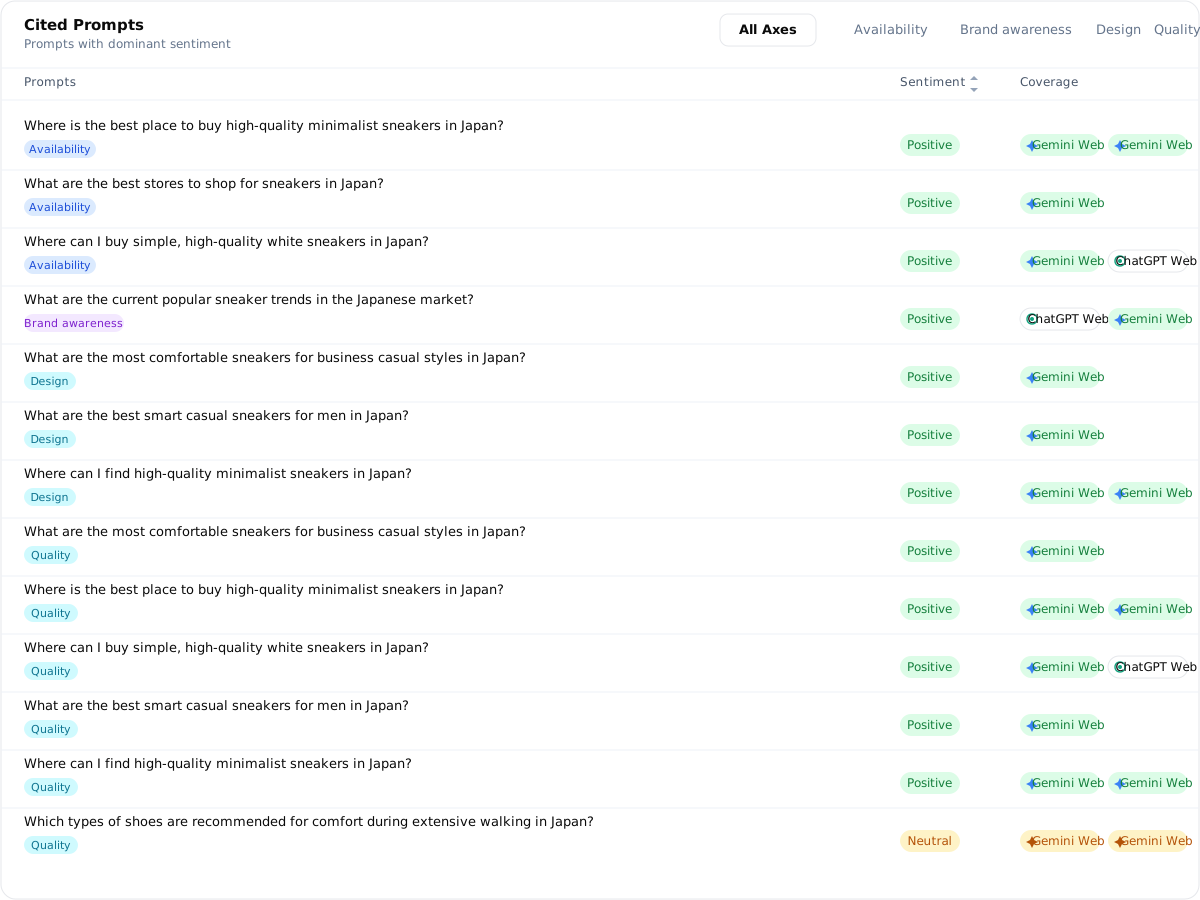
7. Recommendations & Opportunities
At the bottom of the Sentiment tab, this card uses Poli AI to read your sentiment context and generate four specific, actionable recommendations - each prioritized by urgency. The structure mirrors the Visibility recommendations card so the workflow is the same on both tabs.
- Four recommendation cards arranged in a 2×2 grid.
- Each card has a priority badge: High (red), Medium (yellow), or Low (blue), with a matching colored left border for quick visual scanning.
- A short title plus a description explaining the specific issue and the suggested action.
- Click any card to open the Poli AI chat assistant, pre-loaded with a detailed question about that recommendation - for a deeper explanation, step-by-step tactics, or estimated impact without typing anything.
- Use the refresh icon next to the header to regenerate a fresh set of recommendations.
- Click “Ask Poli AI” in the header to open a comprehensive analysis of all recommendations and opportunities in one conversation.

Insights - how to read the data together
The Sentiment Audit answers one question: when AI talks about you, is it good? Follow the four steps below to move from a headline reading to a specific prompt you can act on.
-
Start with Poli AI Insight
The banner at the top of the page surfaces the single biggest gap or strength in your current data and pairs it with one high-leverage action. Use it as your daily status check.
-
Diagnose with the Score Breakdown
Toggle between Axes and AI Models in the Score Breakdown card to see where the weakness sits.
- Weakest Axis The gap is about topics - AI doesn’t describe you well on Quality, Design, or whichever Category is lagging.
- Weakest AI Model The gap is about where - one model holds a much weaker view of your brand than the others.
- Prompt Distribution A high Not Mentioned count is a major opportunity - AI is answering category questions without naming you at all.
-
Compare against competitors
Cross-reference the Web Analysis card with the Competitors / Brands table - the two views confirm each other.
- Smaller polygon In Web Analysis, find Categories where your radar polygon is noticeably smaller than a competitor’s.
- Red badges Confirm those gaps in the Competitors / Brands table - red badges mark where you’re losing the conversation.
- Sentiment trend Use the line chart on the right of Web Analysis to separate signal from noise. A one-run drop usually ties to a small set of prompts; longer trends reveal structural moves.
-
Drill down to the prompt
When a Category drops, open Cited Prompts, filter to that Category, and sort by sentiment. The negative rows almost always explain the move - and they become your evidence pack for content and PR.
Technical Audit
The Technical Audit looks at your website itself - the parts you can’t easily see, like the wiring behind the walls of a house. It tells you whether crawlers and AI systems can reach, read, and trust your pages.
What it checks
- Reachability. Whether your pages return successfully and respond to crawlers.
- Indexation. Whether Google and AI search engines can actually find and index your pages.
- Speed & quality. Page Speed Insights metrics - LCP, INP, CLS, TBT - plus SEO, accessibility, and best-practices scores.
- Structure & metadata. Canonical tags, robots rules, schema, internal linking, and broken links.
- Content quality. Whether the content on each page is substantial, readable, and clear enough for both users and AI to use.
Why do this? Because even the best content won’t rank if the site is broken. It’s like having a great restaurant - but the front door is stuck.
The Technical Audit is organized into two screens so you can move from the big picture to a single URL: Site Overview for the whole site, and Page Explorer for one specific page. Site Overview itself is split into three tabs - Overview (the main dashboard), Issues, and Visualizations - so you can move from headline numbers to the full issues backlog without leaving the screen.
Connect Google Analytics & Search Console
Before you dive in, take a minute to plug POLIRIS into your Google Search Console and Google Analytics accounts. POLIRIS works without them, but with them connected your audit moves from a generic technical scan to a personalised picture of your site.
The two tools answer different questions, so connect both for the full picture:
- Google Search Console Tells POLIRIS how Google sees your site - impressions, clicks, queries bringing people in, and indexing status.
- Google Analytics Tells POLIRIS how visitors behave once they arrive - sessions, engagement time, users, and conversion patterns.
Step-by-step: connect Google Search Console
-
Open the Integrations page
In the left sidebar of POLIRIS, go to Settings › Integrations. You’ll see a list of services you can plug in.
-
Click “Connect” on Google Search Console
Find the Google Search Console tile and press the Connect button. POLIRIS will open a secure Google sign-in window in a new tab.
-
Sign in with your Google account
Use the Google account that already manages your Search Console property. If you have access to several Google accounts, double-check that you pick the right one.
-
Approve the requested permissions
Google will list the read-only permissions POLIRIS needs (search performance and site data). Click Allow - POLIRIS never writes to your Search Console.
-
Pick the right property and confirm
Back in POLIRIS, choose the property (the website) you want to link to your project, then click Save. The Search Console tile now shows Connected, and the Connected Services cards in Site Overview and Page Explorer light up with real data.
Step-by-step: connect Google Analytics
-
Stay on the Integrations page
You can connect both tools in one visit. From the same Settings › Integrations page, scroll to the Google Analytics tile.
-
Click “Connect” on Google Analytics
Press Connect. As before, POLIRIS opens a secure Google sign-in window. Use the account that has access to your Google Analytics 4 (GA4) property.
-
Approve the read-only access
Google will ask you to allow POLIRIS to read your Analytics data. Click Allow - only read access is requested, so your settings and reports stay untouched.
-
Choose your GA4 property and save
Back in POLIRIS, pick the GA4 property that matches the website you’re auditing, then click Save. The Analytics tile flips to Connected and traffic, engagement, and user behaviour start flowing into your Technical Audit.
Site Overview
The Site Overview gives you a high-level picture of your entire website’s technical health - how many pages were crawled, how healthy the site is, which issues are most widespread, and how things have changed over time. Everything on this screen is about your whole site, not a single page.
The screen is organised into three tabs: Overview (the main dashboard), Issues (the full issues backlog), and Visualizations (visual maps of your site).
Overview
The default view when you open Site Overview. Walks you from headline numbers to the specific issues you need to fix, in roughly the order you’d read them top-to-bottom on the screen.
1. Header
At the top of the screen you can see:
- Site Overview title and breadcrumb.
- Your website URL - clicking it opens your site in a new tab.
- Your project name - shown next to the URL.
- Last update / last crawled - how long ago the audit ran (e.g. Last update about 1 month ago).
- Pages crawled - how many pages were found and scanned (e.g. 28/28 pages crawled). If the audit is still running it shows progress like 12 of 34 pages crawled.
2. Integrations (upper right)
Two small pills in the top-right corner of the header tell you whether your audit is enriched by Google Search Console and Google Analytics data. Read them at a glance:
- Green dot - successfully connected. POLIRIS is pulling live data from that service.
- Red dot - not connected or requires setup. The audit still runs, but the data sourced from that service (traffic, visitors, queries, etc.) won’t be available.
Need to connect them? See Connect Google Analytics & Search Console at the top of the Technical Audit section.
3. Website preview
A small thumbnail of your homepage in the top-right of the header so you can confirm the audit ran on the right site. When a preview isn’t available yet, the card shows No preview.
4. Poli AI Insight
A blue banner near the top of the Overview. Poli AI reads your live audit data, surfaces the most important finding, and tells you what to do about it - written like a strategic summary, not a raw error log (e.g. “Your site health is good (89/100) but Content Access at 77% is a bottleneck. Fix missing meta descriptions on 12 pages to unlock your content quality score.”).
The banner mirrors the Poli AI Insight pattern you already saw on the GEO Audit Overview - one sentence on what stands out, one sentence on what to do next. Use the refresh icon on the right to regenerate it after a new audit run.
5. Crawl & Indexation
A summary card that answers one question: of the pages POLIRIS crawled, how many are actually indexed by Google? Indexed pages are the ones eligible to appear in search results - if a page isn’t indexed, neither classic search nor AI search can surface it.
- Indexed % - the share of crawled pages Google is currently indexing (e.g. 100% Indexed, 28 of 28 pages crawled).
- Performance badge: Strong (80%+ indexable), Medium (50–79%), or Weak (below 50%).
- A list view shows the raw split between Indexed and Not Indexed pages as a stacked bar. Toggle to chart view using the icons in the top right of the card.
Ask Poli AI. The card has a built-in shortcut to Poli AI so you can ask things like:
- “Which pages are not indexed?”
- “Why are these pages not indexed?”
- “How can I improve indexation?”
6. Page Status
Were your pages reachable when the audit ran? The card shows the distribution of HTTP responses across all crawled pages, with a percentage for each status type.
- Accessible - loaded correctly (200 OK).
- Redirecting - the URL points somewhere else (3xx).
- Blocked - access was denied (403).
- Missing - the page doesn’t exist (404).
- Error - the server returned an error (5xx).
A performance badge (Strong / Medium / Weak) uses the percentage of accessible pages so you can read the headline without doing math.
7. Traffic Sources
Where does your website traffic actually come from? Five buckets, each shown as a percentage:
- Search - visitors from organic search results.
- Direct - visitors who typed your URL directly or used a bookmark.
- Social - visitors from social media platforms.
- Paid - visitors from paid ads or sponsored search.
- GEO - visitors from AI-powered search tools like ChatGPT, Perplexity, or Google AI Overviews.
The GEO row is the one to watch over time - it tells you whether your work in the GEO Audit is converting into real traffic.
8. Site Health Pipeline
Your content flows through three stages before it can be surfaced by AI or classic search. The pipeline shows the average score per test category, side-by-side, so you can see exactly where the bottleneck is.
- Page Access Can AI reach your pages? Reachability, status codes, redirects, robots rules.
- Content Access Can AI read your content? Metadata, schema, headings, alt text, hreflang.
- Content Quality Is your content well-structured? Word counts, readability, uniqueness, depth.
Each stage shows an averaged percentage (e.g. Page Access 81%, Content Access 81%, Content Quality 83%), visualised as a flowing pipeline so you can see at a glance which stage is widest.
9. Overall Health Score
The combined score sits in the top-right of the pipeline. It blends the three stage scores into a single number out of 100 (e.g. 81%), so you have one figure to track for the whole site week over week.
10. Top Issues per Category
Below the pipeline, three columns list the most widespread problems found in each stage - Page Access, Content Access, and Content Quality. Up to three issues are shown per column.
- Each row shows the issue title, how many pages are affected, and a severity badge - Critical, Warning, or Notice.
- Use the search bar below the columns to filter issues by name across all three categories.
This card is built to help you prioritise - tackling the issues that affect the most pages first usually moves the Overall Health Score the fastest.
11. Health Score Evolution
A chart showing how your site has changed over time. Use the toggle in the top right to switch between two views:
- Health Your overall site health score over time, plotted by analysis run. The blue line trends up if your fixes are landing.
- Issues The total number of issues over time, measured by points per run/test. The amber line trends down as you close issues.
Hover over any point to see the exact value for that month. If there’s no history yet, the chart shows No history available yet.
12. Issues Overview
A summary card that gives you the total problem load across the whole site, broken down by severity.
- Total issues - the headline number (e.g. 591 issues).
- Critical Critical - the most urgent issues. They block AI or search engines from reaching, reading, or trusting key pages. Fix these first.
- Warning Warning - important issues that hurt performance or coverage without fully blocking it. Plan a fix soon.
- Notice Notice - minor recommendations and polish items. Do when you have time.
Click Details to jump into the full Issues tab and work the backlog row by row.
13. PageSpeed Insights
Four scores from Google PageSpeed Insights, shown as circular rings - higher is better, each out of 100.
- Overall - combined performance score across all pages.
- SEO - how well your site is set up for search engines.
- Accessibility - how usable your site is for people with disabilities or assistive tools.
- Best Practices - whether your site follows modern web standards and security guidelines.
Use the Desktop and Mobile toggle in the top right of the card to switch between device types. If data for a device type isn’t available, that button is disabled.
Ask Poli AI. Below the rings, an Ask Poli AI shortcut lets you dig into the score with questions like:
- “Why is my accessibility score low?”
- “How can I improve my SEO score?”
- “What are the worst-performing pages on mobile?”
14. Connected Services
Three cards that unlock additional data when you connect external Google tools. Until connected, each card shows a blurred preview with a Connect button in the centre.
- Total Visitors. How many people visit your site through search, shown over time. Requires Google Search Console.
- Geography. Where in the world your visitors are coming from. Requires Google Search Console.
- Product Performance. How users behave on your site - sessions, engagement, and conversions. Requires Google Analytics.
Connecting these tools turns POLIRIS into a much richer audit - the recommendations, indexation insights, and Page Speed analysis all become grounded in your real traffic instead of generic best-practice rules.
Issues
The Issues tab is the working surface for fixing what the audit found. Every check POLIRIS ran is grouped by health stage on the left of the screen; selecting a test opens the full detail on the right - what it checks, how it scored, how it’s evolved over time, and which URLs failed it.
1. Header
Same header as the Overview tab, so the context never changes when you switch:
- Site Overview title.
- Your website URL - clicking it opens your site in a new tab.
- Your project name - shown next to the URL.
- Last update / last crawled - how long ago the audit ran.
- Pages crawled - how many pages were found and scanned (e.g. 28/28 pages crawled).
2. Integrations (upper right)
The same integration pills you see on the Overview tab, mirrored here for quick reference. Each pill carries a small colored dot:
- Green dot - connected and integrated successfully. POLIRIS is reading live data from that service.
- Red dot - not connected or requires setup. The audit still runs without it.
Additional integrations (such as Google Business, Trustpilot, and LinkedIn) may also appear in the header when you connect them. See Settings › Integrations to manage them all in one place.
3. Poli AI Insight
The same blue Poli AI Insight banner you see on the Overview tab sits at the top of Issues too - one sentence on the most important finding, one sentence on what to do next. Use the refresh icon on the right to regenerate it after a new audit run.
4. Test groupings (left panel)
The left side of the Issues screen lists every test, grouped by the same three Site Health stages used across the rest of the audit:
- Page Access - reachability, status codes, redirects, robots rules.
- Content Access - metadata, schema, headings, alt text, hreflang.
- Content Quality - word counts, readability, uniqueness, depth.
Each group has a small colored dot next to its name that tells you the health of every test inside it at a glance:
- All tests passed
- Some tests need attention
- Green dot - every test in that group passed successfully. Nothing to fix here.
- Yellow dot - one or more tests in that group are in a warning or critical state and need attention.
Click a group to expand it. You’ll see all the subcategories underneath - for example, under Page Access: Analytics, Canonical, Hreflang, Links, Domain, Page Speed, Page URL, Pagination, Sitemap, Robots, and so on. Each subcategory shows a percentage bar (e.g. Analytics 100%) so you can immediately see which categories are healthy and which need work.
Example. If Analytics shows 100%, every page on your site passed every test under the Analytics category. If you see something like 34%, only a third of pages are passing - that’s where to start.
5. Test category details (right panel)
When you select a subcategory on the left, the right side of the screen opens its detail view. The header of the detail panel shows:
- Test category name - e.g. Analytics.
- Overall status badge - Excellent, Good, Average, or Weak.
- Score out of 100 - e.g. 100/100. The badge corresponds directly to this score (100/100 = Excellent).
- Current score description - a short sentence about how many pages are compliant (e.g. Current score: 56 compliant pages out of 28 crawled).
- Severity counts:
- Critical - tests in this category that failed at the highest severity.
- Warning - tests that need attention but aren’t blocking.
- Compliant - tests that passed without issues.
The detail panel also includes a short description of what this test category checks and why it matters - so you can answer why am I looking at this number? without leaving the screen.
6. Score evolution
A small chart at the top right of the test category detail panel shows the category’s score over time. It tells you whether the category is improving, declining, or holding steady across audit runs.
- Monthly performance evolution - one point per analysis run.
- Improvement vs. decline - you can see the trend at a glance to know if the work you’re putting in is moving the score.
- Historical performance - useful for proving impact to your team after a campaign or technical fix.
If the category is brand new or the audit has only run once, the chart shows No history available.
7. Individual test cards
Below the category detail, each individual test inside that category opens as its own card. Each card answers what does this test check, how did the site do on it, and how important is it?
- Test name - e.g. Performance Monitoring.
- Pass / fail summary - e.g. 0 pages of 28 affected, with a coloured bar showing the split (green = test passed, red = test failed).
- What this test checks - a short, plain-language description of what the test is looking for and why it matters. Show more expands the full explanation.
- Our Recommendations - a soft blue callout with the fix recommendation written in non-technical language.
8. Impact indicator
In the upper-right corner of each test card sits an impact badge. It tells you how much weight this particular test carries in the overall category score - in other words, how badly a failure here would hurt your site.
Low impact Medium impact High impact
- Low - nice-to-have. A failure here affects a small slice of your overall health.
- Medium - important. Failing this test noticeably impacts your category score.
- High - critical. Failing this test materially affects how AI and search engines see your site - prioritise the fix.
9. Pages affected (failed URLs table)
Below each test card is a Pages affected table listing every URL that failed the test, so you can jump straight from the audit to the specific page that needs work.
- URL column - the page that failed. Click to open it in a new tab and see the issue in context.
- Importance column - how important the page is, so you fix the highest-impact pages first. Sortable by clicking the column header.
- Action column - quick links such as View page or Inspect so you can move from the table directly into the work.
- Search box - filter the table to a substring of the URL when you want to focus on a section of the site (e.g. /blog/).
- Export CSV - download the affected-URL list to share with your engineering team or SEO agency.
When no pages failed the test, the table shows No pages match this filter - a quick visual confirmation that the test is healthy.
Visualizations Coming soon
The Visualizations tab will turn your audit into visual maps so you can see relationships at a glance - site architecture, internal-link graphs, indexation heatmaps, and crawl coverage views built on top of the same data that powers the Overview and Issues tabs.
We’re finalising the first set of visualisations now. Until they ship, the Overview tab covers every metric and the Test References hold the per-check detail.
Page Explorer
The Page Explorer gives you a page-by-page view of your website. Where Site Overview answers “how is the whole site doing?”, Page Explorer answers “which pages are healthy, which need work, and what’s going on with this specific URL?”. Open a row to drill into a full per-page report.
1. Header
The header at the top of the screen carries the basics, plus the same integration pills used elsewhere:
- Page Explorer title.
- All pages crawled on [your domain] - a quick reminder of which site you’re looking at.
- Last update / last crawled - how long ago the audit ran (e.g. Last update about 1 month ago).
- Integrations on the upper right - Google Search Console and Google Analytics with the same green / red dot logic used on Site Overview. Additional integrations (Google Business, Trustpilot, LinkedIn) may also appear when connected.
2. Overview cards
Four summary cards under the header give you a headline read of the whole crawl in a single row. Each card has a coloured category dot so the meaning is obvious at a glance.
- Total crawled pages 28
- Healthy pages 22
- Pages with issues 6
- Critical pages 0
- Total crawled pages - how many pages POLIRIS analysed in this audit run.
- Healthy pages - pages that scored well across most tests. They don’t need urgent attention.
- Pages with issues - pages that failed some tests or have warnings to address. They’re where the everyday improvement work lives.
- Critical pages - pages in a critical state, with failures big enough to materially hurt your AI visibility. Fix these first.
3. Tabs
Page Explorer has two views, controlled by the tab row above the data:
- Table - every page listed as a row with score, details, importance, traffic, and a See report link. The default view.
- Visualization Score - the same data laid out visually so you can spot clusters of healthy vs. struggling pages at a glance.
4. Table view
The default view of Page Explorer. Every crawled page is one row in the table, sortable and searchable so you can find any URL in seconds.
- Search box - type any part of a URL to filter the list (e.g. /product/).
- Filter - narrow by health bucket, page type, or any other column.
- Manage Column - show or hide columns to focus on the data you care about.
What each column shows:
- Link The page’s path and full URL (e.g. /product/insight · sprout.ph/product/insight).
- Score Overall health score for that page, shown as a percentage with a coloured fill bar (green when healthy, fading to orange and red as the score drops).
- Details Three small colored squares summarising the three Site Health stages (Page Access, Content Access, Content Quality) for that page - quick visual confirmation of where the page is strong or weak.
- Importance How important the page is to your site - useful for prioritising fixes on high-value pages first.
- Traffic Average traffic the page receives (requires Google Analytics or Search Console for real data).
- Type What kind of page it is - Home page, Cutoff, Article, Product, and so on.
- See report A link on every row that opens the full page report for that URL.
The footer of the table includes pagination (e.g. Showing 1–5 of 28 pages) so you can move through large sites without losing context.
5. Visualization Score tab
The second tab plots the same per-page data visually rather than as a table. Use it to spot patterns at a glance - clusters of healthy URLs, sections of the site that are struggling, or outliers that pull the site-wide score down.
The full Visualization Score reference (its layouts, filters, and drill-downs) is still being finalised - we’ll expand this section as the view ships. For now, the Table view covers everything you need to identify and open any specific page.
Page report (See report)
Clicking See report on any row in the Table view opens that page’s dedicated report. The report is laid out for one URL at a time and answers the question “what’s going on with this specific page?’” in detail.
Header
- Page Overview title.
- Page URL - clickable, opens the page in a new tab (e.g. sprout.ph/).
- Project name - e.g. Sprout.
- Last update - when this page was last audited.
- No preview placeholder on the upper right when a homepage thumbnail isn’t available.
Tabs
The report has two tabs:
- Page Overview - the main report (described below).
- Test details Coming soon - the full per-test breakdown for this specific page is still being finalised. Until it ships, use the Site Overview › Issues tab and the Technical Audit Test References to read each check in detail.
Page Overview tab
The default view when you open the report. Walks you through the page’s health in roughly the same order as you’d read it top-to-bottom on the screen.
1. Poli AI Insight
A blue banner at the top of the report. Poli AI reads the live page data and writes a short, page-specific summary - the most important finding and what to do about it. When Poli AI isn’t connected yet, the banner reads “Connect Poli AI to get a personalised insight for this page.”
The banner mirrors the same Poli AI Insight pattern you already saw on the GEO Audit Overview and the Site Overview tabs.
2. Indexability
The first of three summary cards at the top of the report. Tells you whether Google can find and index this page.
- Score out of 100 - e.g. 81/100, shown as a circular ring.
- Indexable: YES / NO - a small badge that answers the question directly.
- Status badge - Excellent, Good, Average, or Weak.
3. Page Status
The second summary card. Tells you whether the page actually loads.
- HTTP status code - what the server returned when POLIRIS asked for the page:
- 200 - the page loaded successfully.
- 3xx - the page redirects to another URL.
- 4xx - the page is blocked (403) or missing (404).
- 5xx - the server returned an error.
- Accessible: YES / NO - can the page be visited without issues?
- Status badge - mirrors the Indexability badge (Excellent / Good / Average / Weak).
4. Links Overview
The third summary card. Tells you how well-connected this page is inside your site.
- Incoming / outgoing count - shown as a ratio (e.g. 256 / 394 links).
- Incoming links - other pages on your site linking to this page. More incoming links = more important to your site.
- Outgoing links - links from this page out to other pages.
- Status badge - Excellent, Good, Medium, or Weak. A page well-connected on both sides scores higher.
5. Page metadata strip
Below the three summary cards sits a strip of compact page-level facts:
- Canonical - whether the page declares itself as the “official” version. OK, Missing, or Conflict.
- Robots - whether crawlers are permitted on this page. Allowed or Blocked.
- Schema - whether the page has structured data. OK, Partial, or Missing.
- Last crawl - how recently this page was last crawled. Green within 7 days, orange 8–30 days, red over 30 days.
- Incoming - number of internal pages linking to this one.
- Outgoing - number of links from this page to other pages.
- Broken - number of broken links found on this page.
6. Site Health Pipeline
The same pipeline pattern from Site Overview, here showing scores for this specific page. POLIRIS groups every page-level test into three categories and averages the results into a stage score.
- Page Access Can AI reach this page? Reachability, status codes, redirects, robots rules.
- Content Access Can AI read this page? Metadata, schema, headings, alt text, hreflang.
- Content Quality Is the content well-structured? Word counts, readability, uniqueness, depth.
Each stage shows an averaged percentage (e.g. Page Access 84%, Content Access 82%, Content Quality 53%). A Bottleneck chip appears above the weakest stage so you immediately know what’s holding the page back. In the example, Content Quality is the bottleneck - even though the other stages are healthy, the page can’t score better than its weakest link.
7. Overall Health Score
The overall combined score for this page sits in the top-right of the pipeline (e.g. 73%). It blends the three stage scores into a single number out of 100, so you have one figure to track per page over time.
8. AI Crawlers Access
A row of AI crawler chips showing which AI systems are allowed to crawl this page. Each chip carries a green dot when the crawler is permitted and a red dot when it’s blocked.
9. Top Issues
Below the pipeline, three columns list the most impactful issues found on this page - one column per Site Health stage. Each row shows the issue title, how many pages are affected (often 1 page at the page level), and a severity badge.
The severity colours mirror what you see across the rest of the audit:
- Critical Red - the most urgent issues. Fix first.
- Warning Orange - important issues to plan a fix for soon.
- Notice Blue - minor recommendations and polish.
10. Health Score Evolution
A chart showing how this specific page has changed over time. Use the toggle at the top to switch views:
- Health Score Page health over time as a percentage line. Trends up when fixes land.
- Issues Number of issues identified on this page over time. Trends down as you close issues.
Hover any point to see the exact value. If history isn’t yet available, the chart shows No history available yet.
11. Issues Overview
A small card on the right of the evolution chart summarising the total issue load for this page, broken down by severity:
- Total issues - the headline number (e.g. 24 issues).
- Critical - the urgent ones, fix first.
- Warning - important but not blocking, plan soon.
- Notice - minor and polish-level items.
Click Details on the card to jump into the per-issue breakdown. Working the critical row first is almost always the fastest way to lift the page’s overall score.
12. Page Speed Insights
A compact card showing the page’s vitals: Overall score plus the four Core Web Vitals POLIRIS measures - FCP, LCP, INP, CLS, and TTFB. Each metric is shown as a circular ring; higher / lower is better depending on the metric (e.g. LCP under 2.5s is good, CLS under 0.1 is good).
When no speed data is available yet for this URL, the rings render as zeros - usually a sign the page hasn’t been measured by PageSpeed yet rather than that it’s performing badly.
13. Robots.txt & Sitemap Coming soon
Two cards reserved for the per-page Robots.txt coverage and Sitemap inclusion check. The feature is in development - until it ships, both cards display Data not yet available with an Ask Poli AI shortcut so you can still ask questions about robots rules and sitemap coverage at the site level.
When the feature lands, each card will show the page’s status against your site’s robots rules and its presence in the sitemap, with one-click fix recommendations.
14. Connected Services
Three cards at the bottom of the page report unlock additional analytics when you connect external Google tools. Until connected, each card shows a blurred preview with a Connect button in the centre.
- Clicks vs. Impressions - how often this page appears in Google search results (impressions) and how many times it’s clicked, shown as a chart over time. Requires Google Search Console.
- Engagement - how visitors behave once they arrive: average engagement time, sessions, users, and engagement rate. Requires Google Analytics.
- Top Queries - the search terms bringing people to this page - up to four of the top queries by impressions. Requires Google Search Console.
The connection status uses the same dot logic used everywhere else in POLIRIS:
- Green dot - connected. The page-level analytics load with live data.
- Red dot - not connected. The audit still runs, but the connected-services cards stay blurred until you link the tool. See Connect Google Analytics & Search Console for the step-by-step guide.
Technical Audit Test References
A reference library of every check POLIRIS runs during a Technical Audit. You’ve already seen these tests summarised in Site Overview and Page Explorer - this page goes one level deeper for the curious. Each card is one test: what it looks for, what happens if it fails, and how to fix it.
- 102Total tests
- 96Page-level
- 6Site-level
- 15Critical severity
How to read each test
Every test is tagged with its level (whether it runs against your whole site or one specific page), a severity (how serious a failure is), a priority (how urgent the fix is), and whether the test is especially relevant for AI search. Together these tell you which fixes to tackle first.
Browse by Top Category
The tests are organised under the same Site Health Pipeline stages used in the audit dashboards. Jump to a category, or scroll through them all.
- Content Access54 tests across 11 subcategories
- Content QualityComing soon
- Page Access48 tests across 8 subcategories
Content Access
Tests in this group check whether the content on your pages is well-structured and readable for both search engines and AI tools - headings, metadata, schema, alt text, hreflang, and so on.
Accessibility
6 testsStyle Attribute Hygiene Page Level Notice Low priority AI relevant
What it checks. Your page mixes design code with content code. Keeping them separate makes pages load faster and easier for AI tools to read.
- Why it matters
- This test checks whether visual design settings (colours, fonts, layout) are bundled directly into your page content instead of stored in a separate design file. When mixed together, your page is heavier, slower, and harder for AI tools to read.
- If the test fails
- Pages that mix design and content code are slower to load and harder for AI tools to understand. This can affect how quickly your pages appear in search results.
- How to fix it
- Ask your developer to move all visual styling into a separate design file (CSS file) so your page content is clean and easy to read. This is a standard technical improvement.
- Top Category
- Content Access › Accessibility
- Skipped when
- Skip the test for pages that return 3xx, 4xx, or 5xx status.
Meta Keyword Presence Page Level Notice Low priority SEO only
What it checks. An old, unused tag that search engines now ignore completely - and that publicly shows your keyword strategy to competitors.
- Why it matters
- This test checks for an old code tag called 'meta keywords.' Search engines stopped using it over a decade ago. Today it does nothing useful but may reveal your keyword strategy to competitors who view your page's source code.
- If the test fails
- Meta keywords have no impact on rankings. Worse, they publicly expose your keyword strategy to anyone viewing your page code - including competitors.
- How to fix it
- Ask your developer to remove the meta keywords tag from all pages. There is no benefit to keeping it.
- Top Category
- Content Access › Accessibility
- Skipped when
- Skip the test for pages that return 3xx, 4xx, or 5xx status.
Links Without Destinations Page Level Warning Medium priority AI relevant
What it checks. Some links on this page don't actually go anywhere. Links without destinations confuse search engines and waste AI tools' time.
- Why it matters
- This test checks that every link on your page has a valid destination. A link with no destination is like a door that opens onto a wall. Search engines rely on links to explore your site, so empty links can prevent important pages from being found.
- If the test fails
- Links that go nowhere stop search engines and AI tools from following your site's structure. Important pages may never be found or indexed.
- How to fix it
- Ask your developer to check all links on this page and ensure every one leads to a real destination. Links that don't go anywhere should be given a proper URL or removed.
- Top Category
- Content Access › Accessibility
- Skipped when
- Skip the test for pages that return 3xx, 4xx, or 5xx status.
Meta Refresh Identifier Page Level Warning Medium priority AI relevant
What it checks. This page uses an old method to automatically send visitors elsewhere. Search engines dislike this and AI tools may abandon the page entirely.
- Why it matters
- This test detects an outdated technique that automatically sends visitors to a different page after a timer. Search engines strongly prefer a different, more reliable redirect method. AI tools often simply abandon the page without reading your content.
- If the test fails
- Using this outdated redirect method means search engines may not properly transfer your page's authority to the destination. AI tools may abandon the page before reading your content.
- How to fix it
- Ask your developer to replace any timer-based page redirects with a proper permanent redirect (called a '301 redirect'). This is a standard technical server-side fix.
- Top Category
- Content Access › Accessibility
- Skipped when
- Skip the test for pages that return 3xx, 4xx, or 5xx status.
Document Format Identifier Page Level Notice Low priority AI relevant
What it checks. This page links to Word document files. These force downloads and are largely invisible to search engines and AI tools.
- Why it matters
- This test detects links to Microsoft Word files (.doc or .docx). Clicking these usually triggers an automatic download rather than opening in a browser, disrupting the visitor's experience. Search engines rarely include Word documents in results, and AI tools often skip them entirely.
- If the test fails
- Linking to Word documents creates a poor visitor experience and makes your content largely invisible to search engines and AI tools.
- How to fix it
- Convert Word documents to either a web page or PDF. Then update links to point to the new format. PDFs are universally readable in browsers and by AI tools.
- Top Category
- Content Access › Accessibility
- Skipped when
- Skip the test for pages that return 3xx, 4xx, or 5xx status.
HTML Lang Attribute Identifier Page Level Warning Medium priority AI relevant
What it checks. Your page doesn't clearly state what language it's in. Search engines may show it to the wrong audience.
- Why it matters
- This test checks for a simple code tag declaring the page language. Without it, search engines have to guess - and sometimes get it wrong, showing your content to the wrong country or language audience. AI tools may also process the language incorrectly.
- If the test fails
- Without a language declaration, your page may be shown to the wrong audience. AI tools may also misread your language and produce inaccurate summaries of your content.
- How to fix it
- Ask your developer to add a language tag to the page header. One line of code: 'en' for English, 'es' for Spanish, 'fr' for French. For country-specific content, use 'en-US' (US English) or 'en-GB' (UK English).
- Top Category
- Content Access › Accessibility
- Skipped when
- Skip the test for pages that return 3xx, 4xx, or 5xx status.
Analytics
2 testsPerformance Monitoring Page Level Warning High priority AI relevant
What it checks. This page has no analytics tracking. Without it, you can't measure how visitors find or use your content - including traffic from AI tools.
- Why it matters
- This test checks for an analytics tracking tool (like Google Analytics). Without one, you have no data on how many people visit your pages, where they come from, or whether AI tools like ChatGPT are directing traffic to you.
- If the test fails
- Without analytics, you can't tell which pages perform well, where visitors come from, or whether AI tools are finding and citing your content. You can't improve what you can't measure.
- How to fix it
- Make sure Google Analytics 4 (or a similar tool) is installed on every page of your website. Ask your developer to set this up if not already in place.
- Top Category
- Content Access › Analytics
- Skipped when
- Skip the test for pages that return 3xx, 4xx, or 5xx status.
Visual Analytics Presence Page Level Notice Medium priority AI relevant
What it checks. This page has no tool showing how visitors interact visually - like where they scroll, click, or stop reading.
- Why it matters
- This test checks for visual behaviour tools like Hotjar or Microsoft Clarity. These record how real visitors scroll and click - like watching over someone's shoulder. They help you spot confusing layouts or content visitors never reach.
- If the test fails
- Without visual behaviour data, you can't identify why visitors leave without converting. Poor page layouts affect rankings, and AI tools may eventually treat pages with poor engagement as lower quality.
- How to fix it
- Consider adding a free tool like Microsoft Clarity to your key pages. It shows session recordings and heatmaps of visitor behaviour. Your developer can install this quickly.
- Top Category
- Content Access › Analytics
- Skipped when
- Skip the test for pages that return 3xx, 4xx, or 5xx status.
Hreflang
6 testsGlobal Fallback Safety Net Page Level Warning High priority AI relevant
What it checks. Your multilingual website has no fallback page for visitors whose language isn't specifically supported. They may land on the wrong version.
- Why it matters
- This test ensures your multilingual website has a designated default page - a fallback for visitors who speak a language you haven't created a version for. Without this, search engines and AI tools have to guess which version to show, often getting it wrong.
- If the test fails
- Without a fallback language version, visitors and search engines that can't find a matching language have nowhere sensible to land. This causes poor experiences and lost international traffic.
- How to fix it
- Ask your developer to add an 'x-default' entry to your international page settings - this designates one page (usually your main English version) as the fallback for visitors whose language isn't specifically covered.
- Top Category
- Content Access › Hreflang
- Skipped when
- Skip audit when only 1 langage
Langauge Identify Confirmation Page Level Warning High priority AI relevant
What it checks. In a multilingual website, each page must list itself among the language versions. This page is missing that self-reference.
- Why it matters
- When a website has multiple language versions, every page must include itself in the list of language alternates - confirming its own identity alongside translations. Without this, the connection between language versions is broken.
- If the test fails
- Without the self-reference, the links between your language versions are incomplete. Search engines may show the wrong language to visitors - English to French speakers, for example.
- How to fix it
- Ask your developer to ensure each page's language settings include a link pointing back to itself (a self-referencing hreflang tag). This completes the connection between all language versions.
- Top Category
- Content Access › Hreflang
Hreflang URL Structure Checker Page Level Warning High priority AI relevant
What it checks. The links between your language versions use shortened web addresses. They must use full URLs (starting with https://) to work correctly.
- Why it matters
- This test checks that all language-version links use complete web addresses rather than shortcuts. Full addresses include the entire URL starting with 'https://'. Shortcuts can cause search engines to misinterpret the destination.
- If the test fails
- Shortened URLs in language settings can confuse search engines, leading to the wrong language version in search results or 'page not found' errors for international visitors.
- How to fix it
- Ask your developer to update all language version links to use full web addresses - for example, 'https://www.yoursite.com/en/page' instead of just '/en/page.'
- Top Category
- Content Access › Hreflang
Hreflang Language Code Validator Page Level Warning High priority AI relevant
What it checks. Some language codes in your multilingual setup aren't recognised. Search engines will ignore any language version with an invalid code.
- Why it matters
- This test checks whether language and region codes use the correct international standard format. If a code is wrong or misspelled - for example 'us' instead of 'en-us' - search engines cannot understand which audience you're targeting and will ignore those language settings.
- If the test fails
- Invalid language codes mean search engines can't connect your pages to the right audience. Those versions of your site will be ignored in international search results.
- How to fix it
- Ask your developer to audit all language codes and replace any incorrect ones. Standard examples: 'en' (English), 'en-US' (American English), 'es' (Spanish), 'fr' (French), 'de' (German).
- Top Category
- Content Access › Hreflang
Hreflang Target Consistency Page Level Warning High priority AI relevant
What it checks. Two or more pages claim to be the official version for the same language. Search engines can only pick one - both will perform worse as a result.
- Why it matters
- This test checks that each language-region combination points to exactly one page. If two pages both claim to be the official English version, search engines can't decide between them, causing the pages to compete and undermine each other.
- If the test fails
- Multiple pages claiming the same language version compete against each other in search results - weakening both rather than having one strong result.
- How to fix it
- Ask your developer to review multilingual settings and ensure each language (like 'en-us' or 'fr-fr') is assigned to exactly one unique page. Remove any duplicates.
- Top Category
- Content Access › Hreflang
Hreflang Tag Validator Page Level Warning High priority AI relevant
What it checks. This page has no language tags at all. Search engines don't know it's part of a multilingual website.
- Why it matters
- This test checks whether the page has at least one language tag (hreflang attribute). These tell search engines that your website has multiple language versions. Without them, search engines can't connect your pages and may show the wrong version to international visitors.
- If the test fails
- Without language tags, search engines don't know your multilingual versions exist. International visitors may land on the wrong version, or your translated pages may not appear in the right countries at all.
- How to fix it
- Ask your developer to add language tags to this page. At minimum, one tag for this page in its own language. If other language versions exist, list all of them together.
- Top Category
- Content Access › Hreflang
Images
5 testsImage Alt Attribute Page Level Warning Medium priority AI relevant
What it checks. Some images on this page have no written description. Search engines and AI tools can't 'see' images - they rely entirely on this text.
- Why it matters
- This test checks whether every image has an 'alt' attribute - a short written description of what the image shows. Search engines and AI tools read these descriptions instead of actually seeing images. Without them, all visual content is invisible to search engines.
- If the test fails
- Images without descriptions are completely invisible to search engines and AI tools. Charts, product photos, and diagrams that support your message are providing no benefit - your page appears less informative than it actually is.
- How to fix it
- Ask your developer or content team to add a brief, descriptive alt text to every meaningful image on the site. Describe what each image shows. Purely decorative images can have an empty alt tag.
- Top Category
- Content Access › Images
Modern Image Format Page Level Warning Medium priority AI relevant
What it checks. Your images use older formats (JPEG, PNG) instead of modern ones. Newer formats are smaller and load significantly faster.
- Why it matters
- This test identifies images using older formats like JPEG and PNG. Modern formats like WebP and AVIF produce images that look just as good but are often 30-50% smaller. Smaller images load faster, especially on mobile, and faster pages rank better.
- If the test fails
- Outdated image formats make pages heavier than necessary. This slows load times, hurts Google's performance score requirements, and may cause AI tools to skip your images to save processing time.
- How to fix it
- Ask your developer to convert images to WebP or AVIF format - modern formats that maintain quality at a much smaller file size. Most CMS platforms and image tools can do this automatically.
- Top Category
- Content Access › Images
Image Optimization Page Level Warning High priority AI relevant
What it checks. Some images are too heavy. Large image files slow page loading, hurt your search ranking, and may be skipped by AI tools.
- Why it matters
- This test checks whether individual images are kept under 100 kilobytes. Large images are one of the most common causes of slow-loading pages, especially on mobile. Slow pages rank lower and visitors are more likely to leave before the page finishes loading.
- If the test fails
- Oversized images significantly slow your page, particularly for mobile visitors. This directly hurts your Google ranking. AI tools scanning your site may also skip large image files to save processing time.
- How to fix it
- Compress your images to under 100 KB without noticeably reducing quality. Free tools like TinyPNG or Squoosh can do this online. Ask your developer to also ensure mobile visitors don't download unnecessarily large images.
- Top Category
- Content Access › Images
Image Format Standardization Page Level Warning Low priority AI relevant
What it checks. Some images use file formats that browsers and search engines don't support. These images may not load or may be ignored.
- Why it matters
- This test checks that all images use standard web formats (JPEG, PNG, GIF, SVG, ICO, WebP, AVIF). If an image uses a non-standard format like BMP or TIFF, many browsers won't display it and search engines will ignore it.
- If the test fails
- Non-standard image formats may not load for visitors and are invisible to search engines and AI tools. Your visual content is effectively hidden.
- How to fix it
- Ask your developer to convert any non-standard image files to a web-supported format like WebP, JPEG, or PNG.
- Top Category
- Content Access › Images
Secure Image Delivery Page Level Warning High priority AI relevant
What it checks. Some images on this secure page are loading over an unencrypted connection. This triggers browser security warnings and can block AI tools.
- Why it matters
- This test checks that all images are served over the secure 'https://' connection. When a secure page loads images from an insecure 'http://' connection, browsers show a security warning. This can deter visitors and cause search engines and AI tools to treat the page as less trustworthy.
- If the test fails
- Images loading over an unencrypted connection trigger browser warnings and make your page appear insecure. Search engines may penalise this, and AI tools may refuse to load your images.
- How to fix it
- Ask your developer to update all image URLs from 'http://' to 'https://'. They should also ensure your image hosting or content delivery network is configured to serve all media over HTTPS.
- Top Category
- Content Access › Images
Meta Description
3 testsMeta Description Presence Page Level Warning High priority AI relevant
What it checks. This page has no written summary for search engines. Without one, search engines will pick random text from your page - often with poor results.
- Why it matters
- This test checks for a meta description - a short summary that appears as the descriptive text under your page title in search results. Without one, search engines pick their own snippet from your page, often choosing something unrelated or confusing.
- If the test fails
- Without a defined description, your search result listing looks messy and unprofessional. Search engines guess what text to show, often choosing something unhelpful.
- How to fix it
- Write a clear, informative meta description for every page. It should be 120-155 characters, summarise what the page is about, and give visitors a reason to click. Ask your developer or use your CMS to add it.
- Top Category
- Content Access › Meta Description
Meta Description Length Requirements Page Level Notice Medium priority AI relevant
What it checks. Your meta description is either too brief to be useful or too long and gets cut off in search results.
- Why it matters
- This test checks whether your meta description falls within the ideal 120-155 characters. Descriptions under 120 characters don't provide enough information to persuade a visitor to click. Those over 155 characters get cut off with '...' in search results, hiding your key message.
- If the test fails
- A description that's too short doesn't give visitors enough reason to click. One that's too long gets cut off - hiding your key message or call to action.
- How to fix it
- Rewrite your meta description to be between 120-155 characters. Lead with your most important message within the first 120 characters. Make it specific, clear, and compelling.
- Top Category
- Content Access › Meta Description
Meta Description Occurrence Page Level Warning High priority AI relevant
What it checks. This page has more than one meta description. Search engines don't know which to use and may display the wrong one in results.
- Why it matters
- Web pages should have exactly one meta description. When a page has two or more (often caused by multiple plugins all adding their own), search engines become uncertain about which to display, often resulting in a poor or random snippet.
- If the test fails
- Multiple meta descriptions confuse search engines - they can't determine which one to display. The result is often a poor, auto-generated snippet in search results.
- How to fix it
- Ask your developer to find and remove duplicate meta description tags. Check whether multiple SEO plugins might be generating separate descriptions - configure only one to handle this per page.
- Top Category
- Content Access › Meta Description
OG Meta
6 testsOG Title Presence Page Level Warning Medium priority AI relevant
What it checks. When this page is shared on social media (Facebook, LinkedIn, etc.), there's no title defined. The platform will pick one at random.
- Why it matters
- This test checks for the og:title tag - code controlling the headline shown when your page is shared on social media. Without it, platforms try to generate a title themselves, often producing something unclear or unbranded.
- If the test fails
- Without a defined social share title, your content previews on social media look unprofessional and may not accurately represent what the page is about.
- How to fix it
- Ask your developer to add an og:title tag to this page. It should be 40-60 characters, include your primary topic, and clearly describe the page. Your SEO plugin (like Yoast or RankMath) can set this automatically.
- Top Category
- Content Access › OG Meta
OG Description Presence Page Level Warning Medium priority AI relevant
What it checks. When this page is shared on social media, there's no description defined. Platforms will pull random text from the page instead.
- Why it matters
- The og:description tag controls the text appearing below the headline in social media link previews. Without it, platforms choose their own snippet - often from navigation menus, footers, or other irrelevant sections.
- If the test fails
- Missing a social description means your shared content looks vague or confusing on social media. Visitors are less likely to click.
- How to fix it
- Ask your developer to add an og:description tag to this page. Keep it between 55-155 characters, lead with your key message, and include relevant keywords.
- Top Category
- Content Access › OG Meta
OG URL Presence Page Level Warning Medium priority AI relevant
What it checks. This page has no defined 'official URL' for social sharing. Different link versions may be treated as separate pages when shared.
- Why it matters
- The og:url tag tells social media platforms which URL is the 'official' one for this page - similar to a canonical tag but for social sharing. Without it, different URL variations of the same page may be treated as separate entities, fragmenting engagement data.
- If the test fails
- Without an official URL for social sharing, engagement signals (likes, shares) can scatter across multiple URL variations. This weakens the social proof for your page.
- How to fix it
- Ask your developer to add an og:url tag containing the clean, official URL for each page. This ensures all social sharing activity consolidates around one address.
- Top Category
- Content Access › OG Meta
OG Image Presence Page Level Warning Medium priority AI relevant
What it checks. When this page is shared on social media, there's no image defined. The platform will either show no image or grab a random one.
- Why it matters
- The og:image tag specifies which image appears in a social media link preview. Without it, platforms either display no image (a plain text preview) or automatically select a random image from the page - which may be a tiny logo or completely irrelevant.
- If the test fails
- Missing a social share image results in poor, unprofessional previews on social media - dramatically reducing click-through rates.
- How to fix it
- Choose a clear, relevant, high-quality image (1200x630 pixels is ideal) for each key page. Ask your developer to add it as the og:image tag. Your CMS or SEO plugin can manage this.
- Top Category
- Content Access › OG Meta
OG Title Length Page Level Warning Medium priority AI relevant
What it checks. Your social media preview title is too long and will be cut off on most platforms - hiding your key message.
- Why it matters
- The og:title tag controls your headline in social media previews. Titles over 60 characters get cut off with '...' on platforms like LinkedIn and X, hiding your brand name or keyword.
- If the test fails
- Titles that get cut off look incomplete and reduce clicks. Visitors only see part of your message, which can make the link look unclear.
- How to fix it
- Rewrite your social share title to be between 40-60 characters. Lead with your most important keyword or value proposition to ensure it's always visible.
- Top Category
- Content Access › OG Meta
OG Description Length Page Level Warning Medium priority AI relevant
What it checks. Your social media description is either too short or too long. It may be cut off on mobile or not provide enough context to attract clicks.
- Why it matters
- The og:description tag controls the text snippet shown below your headline in social media previews. To work across all devices, it should be between 55-155 characters. Shorter descriptions don't give enough information, while longer ones get cut off on smaller screens.
- If the test fails
- A description that's too short doesn't persuade; too long gets cut off on mobile. Both reduce click-through rates from social sharing.
- How to fix it
- Update your og:description to be between 55-155 characters. Lead with your core message within the first 80 characters to ensure it's always visible.
- Top Category
- Content Access › OG Meta
Page Headers
6 testsHeading Hierarchy Page Level Warning Medium priority AI relevant
What it checks. Your page headings don't follow a logical order - for example, jumping from a main heading directly to a sub-sub-heading. This confuses visitors and search engines.
- Why it matters
- Web pages use a hierarchy of headings (H1 for the main title, H2 for sections, H3 for subsections). This test checks that headings follow a logical sequence without skipping levels. Skipping levels (H1 to H3) disrupts the structure search engines use to understand your content.
- If the test fails
- Out-of-order headings make it harder for search engines to understand how your content is organised - which can reduce your ranking for relevant topics. AI tools also use heading structure to break content into sections for accurate retrieval.
- How to fix it
- Ask your developer or content editor to review the heading structure and ensure it follows a logical order. Your main title should be H1, main sections H2s, subsections H3s - without skipping levels.
- Top Category
- Content Access › Page Headers
H1 Length Requirements Page Level Warning Medium priority AI relevant
What it checks. Your main page heading (H1) is either too brief or so long it loses focus. The ideal length is 20-70 characters.
- Why it matters
- The H1 is the main headline of your page - the most important text signal for search engines. Under 20 characters is too vague. Over 70 characters loses focus and may include diluted content.
- If the test fails
- An H1 too short gives search engines too little context. One too long loses focus and reduces impact for both visitors and search engines.
- How to fix it
- Rewrite your main heading to be between 20-70 characters. It should clearly state what the page is about, include your primary keyword, and tell visitors and search engines exactly what they'll find.
- Top Category
- Content Access › Page Headers
- Skipped when
- Skip if Primary Heading (H1) Presence test is FAIL
H1 Occurrence Page Level Warning High priority AI relevant
What it checks. This page has multiple main headings. A page should only ever have one - it signals the single primary topic of the page.
- Why it matters
- The H1 tag is the main headline intended to declare a page's primary topic. Having more than one sends conflicting signals to search engines about what the page is actually about, diluting ranking power.
- If the test fails
- Multiple H1s confuse search engines about which topic is most important. Your ranking power is reduced, and AI tools may struggle to categorise your page accurately.
- How to fix it
- Ensure only one H1 tag exists on this page - it should be the main page title at the top. Any other headings currently using H1 should be changed to H2 or H3.
- Top Category
- Content Access › Page Headers
H2 Tag Presence Page Level Warning Medium priority AI relevant
What it checks. This page has no section headings. Without them, content is one long block of text - harder to read for visitors and harder to organise for search engines.
- Why it matters
- H2 headings break your page into clearly labelled sections. Without them, your page is a continuous wall of text. Search engines use these headings to understand which topics each section covers. AI tools rely on them to break content into distinct sections for accurate retrieval.
- If the test fails
- Pages without section headings are harder to read, harder for search engines to understand, and harder for AI tools to summarise. Visitors are more likely to leave, and your page is less likely to rank well.
- How to fix it
- Add H2 headings to break the page into clear, labelled sections. Each heading should describe what the section below it covers. Aim for at least 2-3 section headings on most pages.
- Top Category
- Content Access › Page Headers
H2 Tag Length Requirements Page Level Notice Medium priority AI relevant
What it checks. Some section headings (H2 tags) are either too brief or too long. Optimal headings are 20-70 characters.
- Why it matters
- H2 headings are labels for each section of your page. Under 20 characters is usually too vague. Over 70 characters starts to lose focus and impact. Both reduce effectiveness for search engines and visitors.
- If the test fails
- Headings too short don't provide enough keyword context. Headings too long become unfocused and less useful as organisational labels for search engines and AI tools.
- How to fix it
- Review section headings and rewrite any outside the 20-70 character range. Each heading should clearly describe what the section covers, using relevant keywords naturally.
- Top Category
- Content Access › Page Headers
Primary Heading (H1) Presence Page Level Warning High priority AI relevant
What it checks. This page has no main heading. Search engines and AI tools can't clearly identify what the page is about without one.
- Why it matters
- The H1 is the main headline of a web page - the most important piece of text for telling search engines and AI tools what the page covers. Without one, search engines have to guess from other text on the page, often incorrectly.
- If the test fails
- Without a main heading, search engines and AI tools have to guess your page's topic. If they guess incorrectly, your page may rank for irrelevant terms - or not rank at all. AI tools may skip your page entirely if they can't confidently identify its subject.
- How to fix it
- Add exactly one H1 tag near the top of this page. It should be a clear, descriptive headline that immediately tells visitors and search engines what the page is about. Use your primary keyword naturally within it.
- Top Category
- Content Access › Page Headers
Page Title
3 testsPage Title Optimal Length Page Level Warning Medium priority AI relevant
What it checks. Your page title (what appears in browser tabs and search results) is outside the ideal length of 45-60 characters.
- Why it matters
- The page title is one of the most important signals for search engines. Under 45 characters lacks enough detail to rank well. Over 60 characters gets cut off with '...' and search engines may replace it with a generated title. Both scenarios reduce click-through rate.
- If the test fails
- Titles too short give search engines too little context. Titles too long get cut off - sometimes hiding your most important keyword. Both hurt your click-through rate from search results.
- How to fix it
- Rewrite your page title to be between 45-60 characters. Include your primary keyword near the beginning and your brand name. Make it specific and compelling - it's the first thing potential visitors see in search results.
- Top Category
- Content Access › Page Title
Page Title Presence Page Level Warning High priority AI relevant
What it checks. This page has no title tag. Search engines have to make one up - usually with poor results. Your search listing will likely look unprofessional.
- Why it matters
- The page title is the headline that appears in browser tabs, bookmarks, and search engine results. Without one, search engines invent a title by pulling random text from the page - often misrepresenting your content.
- If the test fails
- Without a title, search engines pick random text from your page as your search result headline. This typically looks unprofessional, fails to include your keywords, and dramatically reduces clicks.
- How to fix it
- Add a unique, descriptive title to this page. It should clearly describe the page's topic, include your primary keyword, and ideally include your brand name at the end. Your developer or CMS can add this easily.
- Top Category
- Content Access › Page Title
Page Title Occurrence Page Level Warning High priority AI relevant
What it checks. This page has more than one title tag. Search engines don't know which to use and may display an unexpected or worse title in results.
- Why it matters
- Web pages should have exactly one title. When a page has two title tags (often caused by multiple SEO tools or CMS plugins), search engines become uncertain. They may pick the first, the second, or ignore both and invent their own.
- If the test fails
- Multiple titles create confusion for search engines, which may display an unexpected title in search results. Often caused by two SEO tools both trying to set the same tag.
- How to fix it
- Ask your developer to find and remove duplicate title tags from this page. Check whether multiple plugins or SEO tools might be generating titles simultaneously - configure only one to handle this.
- Top Category
- Content Access › Page Title
Schema
5 testsSchema Markup Presence Page Level Warning High priority AI relevant
What it checks. This page is missing structured data matching its content type (Article, Product, Organisation). Without it, your listing can't show rich details in search results.
- Why it matters
- Structured data (schema markup) is code telling search engines exactly what type of content is on your page - and providing key details like ratings, prices, or author names. When correctly implemented, this can unlock 'Rich Results' in search - listings showing stars, prices, or FAQs directly in results.
- If the test fails
- Without the right type of structured data, your listing appears plain and generic compared to competitors using rich results (star ratings, prices, FAQs). AI tools also use structured data to quickly categorise and extract your content.
- How to fix it
- Identify the primary purpose of this page (blog article, product page, company info). Ask your developer to add the appropriate structured data type. Use Google's free Rich Results Test tool to verify it's working.
- Top Category
- Content Access › Schema
- Skipped when
- Skip this test if "General Schema Presence" fails
General Schema Presence Page Level Warning High priority AI relevant
What it checks. This page has no structured data at all. Structured data helps search engines and AI tools instantly understand what your page is about.
- Why it matters
- Structured data (schema markup) provides search engines a clear, structured summary of your page's content - like a label on a product box. Without it, search engines have to interpret your page by reading all the text, which is slower and less accurate. It also enables 'Rich Results' in search.
- If the test fails
- Without structured data, your page is invisible to specialised search filters and rich result features. AI tools also treat pages with no structured data as lower confidence - having to work harder to understand your content.
- How to fix it
- Ask your developer to add basic structured data to every public page. At minimum, add 'WebPage' schema. For key pages, add specific types like 'Organisation,' 'Article,' or 'Product.' Google's Rich Results Test tool can verify the setup.
- Top Category
- Content Access › Schema
- Skipped when
- None - This is the trigger test
Recommended Schema Presence Page Level Warning High priority AI relevant
What it checks. Your page has structured data, but not the most relevant type for what the page is about. The right type unlocks more search features.
- Why it matters
- This test checks whether your structured data uses the most relevant content type. General structured data tells search engines 'data exists here,' but specific types (Article, Product, LocalBusiness) tell search engines exactly what type of content they're looking at - unlocking specialised search features.
- If the test fails
- Using a generic or mismatched schema type means missing out on specialised search features like review stars, price displays, or event cards. AI tools may also categorise your page incorrectly.
- How to fix it
- Ask your developer to apply the most specific matching schema type for each page: 'Article' for blog posts, 'Product' for items for sale, 'Organization' for company homepage, 'LocalBusiness' for physical locations, 'FAQPage' for FAQ sections.
- Top Category
- Content Access › Schema
- Skipped when
- Skip this test if "General Schema Presence" fails
Schema Syntax Page Level Warning High priority AI relevant
What it checks. The structured data on this page has technical errors. Search engines will ignore it entirely, losing all rich result benefits.
- Why it matters
- This test checks the structured data code for syntax errors - missing commas, unclosed brackets, or invalid values. When structured data contains errors, search engines can't read it and treat it as if it doesn't exist.
- If the test fails
- Structured data with errors is the same as having none - search engines discard invalid code entirely. No rich results, no enhanced search listings, and AI tools may skip your structured data.
- How to fix it
- Run your structured data through Google's Rich Results Test (search.google.com/test/rich-results) or Schema.org Validator. Fix all errors flagged as 'Critical' or 'Warning.' Ask your developer to correct the code and test again.
- Top Category
- Content Access › Schema
- Skipped when
- Skip this test if "General Schema Presence" fails
JSON Script Integrity Page Level Warning High priority AI relevant
What it checks. The code block containing your structured data is not formatted correctly and can't be read by search engines or AI tools.
- Why it matters
- This test checks whether the structured data is contained in a properly formatted code block (JSON format). If the block has formatting errors - a missing bracket, stray character, or improperly formatted value - the entire block becomes unreadable and is completely skipped.
- If the test fails
- A structured data script with formatting errors is completely ignored. Search engines and AI tools can't extract anything from a code block they can't parse - even if the information inside is valid.
- How to fix it
- Ask your developer to validate and fix the structured data script on this page. Use the JSON Lint tool (jsonlint.com) or Google's Rich Results Test to identify and fix any formatting errors.
- Top Category
- Content Access › Schema
- Skipped when
- Skip this test if "General Schema Presence" fails
Twitter Meta
8 testsSocial Metadata Title Presence Page Level Notice Medium priority AI relevant
What it checks. When this page is shared on X (formerly Twitter), there's no title defined for the preview. The platform will generate one itself - often poorly.
- Why it matters
- This test checks for a twitter:title tag - the headline that appears in X/Twitter Card previews when your page is shared. Without it, X will try to generate a headline itself, often using page code or generating something generic.
- If the test fails
- Without a defined X/Twitter title, your shared content previews are at the mercy of automatic text selection - which rarely produces a good headline. This reduces click-through rates and makes your brand look unprepared.
- How to fix it
- Ask your developer to add a twitter:title tag to every key page. Keep it between 40-60 characters and lead with your primary keyword. Your SEO plugin (like Yoast or RankMath) can automate this.
- Top Category
- Content Access › Twitter Meta
Social Metadata Description Presence Page Level Notice Medium priority AI relevant
What it checks. When this page is shared on X (formerly Twitter), there's no description defined. The platform will pull random text from your page instead.
- Why it matters
- The twitter:description tag controls the summary text in an X/Twitter Card preview. Without it, X pulls random text from the page - often from navigation menus, footers, or other irrelevant sections. A well-crafted description drives engagement.
- If the test fails
- Without a defined description, your X/Twitter shares look generic or confusing. Visitors are less likely to click, reducing your social media reach.
- How to fix it
- Ask your developer to add a twitter:description tag to each key page. Keep it between 120-160 characters. Lead with your most important insight or hook, and include a clear reason to click.
- Top Category
- Content Access › Twitter Meta
Social Metadata Property Page Level Notice Low priority AI relevant
What it checks. This page isn't connected to your brand's X (Twitter) account. When content is shared, your account isn't credited or tagged.
- Why it matters
- The twitter:site tag links a web page to a verified X/Twitter account. When present, X connects shared content to your brand's account - helping with attribution and follower growth. Without it, your brand isn't credited when people share your content.
- If the test fails
- Without this tag, shared content on X is disconnected from your brand account. You miss out on credit, attribution, and potential followers every time someone shares your content.
- How to fix it
- Ask your developer to add a twitter:site tag to your global site header containing your brand's X/Twitter username (e.g., @YourBrand). This applies to all pages and ensures your account is credited on every share.
- Top Category
- Content Access › Twitter Meta
Social Metadata Type Page Level Notice Low priority AI relevant
What it checks. Your pages don't have a defined X (Twitter) Card type. This controls how content previews look when shared - currently defaulting to a small, low-impact format.
- Why it matters
- The twitter:card tag defines the visual layout of your X/Twitter link preview. Options include a small summary card or a large image card. Without defining this, X defaults to the smallest format - a plain text summary with no image, attracting far less attention.
- If the test fails
- Without a defined card type, your content appears as a small, image-less text box when shared on X - significantly less visible than competitors using large image cards. This reduces clicks and impressions.
- How to fix it
- Ask your developer to add a twitter:card tag to each page. For most content, 'summary_large_image' is recommended - it shows a large image alongside your title and description, maximising visual impact in feeds.
- Top Category
- Content Access › Twitter Meta
Social Metadata Validation Page Level Warning Low priority AI relevant
What it checks. The X (Twitter) Card type is set to an unrecognised value. Only specific values are accepted - any other will be ignored.
- Why it matters
- The twitter:card property must use one of four specific values: 'summary,' 'summary_large_image,' 'app,' or 'player.' Any other value - including typos or custom names - will be ignored by X, defaulting to a minimal preview.
- If the test fails
- An invalid card type value means X ignores the setting entirely. Your content defaults to the smallest, least visible preview format - reducing engagement and click-through rates.
- How to fix it
- Ask your developer to check the value of the twitter:card tag and ensure it uses one of the four valid options: 'summary,' 'summary_large_image,' 'app,' or 'player.' For most content pages, 'summary_large_image' is recommended.
- Top Category
- Content Access › Twitter Meta
Social Metadata Image Page Level Warning Medium priority AI relevant
What it checks. When this page is shared on X (formerly Twitter), there's no image set. Shares will show as plain text previews - far less engaging.
- Why it matters
- The twitter:image tag specifies the image displayed in an X/Twitter Card preview. Without it, shared content appears as a text-only preview - much less visually engaging. Visual previews consistently generate more clicks than plain text links.
- If the test fails
- No image in your X/Twitter share means plain text previews - easily overlooked in a busy feed. Competitors with defined images appear far more prominent and clickable.
- How to fix it
- Ask your developer to add a twitter:image tag to each key page, pointing to a relevant, high-quality image. Standard dimensions are 1200x628 pixels. Ensure the image loads quickly.
- Top Category
- Content Access › Twitter Meta
Social Metadata Title Length Requirements Page Level Notice Low priority AI relevant
What it checks. Your X (Twitter) share title exceeds 60 characters and will be cut off in previews - hiding part of your message.
- Why it matters
- The twitter:title tag controls your headline in X/Twitter Card previews. Titles over 60 characters are truncated on most devices and in mobile messaging apps, cutting off your keyword or call to action.
- If the test fails
- Titles that are cut off look incomplete and reduce engagement. If your most important keyword or brand name appears after the cut-off point, it will never be seen.
- How to fix it
- Rewrite your twitter:title to be between 40-60 characters. Place your most important keyword or value proposition at the beginning to ensure it's always visible.
- Top Category
- Content Access › Twitter Meta
- Skipped when
- Skip if Social Metadata Title Presence is Fail
Social Metadata Description Length Requirements Page Level Notice Low priority AI relevant
What it checks. Your X (Twitter) share description is outside the recommended 120-160 character range. It may be cut off or too brief to drive engagement.
- Why it matters
- The twitter:description tag controls the text shown below your headline in an X/Twitter Card preview. Text over 135 characters may be truncated in some mobile views, while very short descriptions don't provide enough context to drive clicks.
- If the test fails
- Descriptions too short don't give enough reason to click. Descriptions too long get cut off - hiding your key message or call to action.
- How to fix it
- Rewrite your twitter:description to be between 120-160 characters. Lead with your most important message within the first 80 characters to ensure it's visible regardless of where text gets cut.
- Top Category
- Content Access › Twitter Meta
- Skipped when
- Skip if Social Metadata Description Presence is Fail
Uniqueness
4 testsTitle Tag Uniqueness Page Level Warning High priority AI relevant
What it checks. Multiple pages on your site share the same title. Search engines can't tell them apart and they compete against each other in search results.
- Why it matters
- Every page should have a unique title clearly describing its specific content. When pages share identical titles, search engines struggle to determine which is most relevant. Both pages end up ranking lower than one unique, well-optimised page would.
- If the test fails
- Duplicate titles cause your own pages to compete against each other. Neither ranks as strongly as it should - your pages are effectively cannibalising each other's performance.
- How to fix it
- Review your page titles site-wide and ensure each page has a unique, descriptive title that accurately reflects its specific content. No two pages should have the same or very similar titles.
- Top Category
- Content Access › Uniqueness
Primary Heading (H1) Uniqueness Page Level Warning High priority AI relevant
What it checks. Multiple pages share the same main heading (H1). This signals to search engines that your content may be repetitive or lacking in variety.
- Why it matters
- The main heading (H1) of each page should be unique and specific to that page's content. When multiple pages share the same H1, it signals to search engines that your content may be repetitive - reducing the authority of all affected pages.
- If the test fails
- Duplicate main headings suggest to search engines that your content is repetitive or thin. It weakens the authority of all affected pages and makes it harder to rank well for specific topics.
- How to fix it
- Ensure each page has a unique H1 heading specifically describing what makes that page's content distinct. Review all pages with the same H1 and rewrite each to reflect the unique value of that specific page.
- Top Category
- Content Access › Uniqueness
- Skipped when
- Skip if Primary Heading (H1) Presence test is FAIL
Page Content Uniqueness Page Level Warning High priority AI relevant
What it checks. The content on this page is the same or very similar to content on other pages. Search engines may filter out most duplicate versions from results.
- Why it matters
- Search engines expect each page to provide unique, original content. When pages duplicate each other, search engines 'filter' most versions out of search results, keeping only the one they consider most authoritative. Good content can become invisible.
- If the test fails
- Duplicate content causes search engines to filter most versions out of results. Even high-quality content can become invisible if it closely mirrors content on other pages of your site.
- How to fix it
- Rewrite this page's content to be genuinely distinct. Each page should offer a unique angle, additional detail, or specific focus not found elsewhere on your site. If two pages are too similar, consider merging them into one stronger page.
- Top Category
- Content Access › Uniqueness
Meta Description Uniqueness Page Level Warning High priority AI relevant
What it checks. Multiple pages share the same summary description. Visitors see identical descriptions for different pages - making your site look generic.
- Why it matters
- Each page should have a unique meta description specifically describing the value on that particular page. When multiple pages share the same description, visitors browsing search results see identical text for different listings - which looks automated and reduces confidence.
- If the test fails
- Duplicate meta descriptions make multiple search listings look identical - reducing click-through rates and making your site appear to offer the same content on every page.
- How to fix it
- Write a unique meta description for every page. Each should be 120-155 characters and specifically describe the unique value available only on that page - not a generic template description.
- Top Category
- Content Access › Uniqueness
Content Quality Coming soon
The Content Quality stage of the Site Health Pipeline measures whether the words on each page are substantial, readable, and clear enough to be useful to a real person - not just whether the markup is technically correct.
Page Access
Tests in this group check whether your pages can actually be reached and crawled - canonicals, redirects, status codes, links, page speed, and pagination.
Canonical Link
8 testsCanonical URL Declaration Page Level Warning High priority AI relevant
What it checks. This page is missing a tag telling search engines which is the 'official' version of its URL. Without it, your page's ranking power may be split.
- Why it matters
- This test checks for a canonical tag - code telling search engines which version of a URL is 'official.' The same page can often be accessed from multiple web addresses. Without this tag, search engines may treat these as separate competing pages, splitting authority and hurting rankings.
- If the test fails
- Without an official address tag, search engines may index multiple versions of the same page and split ranking power across all of them. Instead of one strong page, you get several weak versions.
- How to fix it
- Ask your developer to add a canonical tag to every page. It's one line of code in the page header pointing to the page's own URL. Example: <link rel="canonical" href="https://yoursite.com/this-page/" />
- Top Category
- Page Access › Canonical Link
- Skipped when
- Skip the test for pages that return 3xx, 4xx, or 5xx status. This is the Trigger Test.
Canonical Match Page Level Warning High priority AI relevant
What it checks. This page's 'official address' tag points to a different page, not itself. This tells search engines to ignore this page.
- Why it matters
- This page has a canonical tag but it points to a different page instead of itself - like putting a sign on your shop saying 'the real shop is next door.' Search engines follow that instruction and index the other page, potentially removing this one from search results.
- If the test fails
- A mismatched canonical tag signals to search engines that this page is not the 'real' one. It can cause this page to disappear from search results entirely.
- How to fix it
- Ask your developer to update the canonical tag so it points to this page's own URL - not another page. Every page should point to itself.
- Top Category
- Page Access › Canonical Link
- Skipped when
- Skip the test for pages that return 3xx, 4xx, or 5xx status. Skip if the Canonical URL Declaration test is FAILED (no tag to check). Skip if the Canonical Singularity test is FAILED (if there are multiple conflicting tags, the crawler cannot accurately determine a match).
Canonical Singularity Page Level Warning High priority AI relevant
What it checks. This page has more than one 'official address' tag. Multiple tags cancel each other out - search engines ignore all of them.
- Why it matters
- This test checks that exactly one canonical tag exists on the page. If there are two or more pointing to different URLs, search engines see a contradiction and cannot decide which to follow - so they ignore all of them and make their own decision.
- If the test fails
- Multiple canonical tags cancel each other out. Search engines don't know which to follow, so they guess - often picking a lower-quality version of your page.
- How to fix it
- Ask your developer to review the page header and remove any duplicate canonical tags, leaving only one - pointing to the correct official URL.
- Top Category
- Page Access › Canonical Link
- Skipped when
- Skip the test for pages that return 3xx, 4xx, or 5xx status. Skip if the Canonical URL Declaration test is FAILED
Canonical Link Indexability Page Level Warning High priority AI relevant
What it checks. This page's 'official address' tag links to a page that search engines can't access. The signal is completely broken.
- Why it matters
- The canonical tag on this page points to a page that is blocked from search engines or returns an error. Search engines cannot access the destination, so the signal is broken and your page's authority is lost.
- If the test fails
- Pointing your canonical tag to a blocked or broken page means search engines can't verify which version of your content is official. They ignore the tag and make their own decision.
- How to fix it
- Ask your developer to check what the canonical tag points to, and ensure that destination page is publicly accessible - it loads without errors and is not hidden from search engines.
- Top Category
- Page Access › Canonical Link
- Skipped when
- Skip the test for pages that return 3xx, 4xx, or 5xx status.
Master Version Site Level Critical High priority AI relevant
What it checks. Your website can be accessed from multiple addresses (www/non-www, http/https). All versions should redirect to one single official address.
- Why it matters
- This test checks whether all four versions of your website address redirect to one consistent main URL. If they don't, search engines treat them as separate websites, splitting your ranking authority. AI tools also see your content as coming from multiple sources.
- If the test fails
- Multiple independently working website addresses split your authority. Search engines and AI tools treat them as different websites, weakening your overall ranking and visibility.
- How to fix it
- Ask your developer to set up automatic redirects so all versions of your address (http, https, www, non-www) redirect permanently to one main address using HTTPS. Choose one format and stick with it.
- Top Category
- Page Access › Canonical Link
Canonical Indexability Status Page Level Critical High priority AI relevant
What it checks. The 'official address' tag points to a page hidden from search engines. This creates a broken signal and search engines may ignore it.
- Why it matters
- This test checks that the page your canonical tag points to is actually visible to search engines. If that destination page is blocked or marked 'noindex,' the instruction is broken - search engines can't verify the official version.
- If the test fails
- When your official address tag points to a hidden page, search engines get confused and may ignore the tag. This can split your page's authority or cause important pages to rank lower.
- How to fix it
- Ask your developer to check the canonical tag destination and ensure that page is publicly visible - loads correctly, is not blocked, and is not marked 'noindex.'
- Top Category
- Page Access › Canonical Link
- Skipped when
- Skip the test for pages that return 3xx, 4xx, or 5xx status. Skip if the Canonical URL Declaration test is FAILED. Skip if the Canonical Singularity test is FAILED (cannot verify the target if there are multiple conflicting targets). Skip if the Canonical Syntax test is FAILED (cannot crawl a broken link).
Canonical Link Fragments Page Level Warning Medium priority AI relevant
What it checks. The 'official address' tag includes a link to a specific section (#section) rather than the full page. This can confuse search engines.
- Why it matters
- This test checks whether your canonical tag contains a '#section' suffix - a fragment that normally jumps to a specific part of a page. Search engines typically ignore these fragments, which can create indexing inconsistencies. AI tools may also misread this as pointing to only part of your content.
- If the test fails
- Including a page section reference in your official address tag may cause search engines to be uncertain about what should be indexed, weakening that page's ranking power.
- How to fix it
- Ask your developer to remove any '#section' references from canonical tags. The tag should always point to the full page URL only - for example, 'https://yoursite.com/services/' not 'https://yoursite.com/services/#consulting.'
- Top Category
- Page Access › Canonical Link
- Skipped when
- Skip the test for pages that return 3xx, 4xx, or 5xx status. Skip if the Canonical URL Declaration test is FAILED. Skip if the Canonical Syntax test is FAILED (a malformed tag cannot be accurately parsed for fragments).
Canonical Syntax Page Level Critical High priority AI relevant
What it checks. The 'official address' tag on this page has a coding error. Search engines will likely ignore it entirely.
- Why it matters
- This test checks that the canonical tag is formatted correctly. If the tag contains extra or unsupported code attributes, search engines treat it as broken and ignore it - as if no official address was declared at all.
- If the test fails
- A broken canonical tag is the same as having no tag. Search engines may index the wrong version of your page or split your rankings across multiple URLs.
- How to fix it
- Ask your developer to ensure the canonical tag follows the exact correct format: <link rel="canonical" href="https://yoursite.com/page/" /> No extra attributes should be added.
- Top Category
- Page Access › Canonical Link
- Skipped when
- Skip the test for pages that return 3xx, 4xx, or 5xx status. Skip if the Canonical URL Declaration test is FAILED.
Domain
5 testsSSL Validator Site Level Critical High priority AI relevant
What it checks. Your website doesn't have a valid security certificate. Visitors see a 'Not Secure' warning, and search engines penalise non-secure sites.
- Why it matters
- This test checks for a valid SSL certificate - the technology behind the padlock icon and 'https://' in web addresses. Without it, browsers show a 'Not Secure' warning. Search engines penalise non-secure sites in rankings, and AI tools often avoid content from insecure sites.
- If the test fails
- A missing security certificate causes browsers to warn visitors away from your site, reduces trust, and results in lower search rankings. AI tools may also avoid reading your content.
- How to fix it
- Ask your web hosting provider or developer to install an SSL certificate. Most hosting providers include this for free. Once installed, your address starts with 'https://' and shows a padlock icon.
- Top Category
- Page Access › Domain
- Skipped when
- Skip the test for pages that return 3xx, 4xx, or 5xx status.
4xx Status Return Site Level Critical High priority AI relevant
What it checks. When a page doesn't exist, your site should clearly signal 'page not found.' Right now it may not be doing this - confusing search engines.
- Why it matters
- This test ensures that when someone accesses a URL that doesn't exist, the server sends the correct 'not found' signal (404 error code). Without this, search engines continue crawling dead pages, wasting time that should be spent on real content. AI tools may also accidentally treat your error page as real content.
- If the test fails
- Broken pages that don't properly signal 'not found' cause search engines to waste time on dead pages. AI tools may also absorb your error page content as real information about your brand.
- How to fix it
- Ask your developer to configure your site so non-existent URLs return a proper '404 Not Found' signal. Also create a helpful branded 'Page Not Found' page that guides visitors back to your active content.
- Top Category
- Page Access › Domain
- Skipped when
- Skip the test for pages that return 3xx, 4xx, or 5xx status.
Favicon Presence Site Level Notice Low priority AI relevant
What it checks. Your website has no small icon (favicon) in browser tabs and next to search results. This affects brand recognition and click-through rates.
- Why it matters
- This test checks for a favicon - the small icon in your browser tab, bookmarks, and search results on mobile. Without one, search engines display a generic grey globe icon next to your listing, which looks unprofessional and reduces clicks.
- If the test fails
- A missing favicon makes your listing look untrustworthy and generic in search results. It also makes your content look less official when AI tools reference your brand.
- How to fix it
- Create a small square logo image (ideally 512x512 pixels, PNG format) and ask your developer to add it as your website's favicon. Quick, simple fix that reinforces your brand everywhere.
- Top Category
- Page Access › Domain
- Skipped when
- Skip the test for pages that return 3xx, 4xx, or 5xx status.
Secure Redirects Site Level Critical High priority AI relevant
What it checks. Visitors typing your address without 'https://' may land on an insecure version of your site. All traffic should automatically go to the secure version.
- Why it matters
- This test checks whether your website automatically sends visitors from the old insecure 'http://' address to the secure 'https://' version. Without this redirect, some visitors end up on an unencrypted version of your site - and search engines may treat the two versions as separate websites.
- If the test fails
- Without this redirect, your site's authority is split between secure and insecure versions. Search engines may rank neither as strongly. AI tools may also be more cautious about reading from unencrypted pages.
- How to fix it
- Ask your developer to set up a permanent redirect that automatically sends any 'http://' visitor to the 'https://' version. This is a standard setting in most hosting control panels.
- Top Category
- Page Access › Domain
Content Security Authority Site Level Warning High priority AI relevant
What it checks. Your site is missing a security setting that prevents hackers from injecting harmful code into your pages. This puts visitors and your brand at risk.
- Why it matters
- This test checks for a Content Security Policy - a security setting controlling which code is allowed to run on your pages. Without it, your site is more vulnerable to attacks where hackers inject malicious scripts. If your site is compromised, search engines may remove it from results.
- If the test fails
- Without a security policy, your site is more exposed to code injection attacks. If compromised, search engines may remove your site from results and AI tools may stop reading your content entirely.
- How to fix it
- Ask your developer to implement a Content Security Policy (CSP). This is a security header controlling which scripts can run. Your developer can start with a monitoring-only mode before fully enabling it.
- Top Category
- Page Access › Domain
- Skipped when
- Skip the test for pages that return 3xx, 4xx, or 5xx status.
Hreflang
2 testsHreflang Return Links Page Level Warning Medium priority AI relevant
What it checks. When your English page links to your French page as an alternate, the French page must also link back to the English. These return links are missing.
- Why it matters
- Multilingual linking works both ways - if the English page says 'the French version is here,' the French page must also say 'the English version is here.' Without mutual confirmation, search engines ignore the language links entirely.
- If the test fails
- Missing return links mean your language setup isn't properly confirmed on both sides. Search engines may ignore your language configuration and show the wrong version in international results.
- How to fix it
- Ask your developer to ensure every language version of each page links back to all other language versions, including pointing back to itself. For example, if English links to French, French must link back to English.
- Top Category
- Page Access › Hreflang
Official Language Connection Page Level Warning Medium priority AI relevant
What it checks. Language version links contain tracking codes or extra parameters. They must point to the exact, clean official page address.
- Why it matters
- This test checks that links between language versions point to the exact same clean URL each page officially declares. If links include tracking parameters or session IDs, search engines won't recognise them as valid alternate language links.
- If the test fails
- Language links with extra tracking codes are treated as broken connections by search engines. The wrong language may appear in the wrong country's results, or your language setup may be ignored entirely.
- How to fix it
- Ask your developer to ensure all language setting links use clean, final URLs - exactly matching each page's official address. No tracking codes, extra parameters, or section fragments.
- Top Category
- Page Access › Hreflang
Links
10 testsInternal Link Directness Page Level Warning High priority AI relevant
What it checks. Some links on your page go through one or more redirects before reaching the destination. These detours slow things down and reduce link value.
- Why it matters
- This test identifies internal links that redirect through a different URL before reaching the final page. Every redirect adds a small delay and reduces the authority passed along the link. Many such links across a site create cumulative slowdowns.
- If the test fails
- Links that redirect before reaching their destination are slower and less effective. Search engines receive slightly less authority through each redirect. AI tools have limits on how many redirects they'll follow - too many and they may give up before reaching your content.
- How to fix it
- Ask your developer to update all internal links to point directly to the final page URL, bypassing any redirects. If a page has moved, update the link directly to the new address rather than relying on a redirect.
- Top Category
- Page Access › Links
- Skipped when
- Skip the test for pages that return 3xx, 4xx, or 5xx status.
Internal Link Density Page Level Warning High priority AI relevant
What it checks. Not many other pages on your site link to this page. Pages with few internal links are treated as less important by search engines.
- Why it matters
- This test measures how many pages on your own site link to this page. Internal links help search engines understand your site's structure and which pages are most important. Pages that few others link to are treated as lower priority - regardless of content quality.
- If the test fails
- Pages that aren't well linked from the rest of your site are treated as unimportant by search engines. Even excellent content can be overlooked if nothing else on your site points to it.
- How to fix it
- Identify your most important pages and make sure they are linked from several relevant pages on your site - including your homepage, navigation, and related content pages.
- Top Category
- Page Access › Links
Link Relationship Syntax Page Level Warning Medium priority AI relevant
What it checks. Some links have incorrectly spelled or unsupported instructions for search engines. These instructions are being ignored.
- Why it matters
- Links can include instructions (called 'rel' attributes) telling search engines how to treat them. This test checks that these instructions use the correct recognised values. Typos like 'no-follow' instead of 'nofollow' mean the instruction is invalid and ignored.
- If the test fails
- Invalid link instructions mean search engines can't follow your intended rules. Authority may leak to pages you didn't intend, or sponsored links may not be properly flagged.
- How to fix it
- Ask your developer to audit all link instructions on this page and correct any typos or unsupported values. Common valid values include: nofollow, sponsored, ugc, noopener, noreferrer.
- Top Category
- Page Access › Links
Outlink Accessibility Page Level Warning Medium priority AI relevant
What it checks. This page links to pages that are blocked from search engines. Following these links wastes search engine time and signals poor site organisation.
- Why it matters
- This test identifies links pointing to URLs your site's own blocked-pages file (robots.txt) has restricted. When a search engine follows one of these links and hits a blocked page, it has to turn back - wasting crawling time.
- If the test fails
- Linking to blocked pages is a dead end for search engines and AI tools. They follow the link, hit a wall, and have to turn back - wasting time they could spend exploring real content.
- How to fix it
- Review your links and decide: (1) If the linked page should be discoverable, ask your developer to remove the block. (2) If it should stay private, remove the link from this page so search engines aren't directed there.
- Top Category
- Page Access › Links
Link Volume Optimization Page Level Warning Medium priority AI relevant
What it checks. This page has over 500 links. Too many links dilutes their value - none of them carry much authority as a result.
- Why it matters
- Search engines treat links as votes passing authority from one page to another. When a single page has hundreds of links, the authority each link passes becomes very small. Search engines may also not follow all links on a page with too many.
- If the test fails
- Having 500+ links on a page means each one passes almost no value to its destination. Search engines may also stop following links partway through, meaning some linked content may never be discovered.
- How to fix it
- Reduce the number of links on this page to the most essential ones. Consider moving less important links to a dedicated resources page or breaking content into multiple focused pages.
- Top Category
- Page Access › Links
External Link Authority Page Level Warning Medium priority AI relevant
What it checks. This page links to over 20 external websites. Too many external links makes your page look more like a directory than an authority source.
- Why it matters
- While citing external sources adds credibility, exceeding 20 external links on a single page can shift perception from 'expert source' to 'link collector.' It also dilutes your page's authority by sending visitors away from your site.
- If the test fails
- Pages with too many external links can look less authoritative. AI tools see a page that mostly points outward rather than demonstrating your own knowledge - creating a Knowledge Gap.
- How to fix it
- Review external links and remove any that aren't essential. Consider consolidating references into a 'Resources' section at the bottom, or moving them to a separate resources page. Aim for no more than 20 external links per page.
- Top Category
- Page Access › Links
Broken External Links Page Level Warning Medium priority AI relevant
What it checks. This page links to external websites that no longer exist. Broken links damage your credibility with visitors and search engines.
- Why it matters
- This test identifies external links leading to pages that no longer exist (404 'not found' errors). Broken links create a poor visitor experience and signal to search engines that your page hasn't been maintained.
- If the test fails
- Broken external links are a trust red flag for search engines and AI tools. They suggest your content is outdated and poorly maintained.
- How to fix it
- Sweep all external links on this page. For each broken link, either: (1) Update to the correct new URL, (2) Replace with a different reputable source, or (3) Remove the link if it's no longer needed.
- Top Category
- Page Access › Links
Broken Internal Links Page Level Critical High priority AI relevant
What it checks. Some links on this page point to pages on your own site that no longer exist. This is a critical issue - it blocks search engines from exploring your site.
- Why it matters
- This test identifies internal links leading to pages returning errors (404 - not found). Broken internal links stop search engines from navigating your site and can prevent important pages from being discovered or ranked.
- If the test fails
- Broken internal links are like a broken road network. Search engines get stuck and can't reach your other pages. Authority that should flow through your site is blocked, directly harming rankings.
- How to fix it
- Fix all broken internal links urgently. For each one: (1) Redirect the broken URL to the most relevant live page, OR (2) Update the link to point to the correct new URL, OR (3) Remove the link if the content no longer exists.
- Top Category
- Page Access › Links
Master Canonical Page Level Warning Medium priority AI relevant
What it checks. Links within your site point to non-official versions of pages instead of their official addresses. This splits their ranking value.
- Why it matters
- This test checks that every internal link points to the 'official' version of each destination page - the URL each page has declared as its own main address. When internal links point to duplicate or variant URLs, search engines see multiple paths to different versions of the same content.
- If the test fails
- When internal links bypass the official page address, ranking authority gets split across multiple versions of the same content. Instead of one strong page, you get several weaker ones.
- How to fix it
- Ask your developer to audit all internal links and update them to point to each page's final, official URL. This ensures all link value flows to the correct, authoritative version of each page.
- Top Category
- Page Access › Links
Redirecting Internal Links Page Level Warning Medium priority AI relevant
What it checks. Links within your site pass through redirects before reaching their destination. This slows your site and reduces the value each link passes.
- Why it matters
- This test finds internal links that redirect through another URL before reaching the final page. Every redirect adds a small delay and slightly reduces the authority passed through the link. A site full of these creates unnecessary slowness.
- If the test fails
- Internal links that redirect before reaching their destination are slower and pass less value. Over a whole site, this creates cumulative slowdowns. AI tools also have redirect limits - too many and they may give up before reaching your most valuable content.
- How to fix it
- Ask your developer to update all internal links to go directly to the final destination URL - bypassing any intermediate redirects. If a page was renamed or moved, update the link directly rather than relying on a redirect.
- Top Category
- Page Access › Links
Page Speed
10 testsOversized JavaScript Files Page Level Warning High priority AI relevant
What it checks. Some scripts running on this page are too large. Oversized scripts slow the page and may cause AI tools to time out before reading your content.
- Why it matters
- This test checks whether individual script files are kept under 300 KB. Scripts make pages interactive, but large script files take a long time to download and process - a leading cause of slow loading, especially on mobile.
- If the test fails
- Oversized script files are a leading cause of poor page speed on mobile. Google penalises slow pages in rankings. AI tools scanning your site may time out and miss your content if scripts take too long to run.
- How to fix it
- Ask your developer to reduce the size of scripts on this page. Key actions: reduce or combine scripts, delay loading of non-essential scripts (ad trackers, social widgets) until after the page content appears, and compress all script files.
- Top Category
- Page Access › Page Speed
DOM Element Size Page Level Warning Medium priority AI relevant
What it checks. Your page is built from too many individual pieces of code (over 1,000 elements). This makes it slower to load and harder for AI tools to read.
- Why it matters
- Every visible and invisible element on a web page counts as one 'element' in the page structure (called the DOM). When a page has too many elements, the browser works harder to display everything, resulting in slower load times.
- If the test fails
- A page with too many elements is slower to load and can make scrolling or clicking feel laggy. Search engines use this as a performance signal. Like a recipe written in 1,000 steps - even simple things become complicated.
- How to fix it
- Ask your developer to simplify this page's structure. Common culprits include unnecessary wrapper sections and overly complex page builder layouts. Aim to keep the total element count under 1,000.
- Top Category
- Page Access › Page Speed
CSS File Optimization Page Level Warning Medium priority AI relevant
What it checks. The files controlling your page's visual design are too large. This delays when visitors can first see any content on the page.
- Why it matters
- This test checks whether individual CSS files (controlling fonts, colours, layout) are kept under 300 KB. Large CSS files must be fully downloaded before a browser can display your page - meaning visitors see a blank screen for longer.
- If the test fails
- Large design files delay how quickly your page appears. This is a direct cause of lower scores in Google's page experience ranking system - affecting search rankings. AI tools also prioritise fast, efficient sites.
- How to fix it
- Ask your developer to reduce the size of CSS files. This typically involves: removing unused styles from old designs or plugins, combining multiple files, and compressing them. Aim for each CSS file under 300 KB.
- Top Category
- Page Access › Page Speed
Server Compression Status Page Level Warning High priority AI relevant
What it checks. Your server sends files at full size instead of compressing them first. Compressed files can be 70-90% smaller - loading much faster.
- Why it matters
- This test checks whether your server applies compression to files before sending them to browsers. Compression (like zipping a file) can reduce file sizes by 70-90%. Without it, every visitor downloads significantly more data, making pages much slower.
- If the test fails
- Without compression, your pages are far heavier than necessary. Visitors - especially on mobile or slower connections - experience longer load times. This impacts search ranking and causes AI tools to visit your site less frequently.
- How to fix it
- Ask your developer or hosting provider to enable compression (GZIP or Brotli) on your server. This is a standard server setting that dramatically reduces file sizes with no impact on how your content looks.
- Top Category
- Page Access › Page Speed
Total Blocking Time Threshold Page Level Warning Medium priority
What it checks. Your page's scripts are blocking visitors from clicking or typing for too long - even though they can see the page. This frustrates visitors and hurts rankings.
- Why it matters
- This test measures how long your page's main process is tied up running scripts, during which visitors cannot interact. A healthy threshold is under 200 milliseconds. When scripts take too long, visitors experience a 'frozen' page where nothing responds to clicks.
- If the test fails
- A high blocking time means visitors experience a frustrating lag between seeing your page and being able to use it. This is a direct negative signal for Google's Core Web Vitals ranking system.
- How to fix it
- Ask your developer to reduce the number and size of scripts running when the page first loads. Scripts that aren't immediately needed should be delayed until after the page is interactive.
- Top Category
- Page Access › Page Speed
Interaction Latency Threshold Page Level Warning Medium priority AI relevant
What it checks. When visitors click a button or link, the page takes too long to respond. This makes the site feel slow and unresponsive.
- Why it matters
- This test measures how quickly your page responds after a visitor interacts with it. A response under 200 milliseconds feels instant. Anything longer starts to feel noticeably slow, frustrating visitors and increasing the likelihood they'll leave.
- If the test fails
- Slow response to clicks and taps is one of the most frustrating experiences for visitors. Google measures this as a ranking signal. If your site feels sluggish to interact with, you'll rank lower and visitors will leave.
- How to fix it
- Ask your developer to reduce the amount of processing that happens in response to user interactions. Specifically, reduce the number of complex scripts triggered by clicks, and ensure the page doesn't run heavy calculations before responding.
- Top Category
- Page Access › Page Speed
FCP Speed Page Level Warning Medium priority AI relevant
What it checks. Visitors wait too long before seeing any content on this page. Google's standard requires first content to appear within 1.8 seconds.
- Why it matters
- First Contentful Paint (FCP) measures how long it takes before any text or image first appears after a visitor loads the page. Google's benchmark is under 1.8 seconds. If visitors stare at a blank screen too long, most will leave before seeing your content.
- If the test fails
- Visitors who see a blank screen for more than a second or two often leave before your content appears. This drives up bounce rates and signals to Google that your page is slow - resulting in lower rankings.
- How to fix it
- Ask your developer to improve initial page loading speed. Key improvements include faster server response times, reducing scripts that block the page from displaying, and compressing HTML files. Share this test result with your developer.
- Top Category
- Page Access › Page Speed
Layout Responsiveness Page Level Warning Medium priority AI relevant
What it checks. Parts of your page shift position while loading - buttons move, text jumps, images pop in unexpectedly. This frustrates visitors and is penalised by Google.
- Why it matters
- This test measures Cumulative Layout Shift (CLS) - how much the page layout moves while loading. This happens when images load slowly and push text down, or when pop-ups appear and shift everything. Google's benchmark is a CLS score of 0.1 or less.
- If the test fails
- A page that shifts while loading is frustrating and erodes trust. Google uses layout stability as a ranking signal - unstable pages rank lower. AI tools scanning your page may also struggle to accurately extract content from a shifting layout.
- How to fix it
- Ask your developer to set fixed dimensions for all images and videos so the browser reserves the right space before they load. Ensure pop-ups or banners don't push existing content around when they appear. Share this result with your developer.
- Top Category
- Page Access › Page Speed
Core Web Vitals Assessment Page Level Critical High priority AI relevant
What it checks. This page fails Google's overall page experience test. This is a direct ranking factor - failing pages are ranked lower than those that pass.
- Why it matters
- Core Web Vitals is Google's official measure of whether a page delivers a good experience. It combines loading speed, responsiveness, and visual stability. All three must pass for a 'Good' rating. Failing means Google is actively ranking you lower than competitors who pass.
- If the test fails
- Failing Core Web Vitals is a direct SEO penalty. Google uses real-world performance data to rank pages, and a failing score means you rank below competitors with better experiences - regardless of content quality.
- How to fix it
- Treat this as a priority technical fix. Share individual speed test results from this audit with your developer. They need to address loading speed, interactivity, and layout stability together. Monitor improvement via Google Search Console.
- Top Category
- Page Access › Page Speed
LCP Speed Page Level Warning High priority AI relevant
What it checks. The largest visible element on this page (main image or headline) takes over 2.5 seconds to appear. Google requires this within 2.5 seconds.
- Why it matters
- Largest Contentful Paint (LCP) measures when the main content of a page - typically the hero image, headline, or key text block - becomes visible. Google's benchmark is under 2.5 seconds. If your most important content takes longer, visitors leave and Google penalises your ranking.
- If the test fails
- If your main content takes too long to load, visitors leave before seeing it and Google ranks you lower. AI tools scanning your site may also give up before your content appears - leaving your expertise unread.
- How to fix it
- Ask your developer to prioritise loading of this page's main content. Key actions: compress and convert hero images to WebP/AVIF format, mark the main image as high priority, remove anything delaying main content from appearing, and use server-side caching. Share this result with your developer.
- Top Category
- Page Access › Page Speed
Page URL
8 testsHTML File Size Page Level Warning Medium priority AI relevant
What it checks. The underlying code for this page is over 1 MB. Search engines may only read part of the page, missing important content.
- Why it matters
- This test checks the total size of the raw HTML (the page's underlying code). When over 1 MB, search engines like Google may stop reading partway through - meaning content near the bottom may never be indexed. AI tools also have to process far more code than necessary to find your actual content.
- If the test fails
- When a page's code is too large, search engines may only read the first portion - leaving anything further down unindexed and invisible in search results. AI tools struggle to efficiently find your real content when it's buried in excessive code.
- How to fix it
- Ask your developer to reduce the page's code size. This involves: moving scripts and styling to separate files rather than embedding in the page, removing unnecessary HTML comments and empty sections, and cleaning up leftover code from page builder tools.
- Top Category
- Page Access › Page URL
Orphaned Page Page Level Critical High priority AI relevant
What it checks. No other pages on your site link to this page. Search engines find pages by following links - if nothing links here, this page may never be discovered.
- Why it matters
- An orphaned page has no internal links from other pages pointing to it. Search engines navigate websites by following links - if there's no path to a page, it won't be found during regular crawling. Pages with no internal links are treated as unimportant regardless of content quality.
- If the test fails
- Pages that nothing links to are effectively invisible during standard search engine crawling. No matter how good the content is, the lack of connections signals to search engines and AI tools that this page isn't a priority.
- How to fix it
- If this page is important: add links to it from 2-3 relevant pages on your site. If it's outdated or redundant: either remove it and redirect to a similar live page, or mark it as private (noindex) so it doesn't clutter search results.
- Top Category
- Page Access › Page URL
Page’s Health Status Page Level Status-based Status-based priority AI relevant
What it checks. This page isn't responding with a healthy 'page found' signal. It may be missing, broken, or redirecting visitors - impacting search visibility.
- Why it matters
- Every healthy web page should return a '200 OK' status - the server's way of saying 'this page exists and is available.' Other codes indicate problems: 3xx means redirected, 4xx means missing, 5xx means server error, no response means the server isn't responding.
- If the test fails
- A page returning anything other than '200 OK' is not fully accessible to visitors or search engines. Error pages can't be ranked, redirects pass less authority, and server errors indicate major technical problems.
- How to fix it
- 200 OK: No action needed - healthy. | 3xx Redirect: Ensure it's a permanent redirect (301) and update internal links to point directly to the final page. | 4xx Missing: Check for URL typos; redirect to the nearest relevant live page if permanently removed. | 5xx Server Error: Contact your hosting provider immediately. | No Response: Check your server and firewall settings - your site may be accidentally blocking search engines.
- Top Category
- Page Access › Page URL
URL Slash Occurrence Page Level Notice Low priority AI relevant
What it checks. This page's web address contains double slashes (//). This can cause search engines to treat it as a separate page from the correct version.
- Why it matters
- Web addresses should only contain single forward slashes between parts. When a URL contains double slashes, search engines and AI tools may treat it as a completely separate page from the correct version - creating duplicate content issues.
- If the test fails
- Double slashes in a URL can cause search engines to index two versions of the same page, splitting authority between them. It also signals poor technical setup, which can lower site confidence.
- How to fix it
- Ask your developer to add a rule that automatically corrects any double slashes in URLs, redirecting them to the correct single-slash version. Also check internal links and sitemap for any accidental double slashes.
- Top Category
- Page Access › Page URL
Redirect URL Structure Page Level Notice Low priority AI relevant
What it checks. When this page redirects visitors, the destination URL contains capital letters. URLs should always be lowercase to avoid creating duplicate pages.
- Why it matters
- Web addresses are case-sensitive on many servers. A redirect to '/About-Us' and one to '/about-us' may be treated as two different pages by search engines. Using lowercase ensures all versions of the URL are treated as one consistent address.
- If the test fails
- Uppercase letters in redirect destination URLs can create duplicate content issues - search engines may index both the uppercase and lowercase versions as separate pages, splitting their ranking authority.
- How to fix it
- Ask your developer to set up a rule forcing all redirect destinations to use lowercase letters. All internal links and canonical tags should also consistently use lowercase URLs.
- Top Category
- Page Access › Page URL
HTTPS Redirect Integrity Page Level Warning High priority AI relevant
What it checks. This redirect sends visitors to an unencrypted 'http://' page instead of the secure 'https://' version.
- Why it matters
- This test checks that when your page redirects visitors, the destination URL uses the secure 'https://' protocol. If a redirect points to an 'http://' address, you're downgrading security - triggering browser warnings, hurting rankings, and causing AI tools to refuse reading the destination.
- If the test fails
- Redirecting to an insecure page tells search engines you're intentionally using an unencrypted version. This can lower rankings and may cause AI tools to flag the destination as potentially unsafe.
- How to fix it
- Ask your developer to check all redirects and ensure every destination URL begins with 'https://'. Any redirect pointing to an http:// URL should be updated immediately.
- Top Category
- Page Access › Page URL
Multi-Hop Redirect Chain Page Level Warning High priority AI relevant
What it checks. When someone follows a link on your site, they're bounced through multiple redirects before reaching the final page. Each extra step slows loading and reduces link value.
- Why it matters
- A redirect chain is when a URL redirects to a second URL, which redirects to a third, and so on. Each hop adds a loading delay and slightly reduces the authority passed through the link. Search engines and AI tools have strict limits on how many redirects they'll follow before giving up.
- If the test fails
- Long redirect chains slow down page loading and reduce the authority passed to the final page. Search engines and AI tools may abandon the chain before reaching your content - making the final page invisible.
- How to fix it
- Ask your developer to update redirect rules so every URL goes directly to its final destination in a single step. If Page A redirects to Page B which redirects to Page C, update the link to go straight from A to C.
- Top Category
- Page Access › Page URL
Dead End Redirect Page Level Critical High priority AI relevant
What it checks. This redirect sends visitors and search engines to a page that doesn't exist. This is a complete dead end.
- Why it matters
- A redirect is supposed to send visitors from one URL to another that is live and working. When a redirect leads to a missing page (404 error) or server error (5xx), both visitors and search engines hit a dead end. The original URL loses all its authority.
- If the test fails
- A redirect that leads to a broken page is the worst of both worlds - visitors get an error page, and all the authority of the original URL is lost entirely. Search engines remove the original URL from their knowledge of your site.
- How to fix it
- Ask your developer to find and fix this redirect. Update the destination to a live, working page that loads correctly. If no relevant live page exists, remove the redirect entirely and let the original URL return a clean 'not found' page.
- Top Category
- Page Access › Page URL
Pagination
4 testsProper Pagination Protocol Page Level Critical High priority AI relevant
What it checks. If your content is split across pages (like blog pages 1, 2, 3), those pages need proper configuration. Search engines may not be able to explore all of them.
- Why it matters
- This test checks whether paginated content - content spread across multiple pages (blog lists, product catalogues) - is set up correctly. Common mistakes: marking all pages as copies of page 1, or blocking pages 2+ from search engines. Both prevent search engines from discovering all your content.
- If the test fails
- Incorrectly configured multi-page content means search engines may only index the first page. Content on pages 2, 3, and beyond becomes invisible in search - making older posts, product listings, or archived content undiscoverable.
- How to fix it
- Ask your developer to ensure pages 2, 3, etc. of any paginated content are: (1) individually accessible to search engines (not blocked), (2) each declare their own unique URL as official (not pointing to page 1), and (3) connected with proper Next/Previous navigation links.
- Top Category
- Page Access › Pagination
Pagination Status Return Page Level Critical High priority AI relevant
What it checks. Some Next/Previous page links in your multi-page content lead to broken or inaccessible pages. Search engines stop exploring at the break.
- Why it matters
- This test checks that links connecting your content pages (Next Page, Previous Page) all lead to live, accessible pages. If a 'Next Page' link leads to an error or redirect, search engines stop following the sequence - meaning everything beyond that point is not discovered.
- If the test fails
- Broken Next/Previous page links are like a missing chapter in a book. Search engines stop at the break and never discover subsequent content - leaving older posts, products, or archive pages completely unindexed.
- How to fix it
- Ask your developer to check all Next/Previous page links across paginated content and ensure they lead directly to live, working pages. No redirects or error pages should appear in the sequence.
- Top Category
- Page Access › Pagination
Crawlable Pagination Links Page Level Critical High priority AI relevant
What it checks. The buttons to navigate between pages of your content use JavaScript. Search engines can't follow JavaScript buttons - they need real HTML links.
- Why it matters
- Search engines and AI tools navigate websites by following standard HTML links. If your Next/Previous Page buttons use JavaScript to load the next page instead of linking directly to it, search engines can't follow them and get stuck on page 1.
- If the test fails
- Search engines can follow links but can't simulate clicking JavaScript buttons. If your pagination uses JavaScript-only buttons, everything from page 2 onwards is invisible to search engines.
- How to fix it
- Ask your developer to ensure all pagination navigation (Next, Previous, Page Numbers) uses standard HTML links. If you use 'infinite scroll,' ensure there's a fallback set of standard links so search engines can still access all pages.
- Top Category
- Page Access › Pagination
General
1 testPublic Identity & Indexing Page Level Critical High priority AI relevant
What it checks. This page may be either missing its main heading or incorrectly set to not appear in search results. Both issues prevent proper visibility.
- Why it matters
- This test verifies two essential requirements for any public-facing page: (1) that it has a clear main heading (H1 tag) declaring its topic, and (2) that it is correctly set to appear in search results (not marked 'noindex'). Without both, the page is either unidentifiable or invisible to search engines.
- If the test fails
- A page without a clear main heading is confusing to search engines - they can't identify what it's about. A page set to 'noindex' is completely hidden from search results and AI tools, making it unreachable through search no matter how good the content is.
- How to fix it
- (1) Ensure this page has exactly one H1 heading clearly stating its primary topic. (2) Verify the page is not tagged as 'noindex' - unless it's a private utility page (login screen, thank-you page) that intentionally should not appear in search results. Ask your developer to check both.
- Top Category
- Page Access › General
Putting It All Together
The Technical Audit and the GEO Audit (Visibility + Sentiment) are most valuable when you read them side by side. Each one explains the other - technical issues cap your GEO ceiling, and GEO results tell you which technical fixes to prioritize first.
Why cross-data wins
A great GEO score with a broken site is fragile. A perfect Technical score with no AI visibility is invisible. POLIRIS is built on the assumption that the two views belong in the same conversation.
What you fix changes what AI can say
Schema, speed, internal links, and crawlability decide whether your pages get cited at all - they set the upper bound of your Visibility and Sentiment scores.
What AI says decides what to fix first
A weak Visibility Category points you straight at the URLs that need attention. Negative Sentiment points you at pages that need stronger evidence, schema, or counter-narrative content.
A 4-step weekly workflow
The fastest way to turn POLIRIS into a habit is to run the same loop every week. It takes 30–45 minutes once your audits are scheduled.
-
Read the headlines
Open Product Overview. Note the change in Visibility, Sentiment, and overall GEO score versus last week. This is your 60-second pulse.
-
Find the priority Category
In Visibility, look at the Priority tag in Score Breakdown. In Sentiment, check the top High recommendation. If both surface the same Category, that’s your week’s focus area.
-
Pull the matching technical evidence
In Page Explorer, look up the URLs that target that Category. In Site Overview › Issues, sort by severity. The technical issues blocking that Category are now your engineering and content backlog - with a GEO reason attached to each ticket.
-
Hand off with evidence
Use Prompt Explorer to grab full AI answers and cited sources. Combine them with the technical issue list and ship one focused brief to your content, PR, and dev teams. Re-run the audits next week and watch the Priority Category move.
Pattern playbook
The combinations below show up over and over. Use them as a quick diagnosis when you don’t know where to start.
Low Visibility + Healthy Technical
Your site works; AI just doesn’t know enough about you. Lean into content depth for the weak Categories and pursue placements on the top cited sources.
High Visibility + Negative Sentiment
You’re mentioned a lot, but not well. Use Cited Prompts to find the negative narrative, then publish authoritative counter-evidence on the URLs already being cited.
Healthy GEO + Many Technical Issues
You’re punching above your weight. Fix the technical backlog now - AI’s favor toward you won’t survive a slow, broken site indefinitely.
Low everywhere
Start with Technical (fix what’s blocking AI from crawling and parsing the site), then attack the single Priority Category in Visibility. One Category at a time, every week.
What to do next, by role
Each team should live in a different part of POLIRIS. Use this map to point people at the screen that answers their questions.
Brand & PR
Live in Sentiment and Cited Prompts. Use AI answer windows as evidence packs; target Categories with negative or missing narratives.
SEO & content
Live in Visibility and Page Explorer. Map every content brief to a Priority Category and a specific URL whose page-level score needs to move.
Engineering
Live in Issues, prioritized by which Category each URL serves. The GEO data turns a generic backlog into a ranked one.
Leadership
Live in Product Overview and the Poli AI Insight banners. Two scores, one recommendation, one decision per week.
Implementation
Implementation is where audit findings turn into actual changes on your site. POLIRIS does the work for the SEO fixes it can apply directly via the tracking snippet, and writes the suggested change for everything else so you can paste it into your site or CMS.
What you find inside
- Two tabs at the top: Suggested fixes (one click) and Other audit issues (read only).
- A left sidebar that groups problems by category (titles, meta, headings, schema, performance, canonical, content quality…).
- A list of items in the middle, the full proposed change on the right.
Suggested fixes — one click, no code
Anything POLIRIS can fix directly in the page — page titles, meta descriptions, headings, Open Graph tags, JSON-LD schema, alt text — lives here. POLIRIS writes the new value for each affected page. You hit Apply and the change shows up on your site at the next page load. Dismiss if it’s not what you wanted.
Good to know
- The tracking snippet must be installed on the site for Apply to actually take effect. Without it, you can still browse suggestions, but they won’t go live.
- Nothing reaches the live site until you click Apply — the suggestion list is a safe staging area.
- Apply doesn’t touch your code. The change is layered on by the snippet when a visitor loads the page.
- Rollback removes a live change cleanly.
Other audit issues — read, copy, paste
The technical audit also flags problems the tracking snippet cannot fix on its own: page speed, sitemaps, internal linking, content quality, canonical tags, and more. You’ll find them here, one row per page affected, with the recommendation written in plain English.
For each issue you get
- The severity (Critical, Warning, Notice).
- The affected page URL.
- What the test checks and why it matters.
- The recommended fix.
- For content-related issues (passive voice, content depth, headings…), a Generate rewrite button that drafts the new version so you can Copy it into your CMS.
Features / ImplementationA typical run-through
- Open Implementation from the left nav (the rocket icon).
- On the Suggested fixes tab, click Generate suggestions. POLIRIS reads your latest audit and stages everything it can fix in one click.
- Pick a category in the sidebar (Title tags, Meta descriptions, Heading optimizations, Structured data, Image alt text…). Click a row to read the proposed change on the right.
- Hit Apply for the ones you’re happy with, Dismiss for the rest.
- Switch to the Other audit issues tab for everything the snippet can’t fix on its own. For each one you care about, read the recommendation, hit Generate rewrite if the button is there, then Copy the result into your site or CMS.
Poli Agent
Poli Agent is the chat assistant built into POLIRIS. Ask it any question about your data in plain English (or French) and it answers using your own audit results - never invented numbers. Think of it as a small team of specialists you can talk to from one chat window.
What Poli Agent is
Poli Agent is one chat agent that speaks with five different specialist voices. Each voice has its own focus area, but they share the same chat window and the same data - you never have to pick which one to talk to. The agent picks the right voice for your question and tags its reply with that voice’s name and colour.
What it does
- Answers questions about your dashboards in plain language (e.g. “Why did our visibility drop in Germany last week?”).
- Summarises long reports into a couple of clear sentences.
- Suggests next actions tied to a real number on a real dashboard.
- Compares your brand to competitors across visibility, sentiment, and technical health.
- Hands off to Content Generation when you’re ready to actually write something.
How it works
You ask a question. Poli Agent reads the relevant parts of your POLIRIS data, reasons over them, and answers with prose, inline charts, and (when useful) one-click action cards - small buttons that let you follow up, open a deeper view, or approve a fix.
Every answer is grounded in your data. If a number isn’t in your audit, the agent says so - it never makes one up.
Four speed settings
A toggle in the chat input lets you pick how much thinking the agent does for each question:
- Auto POLIRIS picks the right speed for you. A good default.
- Fast Quick lookups and short follow-ups. Fastest, lowest cost.
- Balanced Multi-source questions, like comparing visibility and sentiment for a product.
- Deep Strategic, multi-step questions like “Build me a 90-day GEO plan based on this audit.”
Meet the team - the five voices
You always type in one chat window. The voice that replies changes depending on what you asked. Each voice shows its name, role, and a colour at the top of the message.
Leo · Lead
Your default contact. Leo is the “senior account manager” - he frames your situation, summarises results in business language, and hands off to the right specialist when a question gets deep.
Nora · GEO Analyst
Owns everything that happens inside AI engines. Share of voice on ChatGPT, citations on Perplexity, your standing on Gemini and Claude - Nora is who you ask.
Tom · Technical SEO
Crawlability, page speed, schema, indexability. Ask Tom when something feels broken on the site or a technical fix needs prioritising.
Kate · Content Strategist
The strategic framing for content and reputation. Kate suggests angles, reads sentiment for you, and hands you off to Content Generation when you’re ready to draft.
Ivy · Trend Strategist
Looks forward, not backward. Ivy surfaces emerging queries, scores opportunities, and tracks how the conversation around your sector is shifting.
Ryan · Paid Media Coming soon
Paid acquisition signals will be wired up to Poli Agent in an upcoming release. Until then, questions about ads fall back to Leo.
What Poli Agent knows
Poli Agent can securely access every dataset in your POLIRIS workspace. Your data stays private — the agent only sees what your account is allowed to see, and your information is never shared with other users or other workspaces.
- GEO visibility - how visible your brand is across each AI engine, per product, per zone.
- Sentiment data - Net Sentiment Score (NSS) and radar sentiment per axis and per competitor.
- Technical audit results - issues, scores, Core Web Vitals, robots, sitemaps, schema.
- Content analysis - semantic relevance, writing quality, AI readability for every page.
- Your brand structure - products, sites, social profiles, audiences, content preferences.
- Your site’s content map — the agent understands what every page on your website is about, spots pages that overlap or compete with each other, and surfaces content gaps or optimisation opportunities.
- The live web - through web search and static URL fetches when you ask about something external.
Optional connectors add even more: Google Search Console for impressions, clicks, CTR, and position; Google Maps for local-search and trade-area questions.
What you can ask
Examples to get you started. Mix product names, zones, engines, and time windows for sharper answers.
Visibility & GEO
- “What’s our visibility on ChatGPT, Perplexity, and Google AI right now?”
- “Why did our visibility drop in Germany last week?”
- “Compare our share of voice to Brand X across all engines.”
Sentiment
- “How is each of our products perceived on quality and reliability?”
- “Where are we losing against Competitor Y?”
- “Show me the worst-perceived topic on our hiking line.”
Technical
- “Give me the full technical breakdown for our main domain.”
- “Lighthouse scores on mobile vs. desktop?”
- “Find pages where AI readability is below 50.”
Content & strategy
- “Suggest three content angles for next quarter that match our gaps.”
- “Do we already have a page on running form for beginners?”
- “Pick the best primary keyword for a beginner trail-running post.”
How to ask effectively
- Be specific Name the product, zone, engine, or time window. “Visibility in Germany on Perplexity last week” beats “how are we doing?”
- Ask why, not just what Dashboards already show the what. Poli Agent shines on “why did this drop?” and “which page is dragging us down?”
- Promote the speed for strategic questions Use Balanced or Deep for plans and multi-source synthesis - not for simple lookups.
- Click the action cards When a reply ends with a button, click it - the follow-up is pre-written for you.
- Edit to fork If a conversation drifts, edit your last message instead of starting over. The agent re-runs from that point.
- Use memory Tell Poli Agent something once and it remembers across sessions: “Remember: always answer me in French”, “We already cover X on /blog/x. Skip it next time.”
What it doesn’t do
So expectations stay realistic:
- It does not browse like a human - no clicks, no logins, no JavaScript rendering.
- It does not write full articles inline - Kate hands you off to Content Generation for full drafts.
- It does not edit your website directly. The only changes it can apply are small fixes delivered through a lightweight JavaScript snippet (the POLIRIS “pixel”) that you configure once inside My Site & Socials. Even then, every fix is shown to you as a card you have to click to approve before anything ships.
- It does not launch new audits. Visibility, sentiment, and technical audits are scheduled from the dashboard. Poli Agent reads results; it doesn’t kick off audits.
- It does not see across sites. Every session is scoped to one project.
- It does not invent data. If a number isn’t in your audit, the agent says so.
Features / Poli AgentContent Generation
Content Generation is POLIRIS’s writing room. Talk to Kate, our content assistant, in plain language - she turns “I need to write something” into a finished, scored, publish-ready article in about a minute and a half.
Meet Kate
Kate is the AI assistant that runs the writing flow. She already knows your brand - your products, your tone, the pages you’ve already published, the topics your competitors cover, and the keywords people are actually searching for. You don’t fill in a form; you have a short conversation, and she does the work behind the scenes.
What it does
You start with something vague (“generate me a content”) and Kate walks you through five quick steps to a finished article:
-
Suggest topics
Kate looks up your brand data and offers three topic ideas, each tied to a real gap or strength. You don’t need to know keywords yet - just pick the one that sounds right, or click “Give me more ideas.”
-
Pick audience and format
Two short questions: who’s it for? and what kind of article? (guide, comparison, how-to, listicle). Each question has a “What do you recommend?” option - Kate checks what’s already ranking on Google and picks the best fit.
-
Choose an angle
Kate writes three different article angles on the same topic (e.g., a styling guide, a brand-history piece, a care manual) and you pick one. Different angles = different audiences and different keyword targets.
-
Confirm the brief
Kate pre-fills everything - title, audience, tone, length, primary keyword, secondary keywords. You just review and click Continue. Add real product facts in the Grounding Data box and Kate is allowed to cite them; leave it empty and she uses careful, non-fabricated language.
-
Get the article
About 90 seconds later, you have a fully-written article with proper headings, internal links, and a quality score (typically 88–92 out of 100 on the first pass).
How it helps
- No blank page You never start from zero. Kate proposes options, you choose.
- Brand-aware Kate reads your existing pages and content gaps before suggesting topics, so she never proposes something you’ve already covered.
- SEO baked in Primary and secondary keywords, internal links, headings, and meta tags are filled in for you - aligned with what’s actually ranking on Google.
- No invented stats Kate won’t make up numbers. If a fact isn’t in the Grounding Data box, the article uses careful language (“research consistently shows…”) instead of inventing a percentage.
- Scored before publishing Every article is graded across 5 quality categories. If the score is low, Kate automatically rewrites the weakest sections and re-scores.
What you can create
- Guides - long-form articles that explain a topic in depth.
- Comparisons - “best X for Y” style pieces with tables.
- How-tos - step-by-step instructional content.
- Listicles - numbered list articles for quick reading.
- Product pages - description copy aligned to your brand voice.
- FAQ sections - answer blocks AI can quote directly.
The Content Score
Every article is graded out of 100 across five categories so you know it’s ready to publish:
- Keywords & Links Did the primary keyword land in the right places (intro, headings, conclusion)? Are there links out to authority sites?
- Topic Depth Did the article cover the same subtopics top-ranking pages cover?
- Readability Sentence length, passive voice, complexity - is it easy to read?
- AI Engine Ready Is the article optimised for AI search engines? Clear definitions, dated claims, comparison tables.
- Writing Quality Does it sound human and engaging? The only category that uses an AI judge - the rest are deterministic checks, so the same article gets the same score every time.
Articles scoring 90+ are flagged Ready to publish. If a score comes in lower, Kate automatically reviews the gaps and rewrites the weakest sections before showing you the result.
How to use it effectively
- Start vague, let Kate guide you. “Generate me a content” is a perfectly good first message - she’ll suggest topics tailored to your brand.
- Use “What do you recommend?” when you’re unsure about audience, tone, or format. Kate picks based on what’s actually ranking on Google for your topic.
- Paste real facts into Grounding Data. Product specs, prices, certifications, expert quotes - anything Kate can cite directly. The more grounded data, the more concrete the article.
- Read the score breakdown. If something dropped points, the score detail tells you exactly which terms were missing or over-used - useful when you’re editing the draft.
- Always review before publishing. Kate is fast and accurate, but you’re still the editor.
What you get
- A full draft you can edit inside POLIRIS.
- SEO meta tags (title, description, slug) generated automatically.
- Downloads as Word, Markdown, or HTML.
- One-click publish to WordPress, Webflow, or Shopify (if connected).
Features / Content GenerationGlossary
Every word you’ll hear in POLIRIS, in one place - plus a broader glossary of GEO and AI terms used across the industry.
POLIRIS Terms
Product-specific terms used across the POLIRIS platform.
- Product
- Something your brand sells. The thing POLIRIS looks for in AI answers.
- Trading Zone
- A country or region where you sell. AI answers can change from zone to zone.
- Request
- A question you want POLIRIS to ask the AI. Usually written like a real customer would type it.
- LLM
- “Large Language Model.” The AI brains - ChatGPT, Claude, Gemini, Perplexity, Mistral, and more.
- GEO
- Generative Engine Optimization. Making sure AI tools mention and understand your brand. See the longer industry definition in the GEO & AI Glossary below.
- Visibility Audit
- Part of the GEO Audit. Counts how often AI mentions your brand compared to competitors.
- Sentiment Audit
- Part of the GEO Audit. Looks at whether AI talks about you positively, neutrally, or negatively.
- Poli Agent
- The POLIRIS AI assistant. Helps you navigate the platform, run audits, and summarize results.
- Audit
- A full run of your Requests across your Zones and LLMs, with a report at the end.
- Dashboard
- The main screen with charts and numbers. One audit = one dashboard.
- Plan
- Your subscription: Starter, Growth, or Scale. Decides your monthly limits.
- Organization
- Your top-level POLIRIS account. Holds your branding, members, billing, and clients.
- Workspace
- One project inside your Organization - usually one brand or one client.
- Client
- A brand you work with (agency mode). Each Client has its own Workspace.
- Prospect Client
- A brand you don’t work with yet. Run a light audit to pitch them.
- Member
- A person on your team. Roles: Owner, Admin, Editor, Viewer.
- Request Prompt
- The behind-the-scenes template POLIRIS uses to talk to an LLM. A Request is what you ask; the Request Prompt is how POLIRIS asks it. For the general AI definition of “prompt,” see the GEO & AI Glossary below.
- Visibility Area
- The combination of Trading Zones, audiences, and LLMs where POLIRIS watches for mentions of your brand.
GEO & AI Glossary
A broader glossary of Generative Engine Optimization and AI terminology used across the industry. Useful when you’re reading reports, talking to partners, or comparing POLIRIS output to other tools.
- AI Answer Box / AI Summary / AI Snapshot
- AI-generated boxes on results pages that provide a summary or direct answer to a query. They often combine information from multiple sources, similar to AI Overviews, and also include links to reference content. See also: AI Overview, Answer Engine, Enhanced Results.
- AI Overview
- AI-generated summaries displayed on Google results pages, combining information from multiple sources. They provide a quick overview of a topic, with links to relevant content, often in a prominent area at the top of the SERP. AI Overviews extend the Search Generative Experience and rely on Google’s advanced models. See also: SGE, AI Mode, AI Answer Box.
- Answer Engine / Response Engine
- A system that directly answers questions by computing or generating a response from external data (e.g., WolframAlpha). Unlike traditional search engines, it provides a precise answer rather than a list of links. It relies on knowledge bases, algorithms, and sometimes language models. See also: AEO, AI Answer Box, Answer Box.
- Answer Engine Optimization (AEO)
- Content optimization to appear in direct answers provided by answer engines or conversational assistants. AEO focuses on content structure, clarity, and reliability so that AI systems can accurately retrieve and cite it. It specifically targets answers generated by tools like ChatGPT or Google’s AI Overviews. See also: GEO, Answer Engine, Enhanced Results.
- Chunking
- The act of breaking large volumes of text into smaller units, called “chunks,” to make them easier for language models to process. This improves the efficiency and accuracy of summarization, information extraction, or translation. Chunks may consist of sentences, paragraphs, or passages, in order to preserve relevant context. See also: Passage, Context Window.
- Citation
- Explicit mention of a source or document in the response generated by a model, used to reference the origin of the information. RAG systems and AI Overviews use citations to show which pages were consulted and to strengthen user trust. Structuring your content and providing reliable sources increases the chances of being cited. See also: RAG, AI Overview, E-E-A-T.
- Context Window
- The maximum number of tokens a model can consider simultaneously around a word or query. A larger context window allows the model to retain more information and can improve response relevance. It determines how much text an LLM can analyze at once and influences chunking and RAG strategies. See also: Token, LLM, Chunking.
- Conversational Search
- Search where the user asks questions in natural language and receives responses as in a conversation. It replaces keyword-based searches with full queries and offers a more human-like interaction. These systems rely on language models and context to understand intent and provide evolving answers (often via chatbots or voice assistants). See also: Answer Engine, Search Intent, Prompt.
- Data ingestion
- The process by which raw data is collected, imported, and integrated into a system for processing or analysis. For language models, this includes gathering texts, cleaning them, and formatting them for training or updating via techniques like RAG. Effective ingestion ensures the quality and freshness of the information used by generative engines. See also: RAG, Grounding, Vector Databases.
- E-E-A-T
- Acronym for Experience, Expertise, Authority, Trustworthiness. This is a content quality evaluation framework used by Google. Experience reflects first-hand knowledge of the topic; expertise refers to skills or qualifications; authority concerns reputation and the quality of sources; trustworthiness relates to site security and transparency. Strengthening these criteria improves content credibility and visibility, even though they are not direct ranking factors. See also: YMYL, LLMO, Rich results.
- Embeddings
- Vector representations (in numerical form) of words, phrases, or objects, organized so that semantically similar items are close in the vector space. Obtained through learning techniques, they allow measurement of semantic similarity between texts or entities. They are used for semantic search, sentiment analysis, and information retrieval in vector databases. See also: Semantic similarity, Vector database, Semantic search.
- Enriched Results
- Search results that go beyond the traditional blue link, displaying additional data, images, or visuals (reviews, products, events, etc.). They are often generated from structured data. They enhance the user experience and can achieve high click-through rates, even with the rise of zero-click searches. See also: Structured Data, Rich Snippet, Featured Snippet.
- Entity / Named Entity
- An important element of a text (person, place, organization, event, date, etc.) that can be detected and categorized using named entity recognition techniques. Identifying entities feeds knowledge graphs and improves search relevance. In GEO, properly defining and tagging entities enhances their recognition by models and increases the likelihood of being cited. See also: Knowledge Graph, Schema.org, Embeddings.
- Featured Snippet / Position Zero
- A highlighted text snippet at the top of a search results page that provides a concise answer to a query. It is called “position zero” because it appears before the organic results, often in a box. It is selected from well-structured and relevant content, making it important for SEO and GEO. See also: Enhanced Results, Zero-Click Search, AI Answer Box.
- Generative AI
- A set of models capable of creating text, images, or other original content from existing data. Often based on transformer architectures and LLMs, generative AI produces responses, summaries, or multimodal creations and powers conversational assistants and creative tools. It also raises reliability and ethical concerns. See also: LLM, Foundation AI, Hallucination.
- Generative AI Optimization (GAIO)
- Term used to describe the optimization of content to adapt it to generative engines (the conceptual equivalent of GEO). It combines structuring, markup, and semantic relevance so that language models recommend and cite a brand’s content. GAIO largely overlaps with GEO. See also: GEO, LLMO, AEO.
- Generative Engine Advertising (GEA)
- Adaptation of advertising strategies to optimize brand visibility and recommendations within AI-generated responses. This involves creating promotional content that is likely to be selected and mentioned by generative engines such as ChatGPT or Perplexity. GEA extends GEO by specifically targeting the commercial recommendations made by the models. See also: GEO, LLMO.
- Generative Engine Optimization (GEO)
- The optimization of digital content to improve its visibility in results generated by AI models, particularly the synthetic answers produced by generative engines. This practice aims to influence the way large language models retrieve, synthesize, and cite a brand’s or publisher’s information in generated responses. It resembles an evolution of search optimization toward environments where users receive a complete answer without clicking, and it is distinct from Search Engine Optimization (SEO) and Answer Engine Optimization (AEO). Also called: GAIO, AI SEO, generative engine optimization. See also: AEO, RAG.
- Generative Search Optimization (GSO)
- A set of optimization techniques aimed at ensuring content is effectively recognized by search engines using generative AI. Similar to GEO, AEO, and GAIO, it emphasizes semantic quality and the accessibility of information for the models, whether in generated answers, enriched results, or knowledge panels. See also: GEO, Global GSO, LLMO.
- Global Search Optimization (GSO)
- A set of optimization practices aimed at improving the visibility of content across all search interfaces: traditional search engines, voice assistants, generative engines, etc. It combines SEO, AEO, and GEO to ensure presence in organic results, direct answers, and generated previews. See also: SEO, GEO, LLMO.
- Google AI Mode
- An advanced search experience using deep reasoning and multimodal capabilities to explore a topic in detail. It allows follow-up questions, provides links to useful resources, and integrates AI-generated answers. AI Mode notably relies on the query fan-out technique to break a query into sub-questions and explore the web in depth. See also: Query Fan-Out, SGE, AI Overview.
- Grounding / Factual Anchoring
- The act of linking an AI model’s output to real, verifiable data to ensure factual results. Grounding improves accuracy by basing generation on authentic documents rather than mere statistical correlations. It is often used alongside RAG to combat hallucinations and provide clear citations. See also: RAG, Hallucination, Generative AI.
- Hallucination (AI)
- Inaccuracy or false statement generated by an AI model, while appearing plausible. It occurs when the model misinterprets patterns or lacks reliable information, producing responses that do not reflect reality. Reducing hallucinations involves techniques such as RAG or grounding, which link the output to verifiable sources. See also: Grounding, RAG, Generative AI.
- JSON-LD
- Serialization format for linked data that allows structured data to be embedded within HTML using JSON. Recommended by Google for implementing Schema.org without modifying visible content, it simplifies markup maintenance and promotes the appearance of enriched results and knowledge panels. See also: Structured Data, Schema.org, Knowledge Graph.
- Knowledge Graph
- A knowledge base that represents entities and their relationships as nodes and edges. It stores interconnected descriptions of objects, events, and concepts, allowing navigation between them via queries. Search engines use it to power knowledge panels and generated answers. See also: Named Entity, Schema.org, Knowledge Panel.
- Knowledge Panel
- Box in search results that presents a summary of information from a knowledge graph (key facts, images, links, etc.) about an entity. Optimizing its presence involves using structured data and precise schemas for the relevant entities. See also: Knowledge Graph, Schema.org, Enriched Results.
- Large Language Model (LLM)
- Large language model trained in a self-supervised manner on very large volumes of text for natural language processing tasks. Based on transformer-type architectures, it contains billions to trillions of parameters and can generate, summarize, translate, and reason over text. LLMs are at the core of conversational agents, code generators, and augmented search systems. See also: Generative AI, Transformers, Context Window.
- Large Language Model Optimization (LLMO)
- Optimization of content so that it is used and cited by generative AI tools (ChatGPT, Perplexity, etc.). It prioritizes authoritative sources, semantically complete content blocks, and formats that are easy to analyze. LLMO is a variant of AEO and GEO focused on large language models. Also called: AI SEO, LLM SEO. See also: GEO, AEO.
- Multimodal Model / Multimodal Search
- AI model capable of understanding and processing multiple types of information (text, image, audio, video) simultaneously. Multimodal search leverages these models to interpret queries combining multiple media and provide integrated results (e.g., describing an image and asking a question). See also: Foundation AI, LLM, Transformers.
- Natural Language Processing (NLP)
- A field that enables machines to understand, analyze, and generate human language. It covers syntax analysis, translation, entity recognition, sentiment analysis, and more. Recent advances rely on LLMs, embeddings, and pretraining to enhance human–machine interaction. See also: LLM, Transformers, Embeddings.
- Ontology
- Formal representation of the concepts within a domain and the relationships that link them, used to structure knowledge. It defines classes, properties, and hierarchies to ensure a shared understanding (for both machines and humans) of a subject. Ontologies are crucial for knowledge graphs and support semantic search and enriched results. See also: Knowledge Graph, Taxonomy, Schema.org.
- Passage
- Text segment short enough to be processed or indexed individually. Passages are often created through chunking and serve as units for search or input into generative systems. A well-defined passage improves accuracy by focusing on a specific context. See also: Chunking, RAG.
- Prompt
- Natural language text that describes the task an AI model should perform. It provides the initial context and can specify the style, format, or information to use. The quality and precision of the prompt directly influence the relevance of the responses and form the core of prompt engineering. See also: Prompt Engineering, Query Fan-Out, Conversational Search.
- Prompt Engineering
- The art of formulating and structuring an instruction (prompt) to obtain more relevant responses from a generative AI model. A prompt describes the task to perform, sometimes including the desired style, format, or context. Optimizing it is essential to fully leverage language models in both search and creative applications. See also: Prompt, Query Fan-Out, Conversational Search.
- Query Fan-Out
- Technique that breaks a question into multiple subtopics and simultaneously sends several queries to find diverse content. It helps capture different intents and retrieve results from the web, knowledge graphs, and other sources. Query fan-out powers generative search experiences such as AI Mode. See also: AI Mode, SGE, Conversational Search.
- Retrieval-Augmented Generation (RAG)
- Technique that combines a language model with an information retrieval system to incorporate up-to-date knowledge into generation. The model first consults a set of specific documents before responding, which enriches the output and reduces hallucinations. It allows updating a model without full retraining and facilitates verifiable citations. See also: GEO, Grounding, Augmented Retrieval.
- Schema.org
- Collaborative initiative aimed at defining schemas for structured data on the Internet. Led by players such as Google, Microsoft, Yahoo, Yandex, and the web community, it provides common tags to improve search engines’ understanding of pages. Using Schema.org in HTML helps generate enriched results, knowledge panels, and accurate citations. See also: Structured Data, JSON-LD, Knowledge Graph.
- Search Generative Experience (SGE)
- Experience from Google Search Labs that uses generative AI to provide quick overviews of a topic, related ideas, and the ability to ask follow-up questions. SGE presents synthesized answers accompanied by links to sources, helping users understand a topic more quickly. It paves the way for more conversational search and has inspired AI Overviews and AI Mode. See also: AI Overview, AI Mode, Query Fan-Out.
- Search Intent
- What the user actually wants to achieve when entering a query: informational (seeking a fact), transactional (purchasing or booking), or navigational (accessing a specific site). Understanding the intent allows content and responses to be tailored to better meet the need. See also: Conversational Search, Query Fan-Out, Enriched Results.
- Search or Crawl Bots
- Programs that automatically browse websites to download and index their content. They allow search engines to discover and update pages, but also serve to collect data for training language models. Publishers can control their activity using the robots.txt file and certain meta tags. See also: Knowledge Graph, LLMO, Web Crawling.
- Semantic Proximity
- Measure of the similarity in meaning between two words, phrases, or entities within a vector space. Calculated from embeddings, it allows finding relevant content beyond simple keyword matching. It is essential for semantic search and content alignment in answer engines. See also: Embeddings, Semantic Search.
- Semantic Search
- Information retrieval approach that aims to understand intent and contextual meaning rather than relying solely on exact keywords. It leverages embeddings and measures semantic similarity to deliver more relevant results, particularly for conversational queries. See also: Embeddings, Semantic Proximity, Vector Database.
- SEO LLM / LLM SEO
- Informal term referring to the optimization of content so that it can be utilized and cited by large language models. Similar to LLMO, it involves structuring content, providing reliable sources, and maximizing the models’ semantic understanding. It combines traditional SEO and GEO to ensure visibility in generated answers. See also: LLMO, GEO, AEO.
- Structured Data
- A standardized format used to provide information about a page and classify its content (e.g., a recipe: ingredients, cooking time, nutritional value). This markup helps engines understand the content and supports the generation of enriched results and the use of the page by language models. See also: Schema.org, JSON-LD, Enhanced Results.
- Taxonomy
- Hierarchical classification used to organize concepts, products, or content into categories and subcategories. It facilitates user navigation and search engine indexing. In GEO, a consistent taxonomy helps models understand relationships between topics and generate more accurate responses. See also: Ontology, Knowledge Graph, Structured Data.
- Token
- A sequence of characters considered a processing unit during tokenization (word, subword, symbol, etc.). Tokenization splits text into tokens, which the model then processes. The number of tokens affects the context window and processing costs. See also: Context Window, Transformers, Embeddings.
- Transformers
- Neural network architecture based on the multi-head attention mechanism, without recurrence. Text is tokenized and embedded, then each token is contextualized via attention weights within a context window. Introduced in the paper “Attention Is All You Need” (2017), transformers have replaced RNNs and form the basis of most large language models. See also: LLM, Context Window, Token.
- Vector Database
- A database designed to store and query embeddings (vectors representing the meaning or features of unstructured data). Unlike traditional databases, it handles multidimensional data and searches by similarity (distance between vectors). It powers semantic search and RAG by providing relevant documents through vector queries. See also: Embeddings, Semantic Search, RAG.
- YMYL (Your Money or Your Life)
- Category of content that can impact users’ health, safety, happiness, or financial stability. Google applies higher quality standards to these pages to prevent inaccurate information from harming users. Publishers must demonstrate strong expertise and trustworthiness to be visible in these sensitive areas. See also: E-E-A-T, Enriched Results, LLMO.
- Zero-Click Search
- Search where the answer to the query is provided directly on the results page, without the need for an additional click. This can take the form of rich snippets, knowledge panels, or generated answers that immediately satisfy the search intent. This trend impacts GEO and AEO, as it reduces site traffic in favor of presence in the immediate answer. See also: Enriched Results, AI Overview, Featured Snippet.
FAQs
Generative Engine Optimization is still new for many of you. Below are answers to the most frequently asked questions about our methods, deliverables, and how POLIRIS supports you.
What is GEO?
Generative Engine Optimization (GEO) refers to all techniques aimed at optimizing a brand’s presence in responses generated by AI engines (LLMs). In practical terms, this involves optimizing your content, site structure, and reputation signals so that AIs can easily find you, cite you accurately, and represent you faithfully according to your positioning.
Which AI platforms are supported?
We analyze your visibility exclusively on the main AI engines (general-purpose LLMs): those that generate comprehensive answers using the web and their training data - ChatGPT, Perplexity, Gemini, Mistral, Claude, and Deepseek.
We do not audit specialized assistants or vertical AIs (for example, assistants integrated into highly specific business tools). The goal is to measure your presence where your customers ask “general” questions about your market, products, or competitors.
What does the scoping audit include?
The scoping audit is a quick initial overview of your presence in AI engines. It specifically includes:
- a visibility ranking of your brand vs. your main competitors,
- the top sentiment qualifiers used by AI to describe you,
- an accessibility status (to what extent your content is discoverable / usable by LLMs).
It is a preliminary assessment, designed to decide on action priorities and determine whether a full audit is appropriate.
What does the full audit include?
The full audit provides a comprehensive and actionable view:
- a multi-LLM analysis (overall and by segment / product / market),
- a detailed perception: brand radars, mapping of strengths / weaknesses, main qualifiers used by AI,
- an Access / Structure / Content audit of your key pages, with scores, prioritization, and a GEO action plan.
This is the basis for a genuine GEO roadmap for your brand.
What is the difference between a scoping audit and a full audit?
Scoping audit
- Quick, focused on overall visibility, sentiment, and accessibility.
- Ideal for understanding your position relative to competitors and setting priorities.
Comprehensive audit
- In-depth analysis across multiple LLMs and segments.
- Detailed diagnosis of Access / Structure / Content, brand perception, and a structured action plan.
In short: the scoping audit is used to decide where to go, and the comprehensive audit to decide exactly what to do.
How do you assess AI sentiment?
We analyze AI engine responses to extract:
- the key attributes associated with your brand,
- the strengths highlighted,
- the weaknesses or areas of uncertainty,
- any potential gaps with your current positioning.
We aggregate these indicators, then we contextualize them against your positioning and brand. The goal is twofold:
- to correct what is still circulating (outdated data, biased or incomplete perceptions),
- to emphasize your strengths (additional evidence, reference content, client cases, etc.).
How do you measure visibility?
We build a set of representative test queries for your market:
- brand queries,
- product / service queries,
- “problems / needs” queries from your customers.
We test them on the main LLMs. The results are then consolidated to produce:
- visibility rankings (your brand vs. your competitors),
- explicit gaps by product, by segment, and by AI engine.
You can see very quickly where you appear strongly, where you are absent, and where competitors dominate.
What action plans does POLIRIS propose after the audit?
After the audit, you don’t just receive scores - you receive a concrete action plan. At POLIRIS, we provide you with clear and easy-to-implement recommendations to boost your presence in the AI landscape:
- how to optimize your content so it is understood and cited by AI engines,
- how to select and structure your keywords and topics to align with user intents,
- which gaps and competitive opportunities to prioritize first.
What are the timelines?
For the scoping audit, you receive the results within 24 hours after the scope is validated and the necessary information is received.
For the comprehensive audit, the duration depends on the scope being analyzed (number of brands, markets, languages, competitors…). The steps and milestones - kick-off, data collection, interim analyses, reporting - are defined with you at the start of the project.
What deliverables do you receive?
At the end of a GEO audit, you receive:
- a detailed report (PDF and/or slides),
- detailed and prioritized recommendations, structured by pillar and by segment,
- a feedback workshop with your teams.
Optionally, we can also set up:
- a monthly dashboard to track GEO visibility,
- regular monitoring of the evolution of your position versus competitors.
Which markets and languages do you cover?
We operate worldwide. Our methodology adapts to the required language: we define with you the priority markets, the languages to audit, and the most relevant AI engines for each region.
Do you work with SEO agencies?
Yes, on a B2B2B basis.
We co-build the GEO action plans with your partners: SEO agencies, integrators, internal web teams…. The goal is to:
- translate GEO insights into concrete actions (technical, content, popularity),
- accelerate execution, relying on the teams already in place rather than replacing them.
How is the score calculated per pillar?
For each tested URL, we evaluate three dimensions:
- Access - the ability of AI engines to find and use the page,
- Structure - how the information is organized and tagged,
- Content - the quality, clarity, and alignment with search intent.
Each page receives a score for Access / Structure / Content. These scores are then consolidated at the domain, product, or segment level to give you an overall view and priorities.
What ROI can be expected?
GEO primarily aims to improve your visibility and credibility in generated responses. It is therefore difficult to quantify immediate ROI in terms of sales, but you can expect:
- an increase in qualified traffic from AI and search engines that incorporate generative answers,
- a reduction in support costs thanks to more comprehensive automated responses,
- an improvement in your online reputation.
Results vary depending on your starting point and the speed of implementing the recommendations.
Why is GEO essential?
The web no longer informs only humans - it now also feeds AI. Traditional SEO tools, however, are not suited for AI, which is why a dedicated GEO approach is essential.
Is my site’s data secure?
Yes. We primarily work on your public content (website, product pages, editorial content) and, if needed, on documents that you choose to share with us. We do not access your internal systems (CRM, back-office, analytics tools…) without explicit consent, and the data is never sold or reused outside of your audit. All analyses are conducted within a framework compliant with GDPR, with access restricted to the project team.
Support
Stuck or have feedback? We’d love to hear from you.
- 📧 Email: support@poliris.io
- 💬 In-app chat: the bubble in the bottom-right corner.
- 📚 More guides: visit our resources.
Administrator Settings
The settings area is the control room of POLIRIS. From here, admins tune how the platform behaves for everyone on the team - from logos to LLMs, from who can log in to how much is spent.
Admin / 00 - Settings hubTwo levels of settings
POLIRIS is split into two layers. The same team can work across both.
Organization
Big-picture stuff shared by everyone: your brand info, clients you work with, who can sign in, and the bill at the end of the month.
Workspace
The day-to-day knobs inside one project: which Products to track, which LLMs to query, which Prompts to run, and when to run them.
Organization Settings
The “name tag” of your account. This is where you set the company’s name, website, industry, headquarters, and contact details.
POLIRIS uses this info to pre-fill audit defaults and to label exports and client reports.
Admin / Organization SettingsBranding
Upload your logo, pick your primary color, and choose a default font. These settings are applied to shared dashboards, PDF exports, and client-facing reports.
What you can customize
- Logo (light + dark variants)
- Primary & accent colors
- Typography / heading style
- Favicon for shared dashboard links
- Custom domain for hosted reports (Scale plan)
Admin / BrandingClients
If you’re an agency or consultancy, Clients is where every brand you work with lives. Each Client gets its own Workspace, its own Products, and its own reports.
What you can do here
- Create a new Client from a website URL.
- Archive an old Client without deleting its data.
- Invite the Client’s own team to view (read-only) their dashboard.
- Switch between Clients with one click.
Admin / ClientsProspect Clients
Prospect Clients is the “pitch shelf.” It’s for brands you don’t work with yet - leads, demos, and sales pitches.
You can run a light audit on a Prospect to show them what their GEO score looks like today, then convert them into a real Client with one click when the deal closes.
Admin / Prospect ClientsMembers
The Members panel is your team list. Here you invite coworkers, change their roles, or remove them when they leave.
Roles
| Role | Can do |
|---|---|
| Owner | Everything - billing, deleting the org, all settings. |
| Admin | All workspace settings, members, clients, integrations. |
| Editor | Create audits, edit Products, edit Prompts, publish content. |
| Viewer | Read dashboards and reports. Can’t change anything. |
Admin / MembersBilling
Billing is where you pay - and get paid back if needed. You can update your card, switch plans, download invoices, and buy credit top-ups.
What lives here
- Current plan (Starter Growth Scale) and renewal date.
- Payment method - card, SEPA, or invoice.
- Billing address and VAT info.
- Invoice history (downloadable as PDF).
- Credit top-up packs.
Admin / BillingUsage
Usage is the odometer of your POLIRIS account. It shows how many credits your team has spent this month, on what, and by whom.
What you can see
- Credits used vs. credits remaining, by month.
- Breakdown by action (LLM queries, technical scans, content drafts).
- Breakdown by Client or Workspace (if you have several).
- Trend charts so you can predict when you’ll run out.
Admin / UsageWorkspace Settings
A Workspace is one project inside POLIRIS - usually one brand or one client. This panel holds the settings that shape that one project.
What lives here
- Workspace name, description, and time zone.
- Default language and market.
- Default Trading Zones and LLMs for new audits.
- Data retention (how long audit history is kept).
- Archive or delete the Workspace.
Admin / Workspace SettingsConfiguration
Configuration is the “engine room.” It’s where admins fine-tune how audits run behind the scenes - the same settings the onboarding wizard guessed for you on day one.
Common tweaks
- Default audience profile (B2C, B2B, agency…).
- Depth of each audit (quick / standard / deep).
- Retry behavior when an LLM times out.
- Competitor shortlist to always compare against.
Admin / ConfigurationProducts (admin view)
This is the master list of every Product in your Workspace. The regular Product editor lets you add and edit one Product at a time; the admin view lets you manage them all at once.
What you can do here
- Bulk activate, deactivate, or archive Products.
- Reorder the default priority for audits.
- Export the full Product catalog as CSV.
- Import Products from CSV or an e-commerce feed.
Admin / ProductsLLM Models
The LLM Models panel is where you pick which AI brains POLIRIS may talk to - and how.
Per-model controls
- Turn a model on or off for this Workspace.
- Choose the model version (e.g., GPT-4o vs. GPT-4.1).
- Set temperature (how creative vs. predictable).
- Bring your own API key, or use POLIRIS’s bundled access.
Admin / LLM ModelsPrompts
Prompts are the templates POLIRIS uses behind the scenes. A Request is what you ask; a Prompt is how POLIRIS asks it to an LLM.
What you can do here
- Edit the system prompt used for GEO queries.
- Tweak the prompt used to write content drafts.
- Add custom prompts for recurring tasks (e.g., “summarize this audit in French”).
- Reset a prompt back to the POLIRIS default.
Admin / PromptsVisibility Area
The Visibility Area is the “stage” where POLIRIS watches for mentions of your brand. It combines your Trading Zones, your chosen audiences, and your tracked LLMs into one clean definition.
Why have it as its own panel?
- One place to see every region, audience, and LLM you cover.
- Spot gaps - a market or model you haven’t added yet.
- Compare visibility side-by-side across areas.
Admin / Visibility AreaScheduling
Scheduling lets POLIRIS run audits for you on a calendar - daily, weekly, or monthly. Set it once, and fresh dashboards land in your inbox automatically.
What you can schedule
- Recurring GEO audits (per Workspace, per Product, or per Zone).
- Weekly technical scans.
- Monthly content-draft batches.
- Alert emails if visibility drops more than X%.
Admin / SchedulingIntegrations
Integrations connect POLIRIS to the tools your team already uses - so dashboards, alerts, and data can flow both ways.
What you can plug in
- Slack - alerts when visibility changes or audits finish.
- Google Search Console - combine classic SEO with GEO.
- Google Analytics - attribute traffic gains to POLIRIS actions.
- WordPress / Webflow / Shopify - publish content drafts in one click.
- Zapier / webhooks - pipe audit results to anything.
- API key - build your own dashboards.
Admin / IntegrationsLogs
Logs is the black-box recorder of your account. Every meaningful action - who ran an audit, who edited a Prompt, who invited a member - shows up here with a timestamp.
Useful for
- Debugging (“why did that audit not run yesterday?”).
- Compliance reviews.
- Tracing a change back to the person who made it.
- Investigating unusual credit spikes.
Admin / LogsRelease Notes
What’s new in POLIRIS. Fresh features, fixes, and small tweaks - in plain language.
April 2026
- New: Poli Agent now available for every plan.
- New: Sentiment Audit adds per-theme breakdowns.
- Improved: Workspace switcher is 3× faster.
- Fixed: Scheduled audits no longer skip February 29.
March 2026
- New: Administrator Settings hub - 17 panels in one place.
- New: Prospect Clients gets its own credit pool.
- Improved: GEO dashboard loads on mobile without crashing.
February 2026
- New: Shopify and Webflow integrations for one-click publishing.
- Improved: Content drafts support more languages (now 12).
- Fixed: Branding colors now export correctly in PDFs.